The pictures show Alex and Sam, a made-up couple. Their numbers are only examples, so use your own.
The orange numbers in each picture match the numbered list under it.
Click or tap any picture to see it full size.
Colors and wording you see may differ slightly if the planner has changed since these pictures were taken.
Create your first plan
Seven steps, or six with no spouse. Most people finish in 10 to 15 minutes.
Before you start
Have these nearby. An estimate is fine for anything you don't have, and you can come back and change it later.
Recent statements for your retirement, brokerage and savings accounts
Your Social Security estimate from ssa.gov
A rough idea of what you spend each month
Read the Terms of Use and Privacy Policy, then tick the box to agree.
Click Start my plan. There's no account to create and no email to give.
Coming back with a saved file? Use Open a plan you saved instead.
The seven steps run across the top. The current step is blue, and a step with something missing says how many answers it still needs.
Plan Details in the sidebar shows how many steps are done. The steps are listed under it too.
Your plan saves itself in this browser as you type, so you can stop and come back.
1You
Each part of this step is a card. Once a card is finished, it folds to one line with a green check. Click the line to open it again.
Your dates
Your name is optional. If you enter it, the pages use it instead of "you".
Birth year. The month is optional.
Retire at: the age you'll stop working, with optional months.
Plan until: how long the money needs to last. Not sure? Click Estimate it.
Who's in the plan: choose Just me or Me and a spouse.
Filing status for your taxes.
State: where you'll live, used for state income tax. You can't get a result without it.
Your work
Answer Working now? first. If you choose No, this part needs nothing else.
Pay a year, before tax.
Health plan from this job? Say whether it covers your spouse too. This decides who needs other coverage after you retire.
Work after you retire? Use this for part-time work or a new job. A self-employed business has its own question below it.
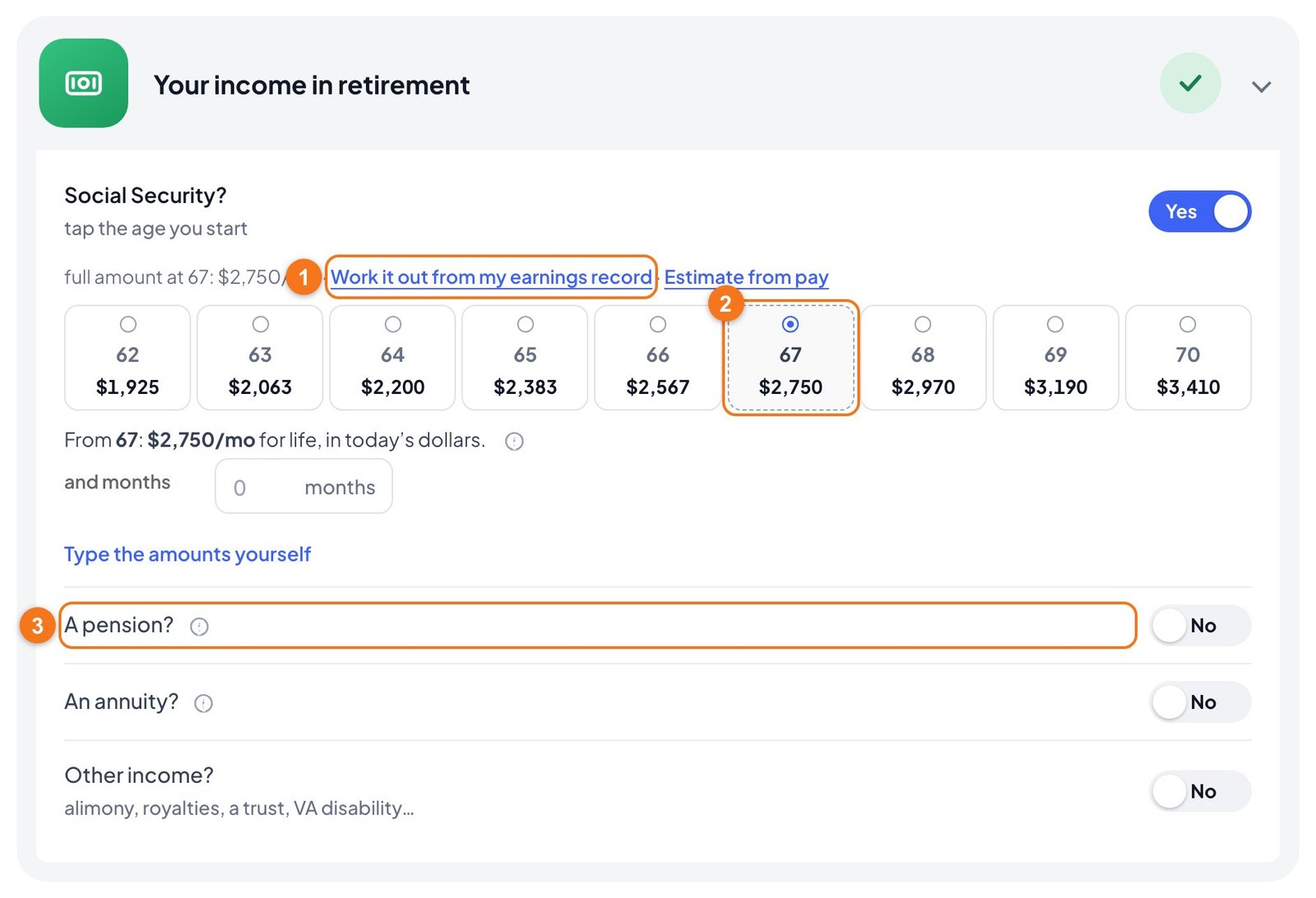
Your income in retirement
Enter your Social Security amount at full retirement age from your ssa.gov estimate. Or use Work it out from my earnings record or Estimate from pay.
Tap the age you plan to start. Each age shows its monthly amount in today's dollars.
Answer Yes to A pension, An annuity or Other income only if you have them. No needs nothing more.
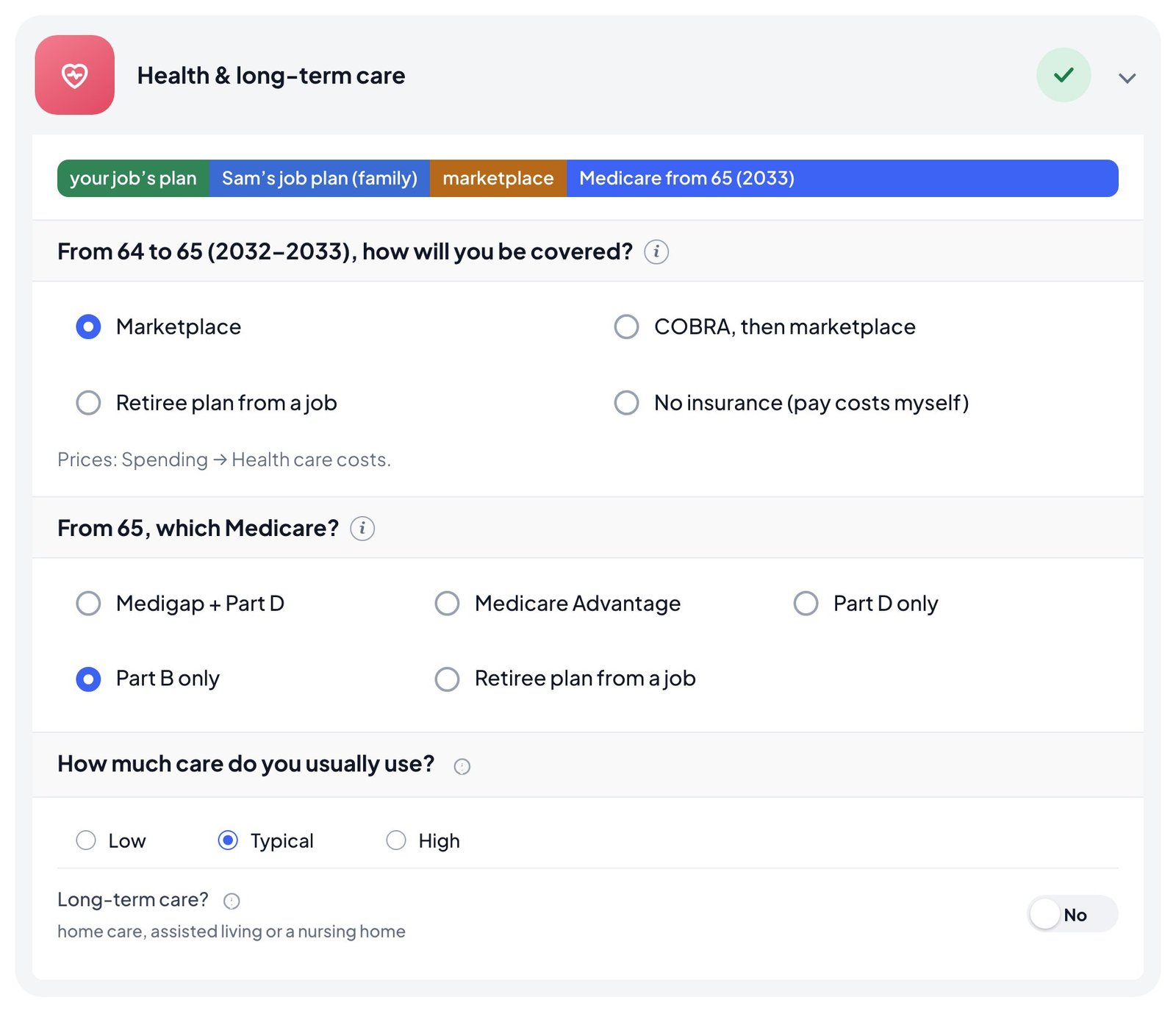
Health & long-term care
The colored bar shows who covers you and when. Below it:
Before 65: if you'll have years that no job's plan covers, choose a marketplace plan, COBRA then marketplace, a retiree plan, or no insurance.
From 65: choose your Medicare coverage.
How much care do you usually use? Low, typical or high.
Long-term care? Answer Yes to add home care, assisted living or a nursing home to the plan.
The last card, Your life insurance, is the same kind of Yes or No question. Click Next at the bottom of the step when you're done.
2Your spouse
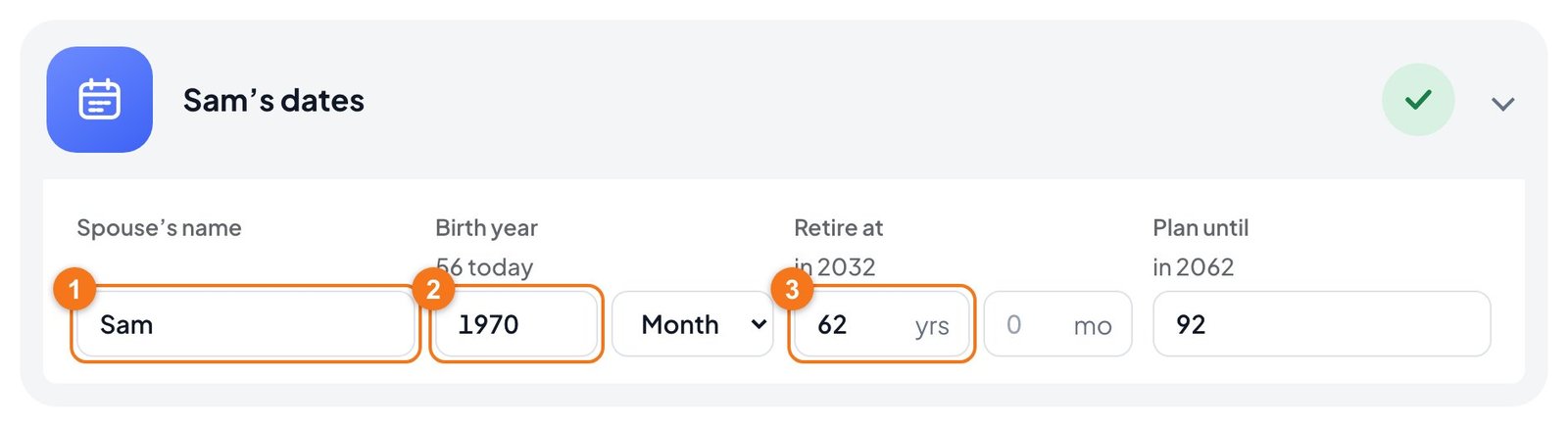
You'll only see this step if you chose Me and a spouse. Once you enter a name, the step takes it, which is why the pictures say "Sam". The cards are the same as yours, about your spouse.
Your spouse's name, which is optional.
Your spouse's birth year.
The age they'll retire.
Then fill in their work, income in retirement, and health care the same way you did yours.
3Savings
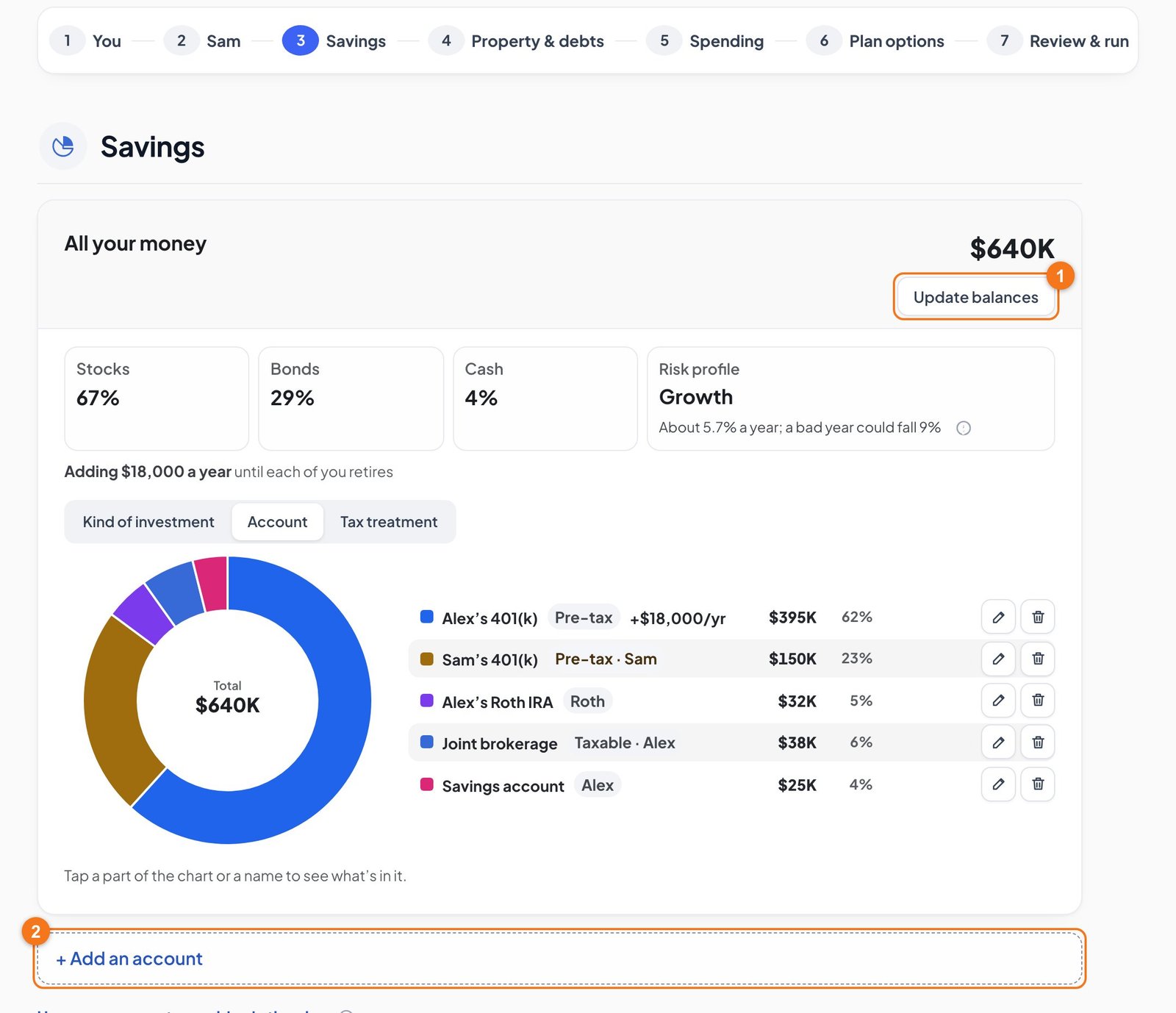
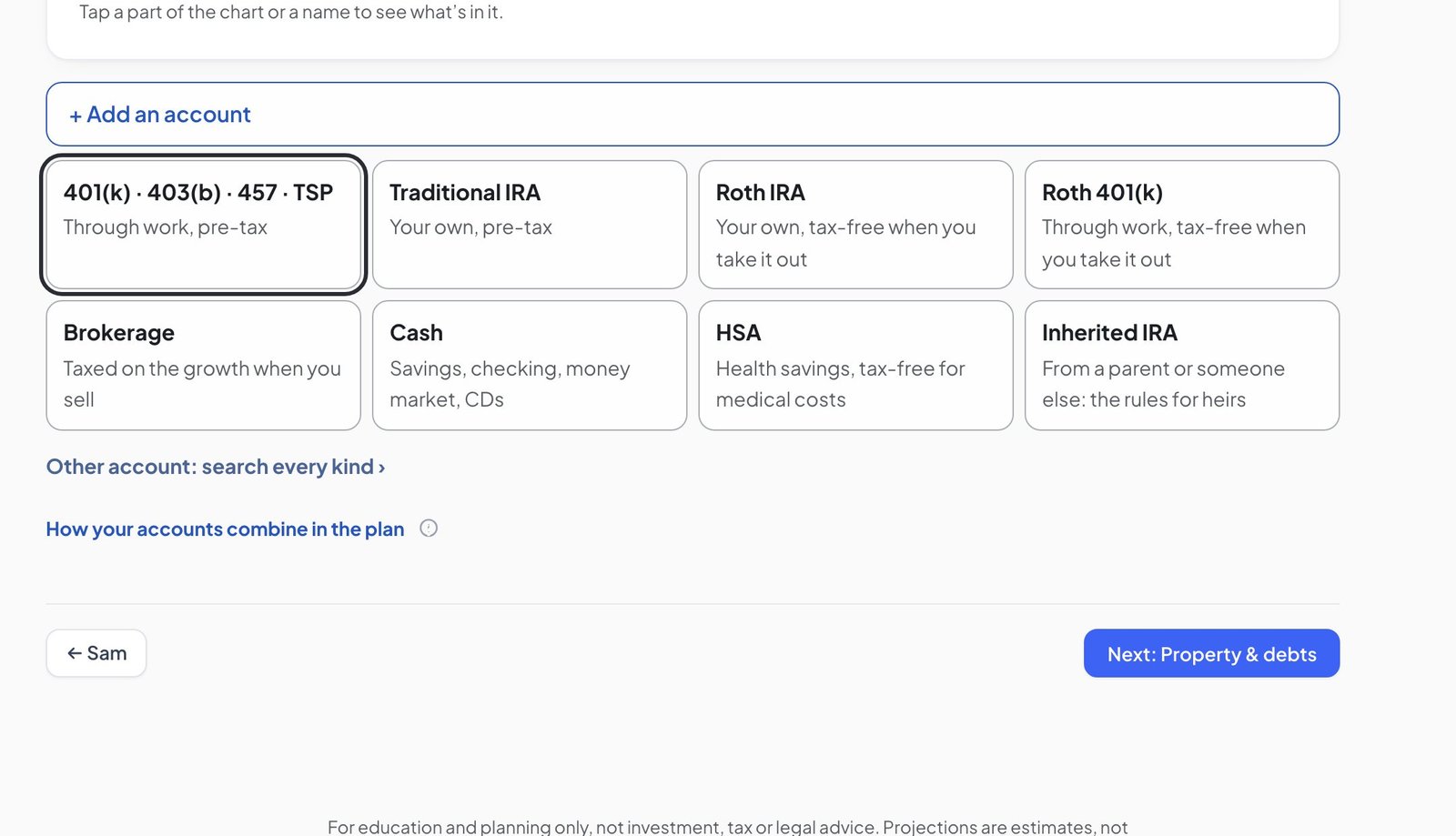
Add each account: 401(k), IRA, Roth, brokerage, cash, HSA, and your spouse's. All your money then shows them together, with your mix of stocks and bonds and a risk profile.
Update balances lets you change every balance at once, which is handy when you check in later.
+ Add an account starts a new one.
Add an account
Pick the kind of account first.
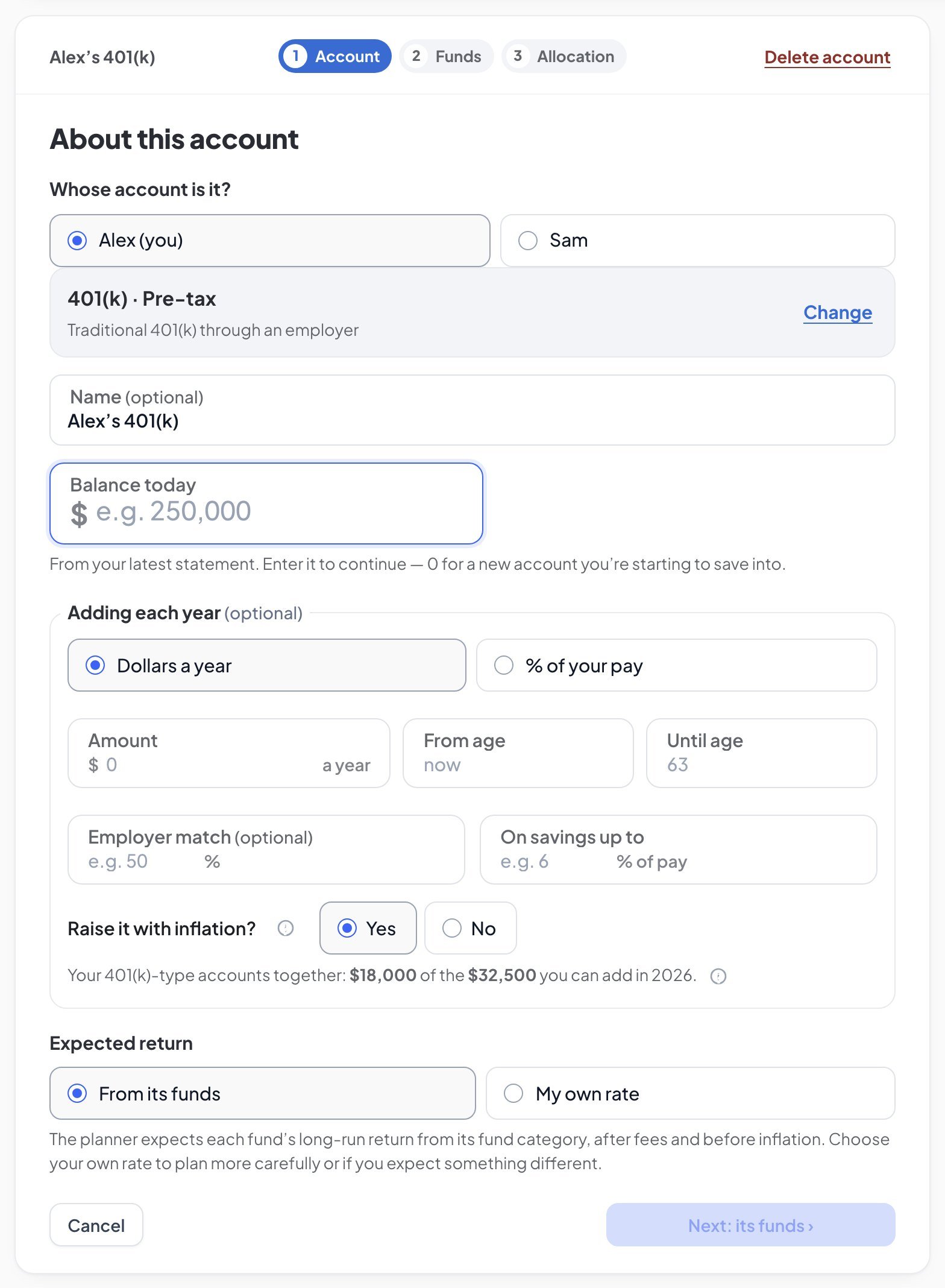
Then enter the account's details and click Next: its funds to say how it's invested.
Want every field explained?How to add your accounts walks through each one with Alex and Sam: whose account it is, adding funds and setting each percent.
You don't have to type in every fund. The planner can read a PDF statement, a photo or a screenshot of your holdings, and nothing leaves your browser.
4Property & debts
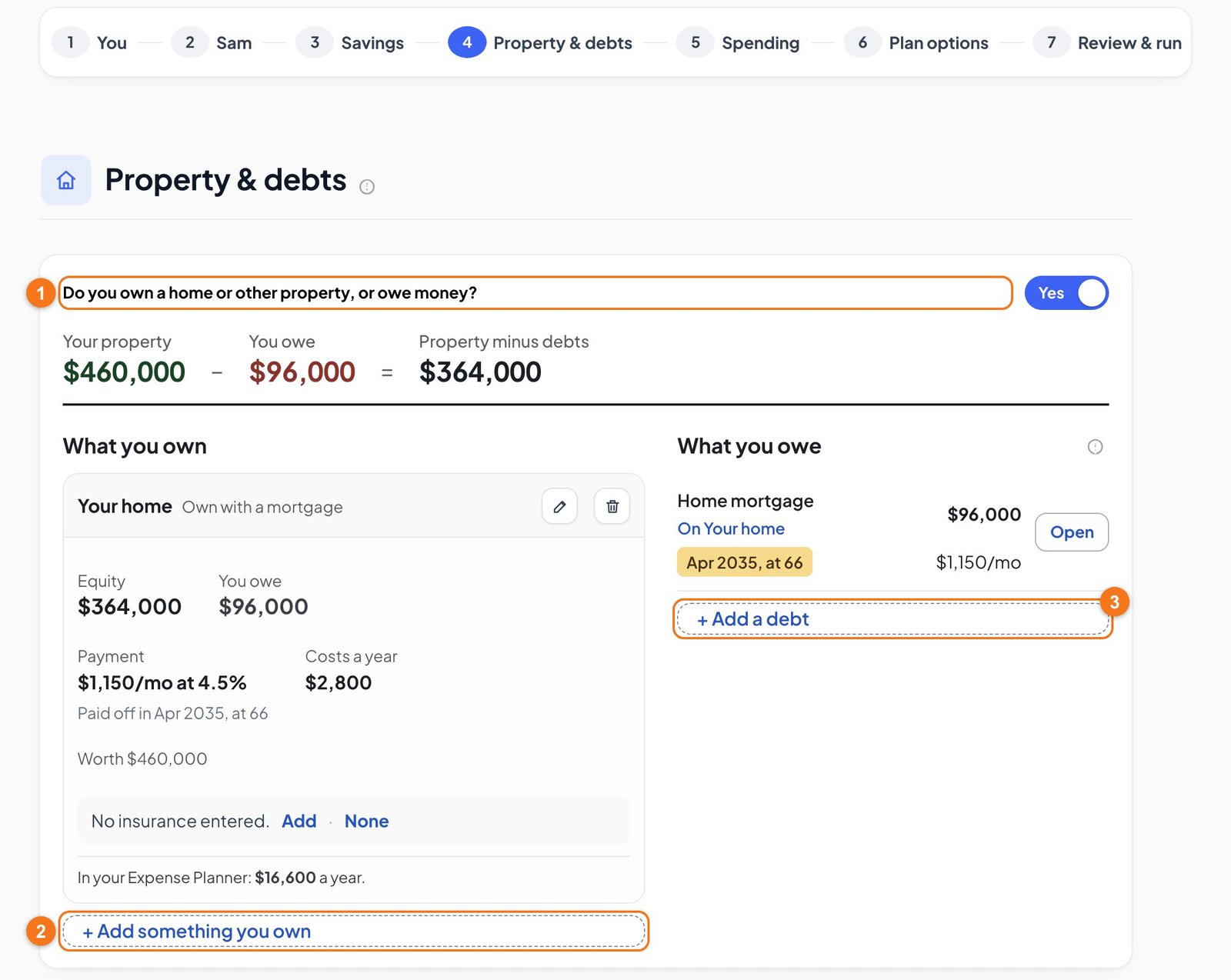
Answer the one question first. If you rent and owe nothing, No is a full answer and you can move on.
+ Add something you own adds a home, other property or anything else of value. A home has its value, mortgage, payment and yearly costs.
+ Add a debt adds car loans, cards and other loans.
At the bottom, Rental income? counts rent from a property you own.
5Spending
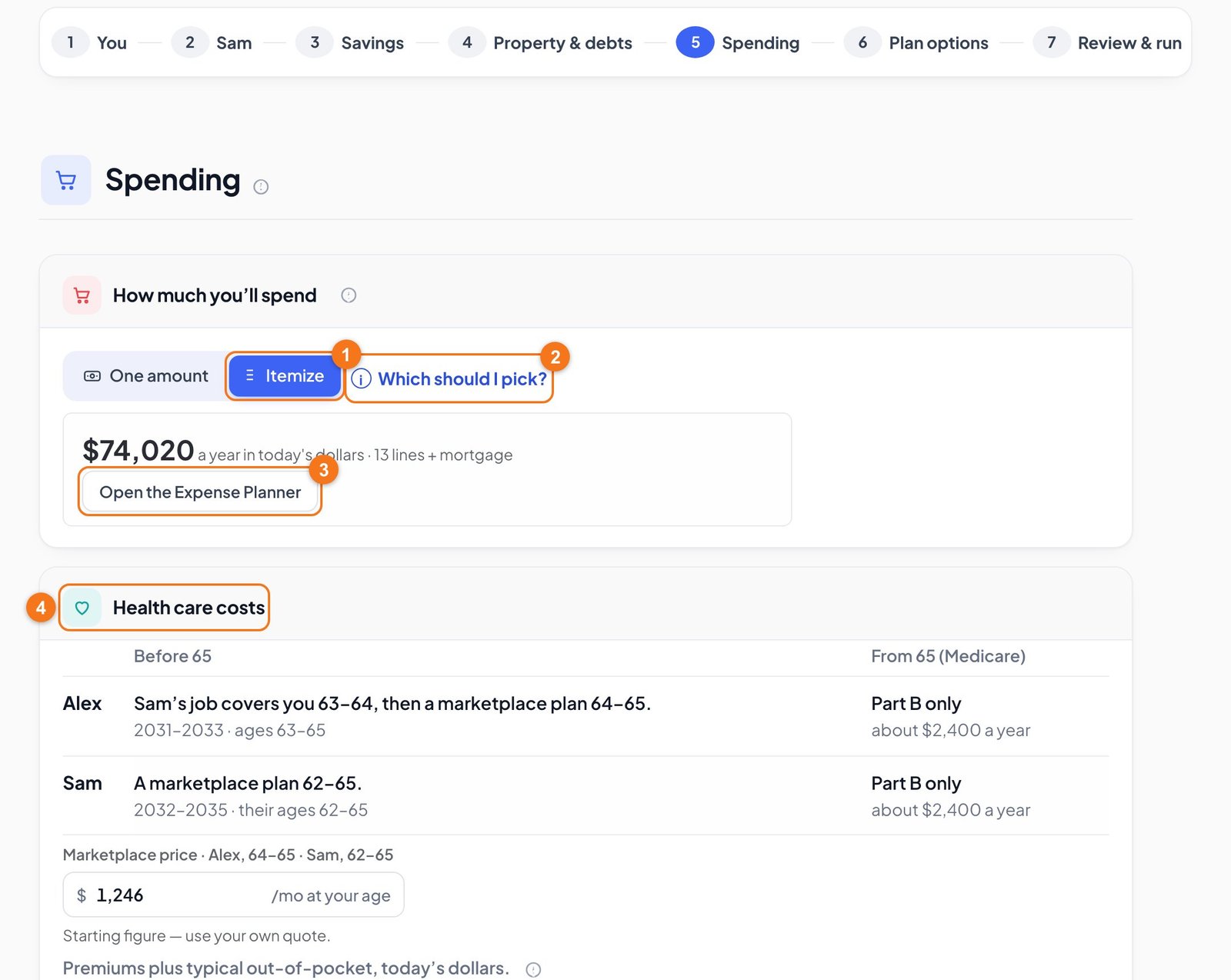
Choose One amount for everything you spend, including your home and loans, or Itemize to build a budget line by line.
Health care costs shows what each person's coverage costs, before and after 65.
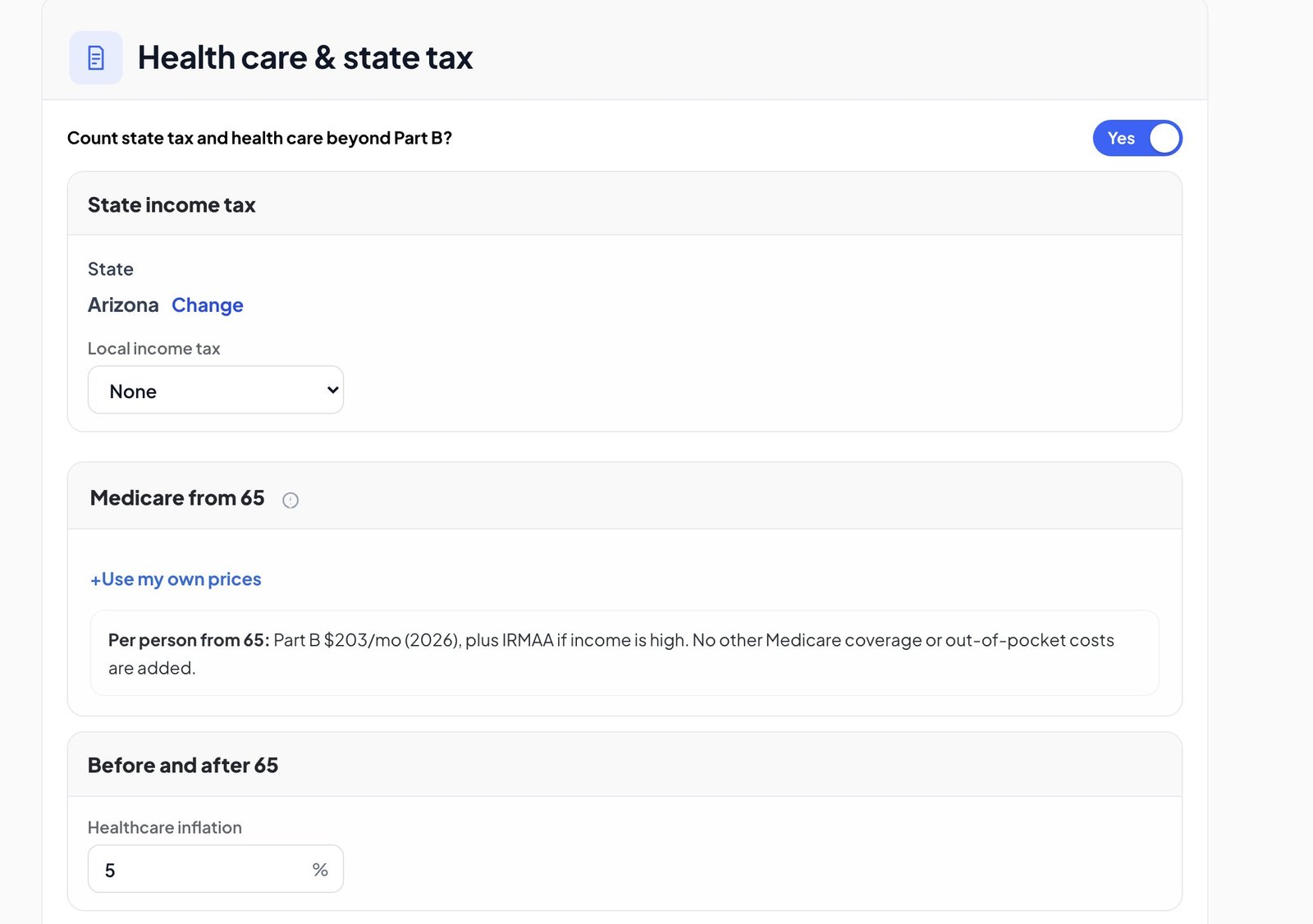
Health care & state tax
This counts your state's income tax, Medicare prices from 65 and healthcare inflation. It's on unless you turn it off. Leave it on for a result you can trust.
How you'll draw it
This shows how you'll take money out and which accounts pay first. Click Change to choose a different way. The default is fine to start with.
6Plan options
Everything here is optional, so you can skip this step and come back to it.
Options already in your plan are at the top. Change opens the settings right there, and the switch in the corner turns one off.
Not in your plan lists the rest, such as one-time money, Roth conversions, moving to another state and charitable giving. Each says what it does, with Add to include it.
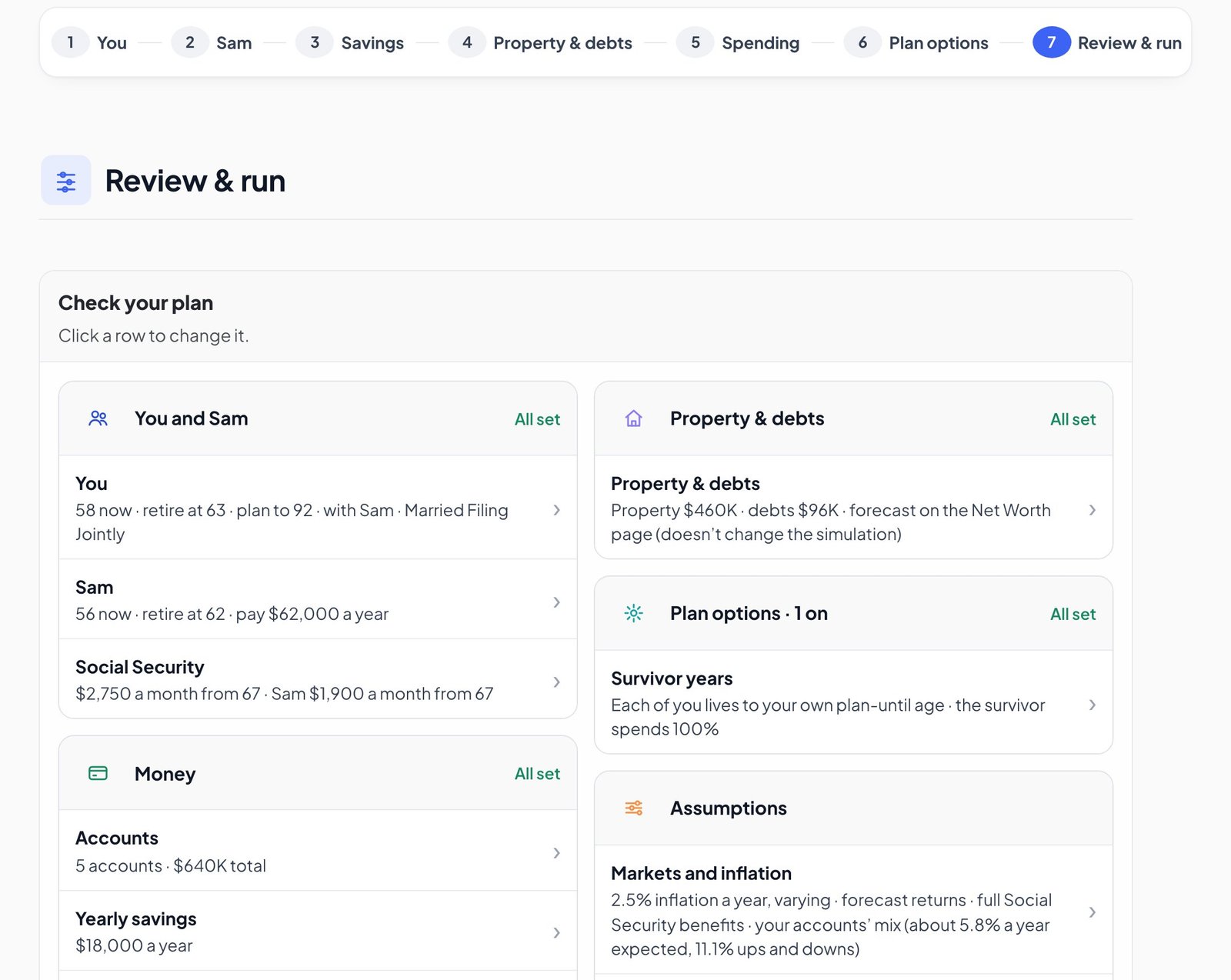
7Review & run
Check your plan lists everything the simulation uses. Each card says All set or how many parts need you. Click any row to change it.
The step ends with your result so far and one button.
Click See results. If something required is missing, the button says how many answers are left, and a list takes you to each one.
You don't need to press Run again. After your first result, any change updates it automatically. The bar at the bottom of the screen always shows your latest number.
Understand your results
These pages are all under Results in the sidebar.
Projections: will your money last?
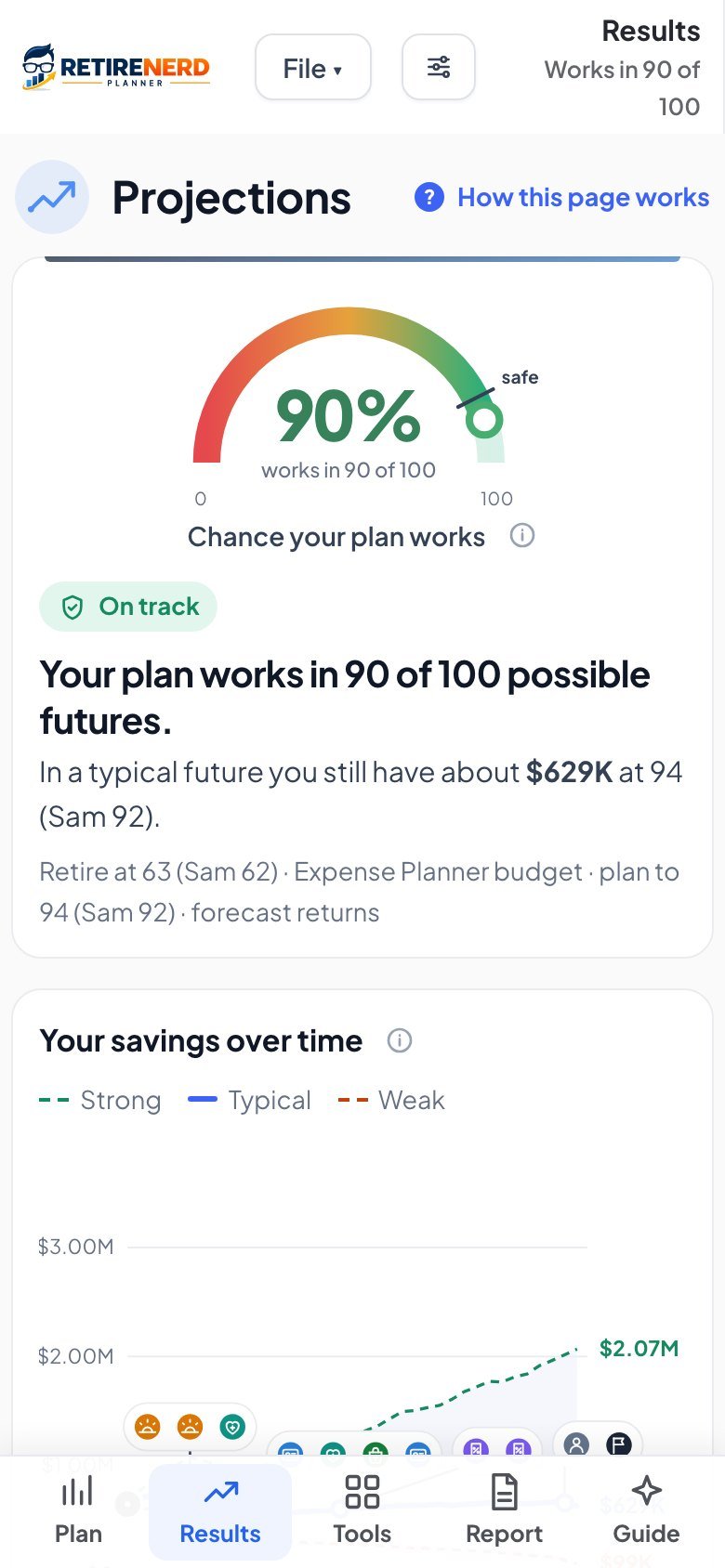
This is your answer. The planner runs your plan through 2,000 possible market futures, and the percentage is how many of them work to the end of your plan.
The chance your plan works. 85% or more reads On track, 65% to 84% reads Workable, not comfortable, and below 65% reads At risk.
Your savings over time shows strong, typical and weak markets. The icons mark events like retirement, Medicare and Social Security.
How this page works opens the User Guide for this page. Most pages have one.
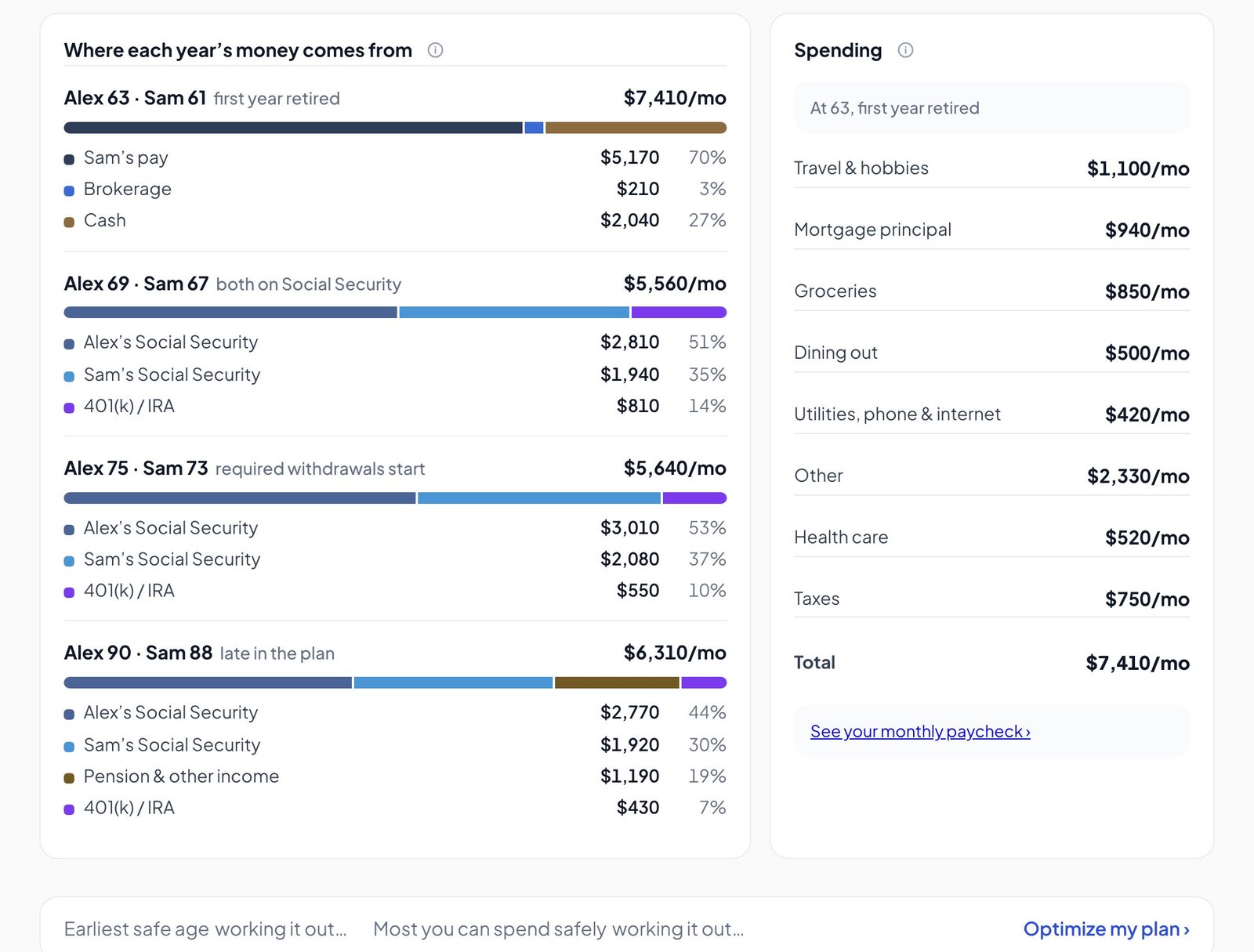
Further down, you can see where each year's money comes from and what you'll spend it on.
Retirement Paycheck: what can I spend?
This turns your plan into the number you'd actually live on: monthly spending money after taxes.
Open Retirement Paycheck in the sidebar.
Choose what "safe" means to you: the share of futures the plan must work in. The page then says how your paycheck compares with that safe level.
Your paycheck, year by year shows how it changes and what pays for it.
Cash Flow: where does the money go?
Bars above the line are money coming in, and bars below it are money going out, for every retirement year.
Open Cash Flow in the sidebar.
Switch between weak, typical and strong markets.
Switch between today's dollars and future dollars.
Explain this chart gives you a plain-English reading from your own numbers.
Hover over or tap a year for its details. Click it to trace that year in the next chart. Every year in numbers at the bottom has the full table.
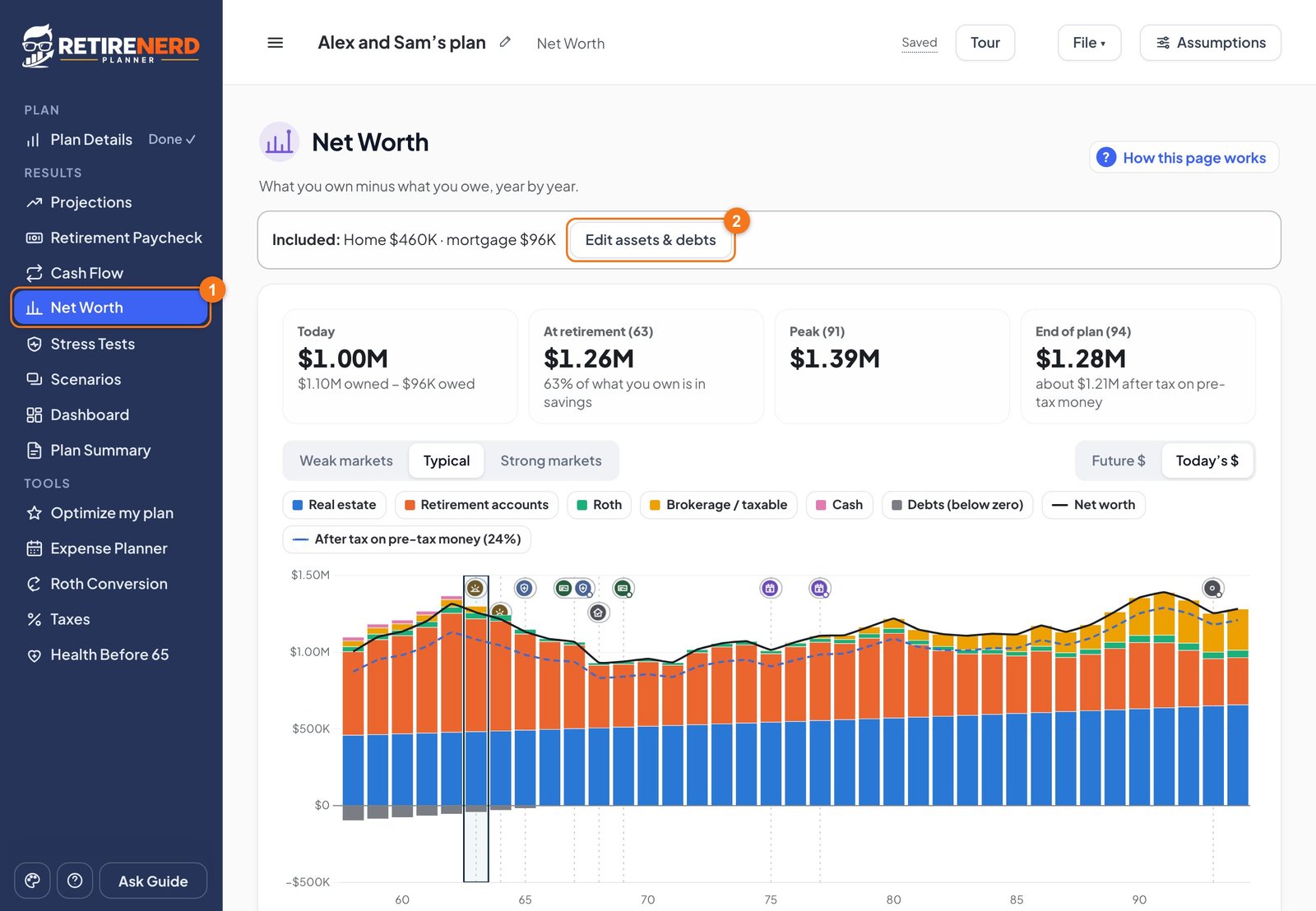
Net Worth: what will I own?
Everything you own minus everything you owe, today and every year to the end of your plan.
Open Net Worth in the sidebar.
Edit assets & debts changes what's included.
Further down, the Net worth tracker lets you record the real figure over time.
Dashboard: the whole plan on one page
Open Dashboard in the sidebar for a quick look at how often the plan works, your safe paycheck, your savings at retirement, lifetime tax, key ages and what could go wrong.
Plan Summary: a report to read, print or share
Your plan as a conversation: the questions people ask, answered with your own numbers. Click a question to jump to it.
Open Plan Summary in the sidebar.
Print or save as PDF makes a printable report.
Copy as text copies the summary to paste into a message.
Share sends it to someone, such as your advisor.
Test and improve your plan
Try changes without losing your plan. If the sidebar shows a link such as Show 4 tools, click it to see them all.
Stress Tests: what if markets go badly?
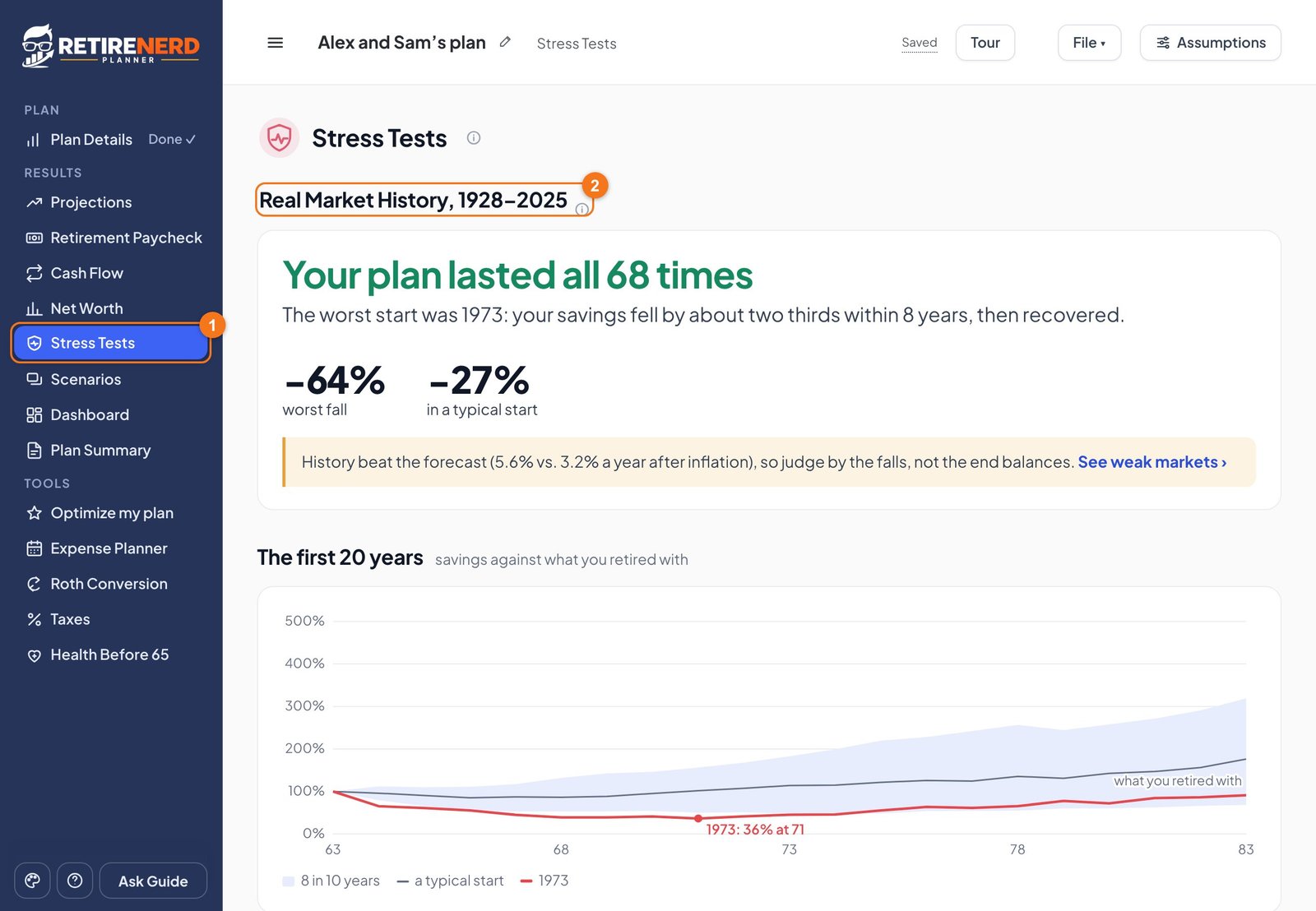
This replays your plan through real market history, as if you'd retired in each year since 1928, including the worst times to start.
Open Stress Tests in the sidebar.
Real Market History shows how many times your plan lasted and how far your savings fell. Below it are retiring into a crisis, prices rising fast and the order of bad years.
Scenarios: compare two versions of your plan
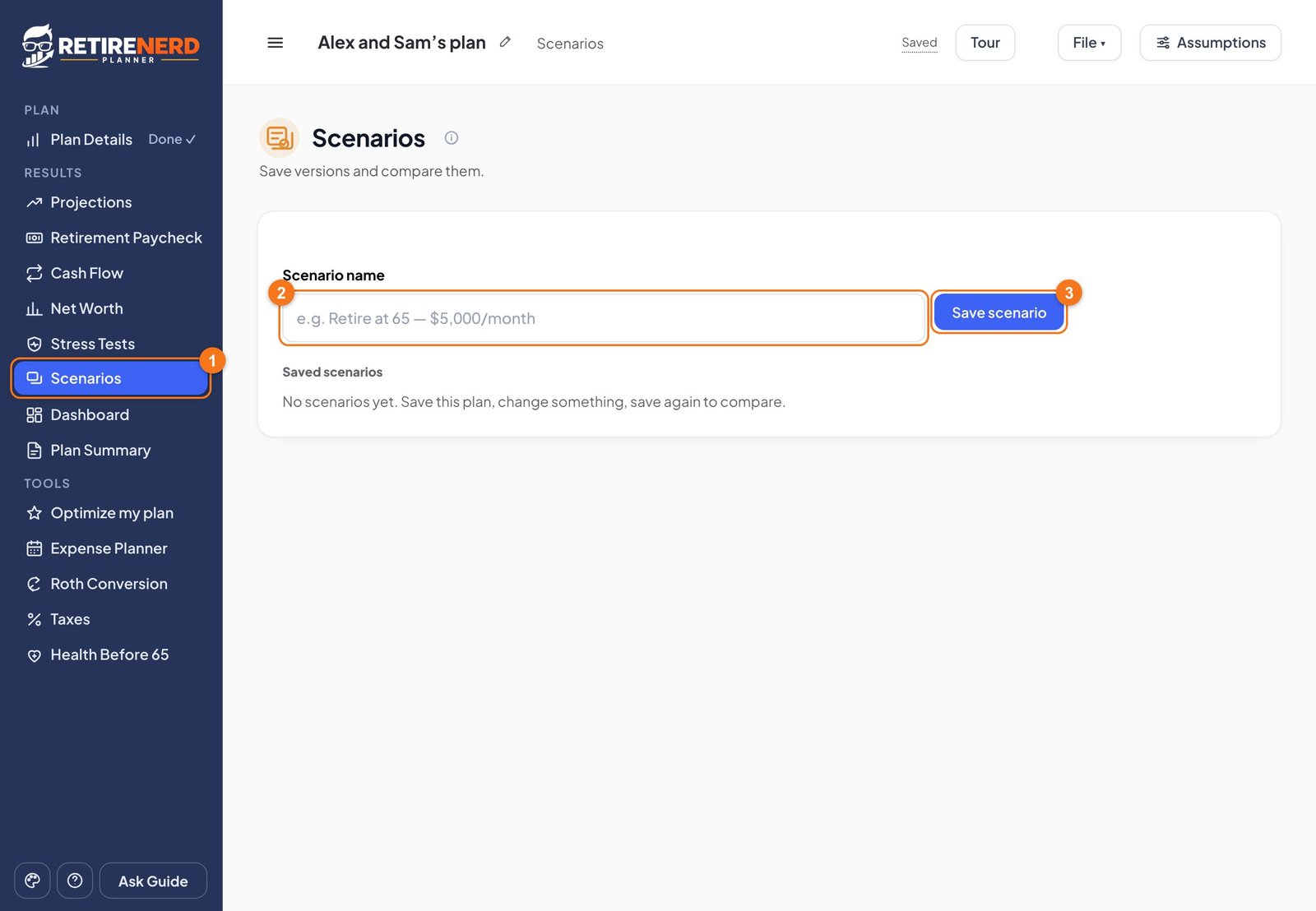
Open Scenarios in the sidebar.
Give your current plan a name, such as "Retire at 63".
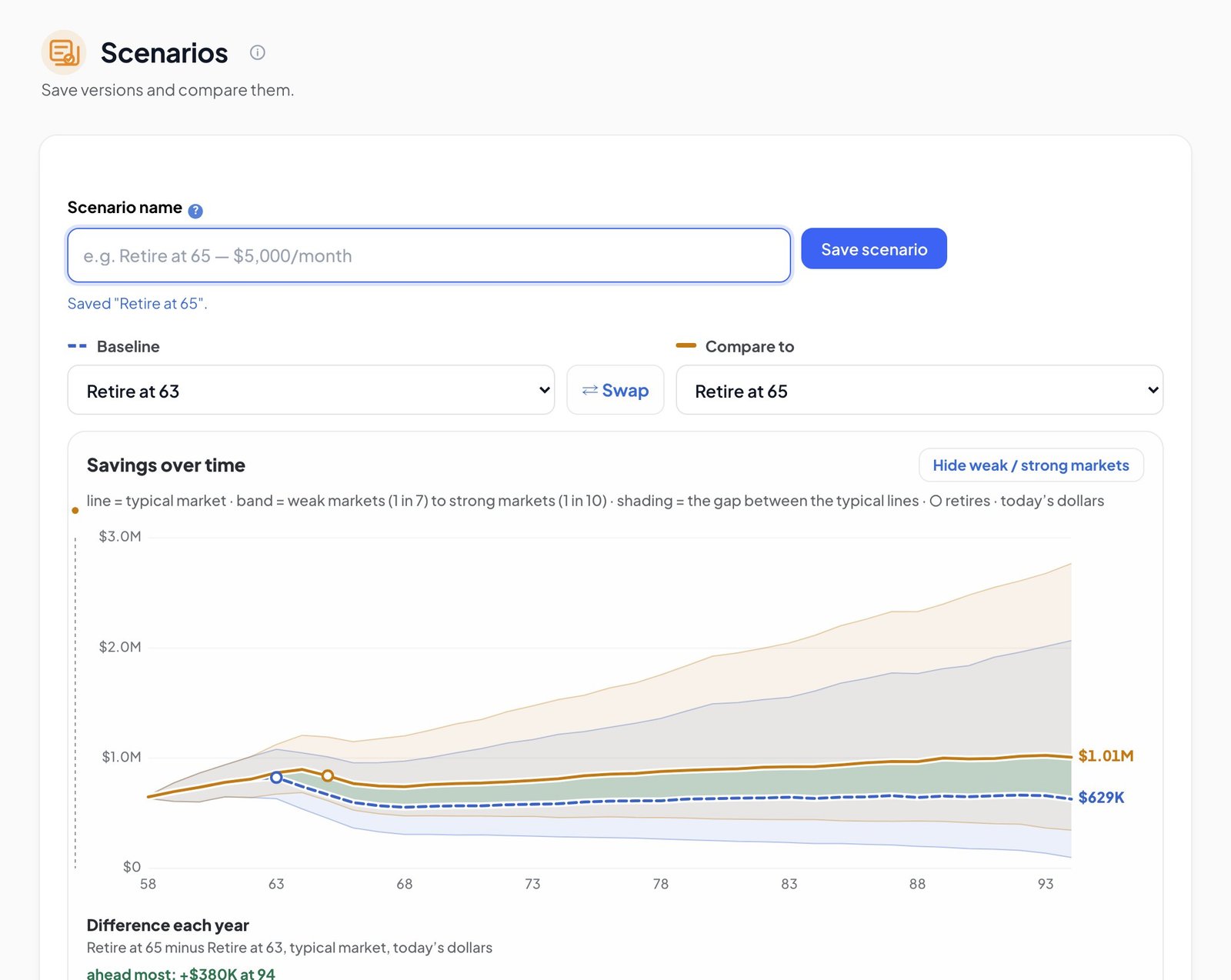
Click Save scenario. Then change something in your plan, like your retirement age, and save again under a new name.
Choose any two to compare, and the page shows what got better and what got worse.
A saved scenario keeps the whole plan, so Load puts all of it back.
Optimize my plan: find better choices
The planner tries the choices on your whole plan and shows what works best. It opens once your plan is finished.
Open Optimize my plan in the sidebar.
Keep at least sets the chance every answer must keep.
Your best strategy looks at claiming ages, retirement, Roth conversions and which accounts are spent first, all together.
Click Run and wait for the answer. The cards below answer one question at a time, such as when to start Social Security and how much you can safely spend.
These answers test your plan as entered. They're for education, so check big decisions with a qualified professional.
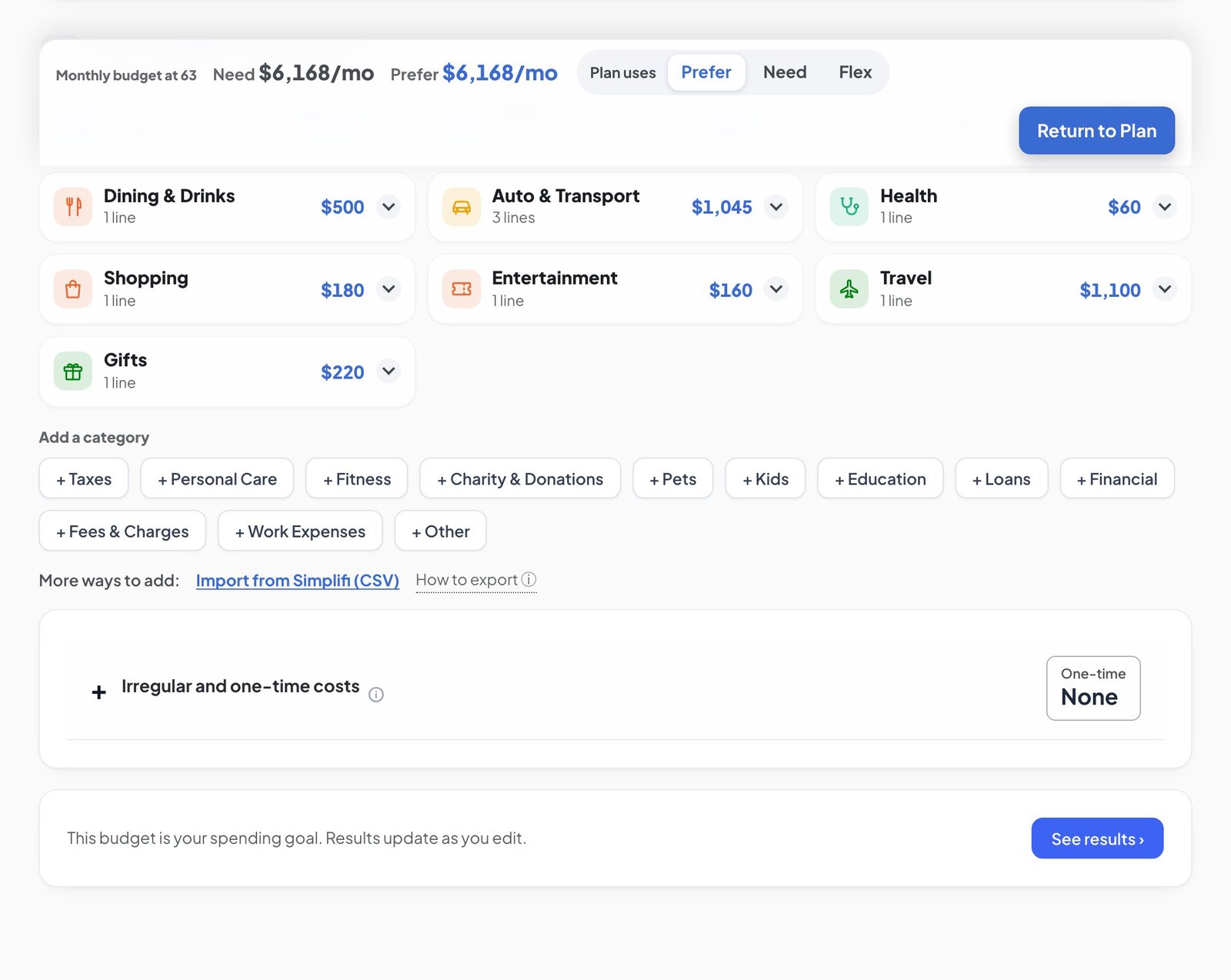
Expense Planner: build a budget
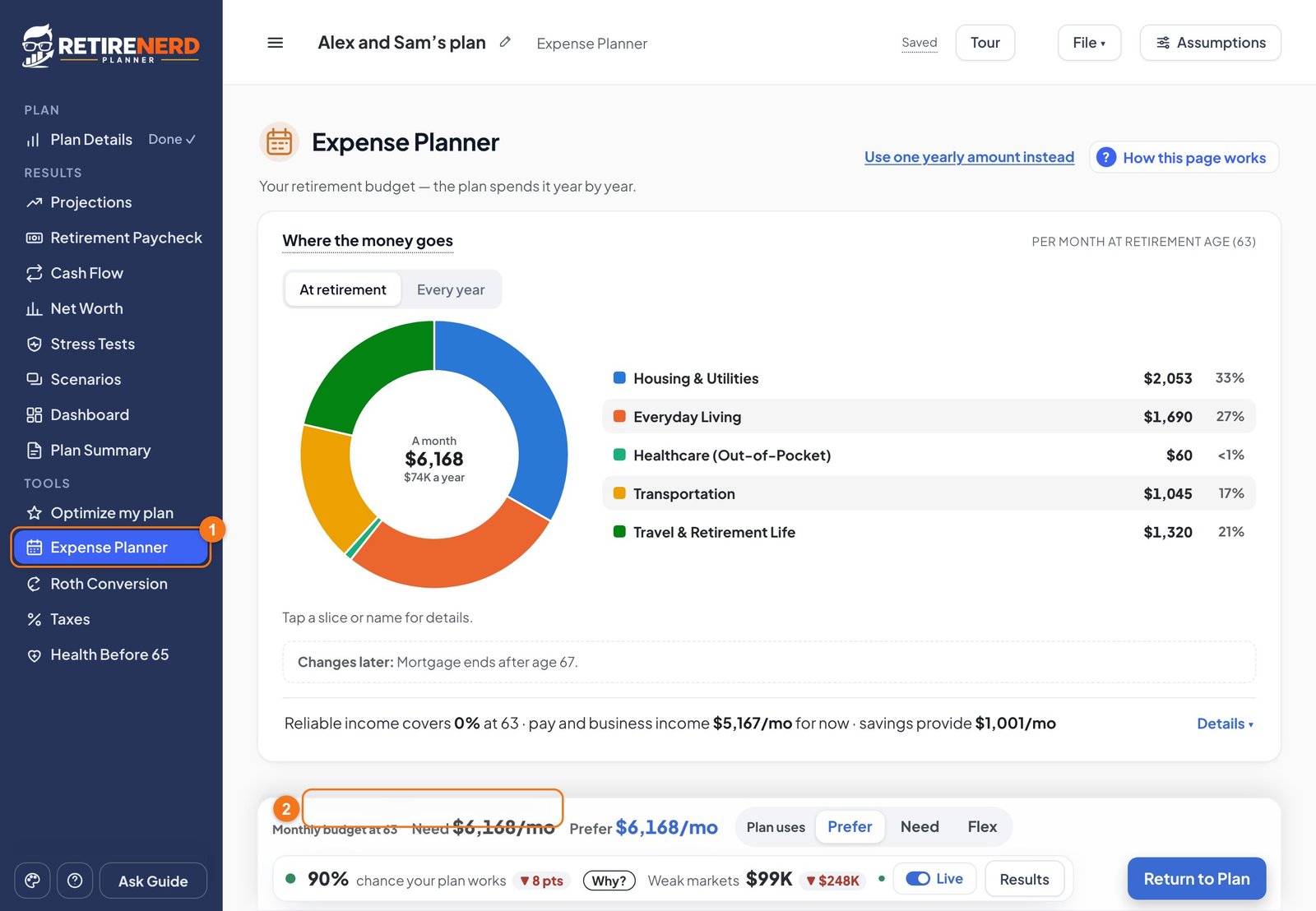
A budget gives the plan a better number than one yearly guess. You can say what you need and what you'd prefer, and when each cost starts and stops.
Open Expense Planner in the sidebar. To turn it on, choose Itemize in Step 5.
Fill in Your budget, line by line. Lines left at $0 are ignored.
Add more categories with the buttons, or import your spending from Simplifi. The budget becomes the spending your plan uses, and results update as you go.
Roth Conversion: is it worth it?
A conversion moves pre-tax money to a Roth. You pay tax now so it can grow tax-free later. This page shows what it would do for your plan.
Open Roth Conversion in the sidebar.
The answer at the top compares converting and not converting. To put conversions in your plan, turn on Model Roth conversions and choose your settings.
How it adds up shows the math, and Try other choices at the bottom compares other amounts.
Taxes: what you'll pay and how to pay less
Open Taxes in the sidebar. The top shows your lifetime taxes and your highest-tax year.
Your taxes year by year shows each year's tax and bracket. Hover over or tap a year for its details.
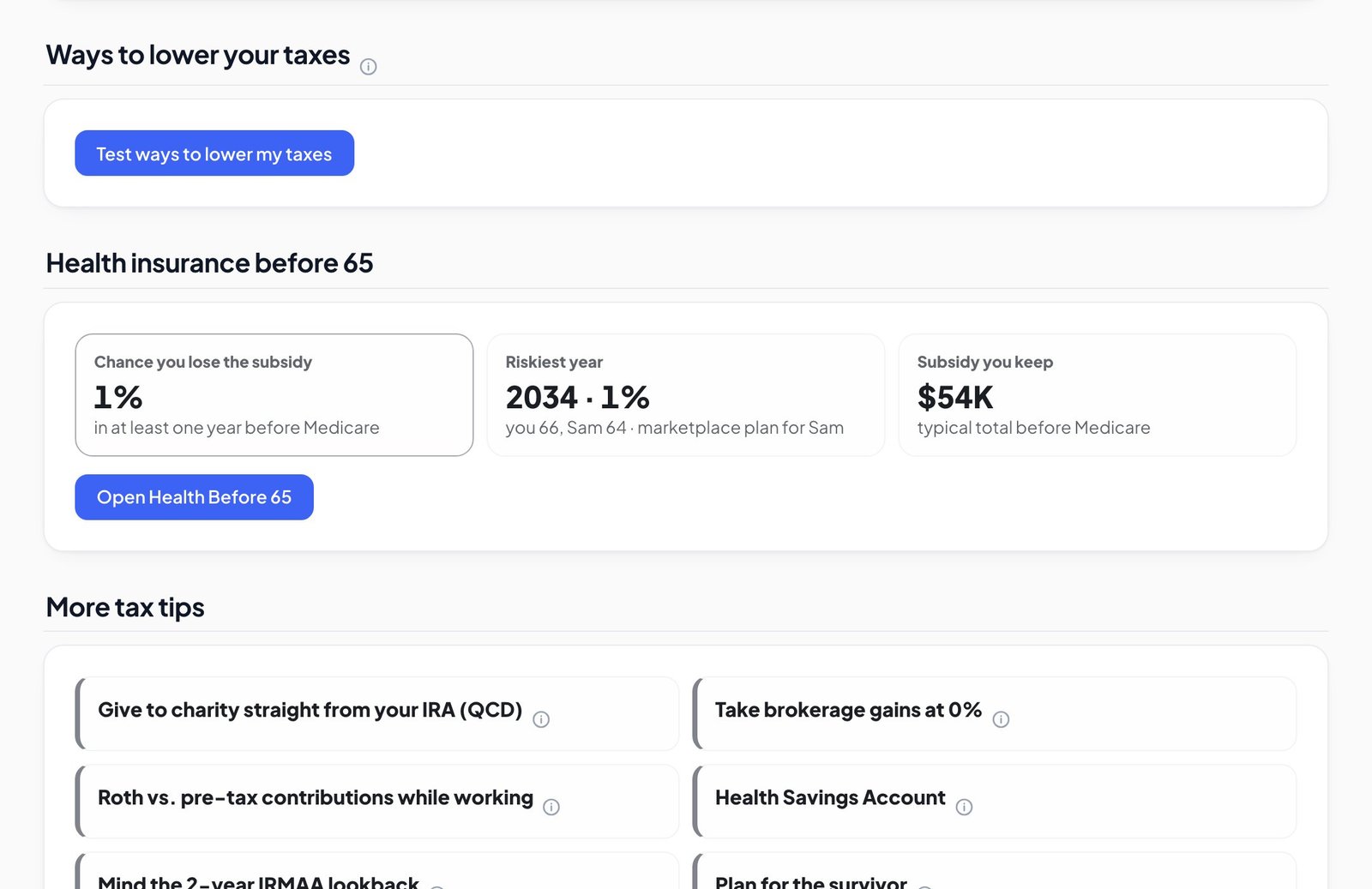
Further down, Ways to lower your taxes tests changes on your own plan.
Health Before 65: keep the ACA subsidy
This appears when someone in your plan buys a marketplace health plan before Medicare. It shows your cost each year and how close your income gets to the point where the subsidy is lost.
Open Health Before 65 in the sidebar.
Further down, Protect the subsidy tells you whether it's worth turning on for your plan.
Keep your plan safe and get help
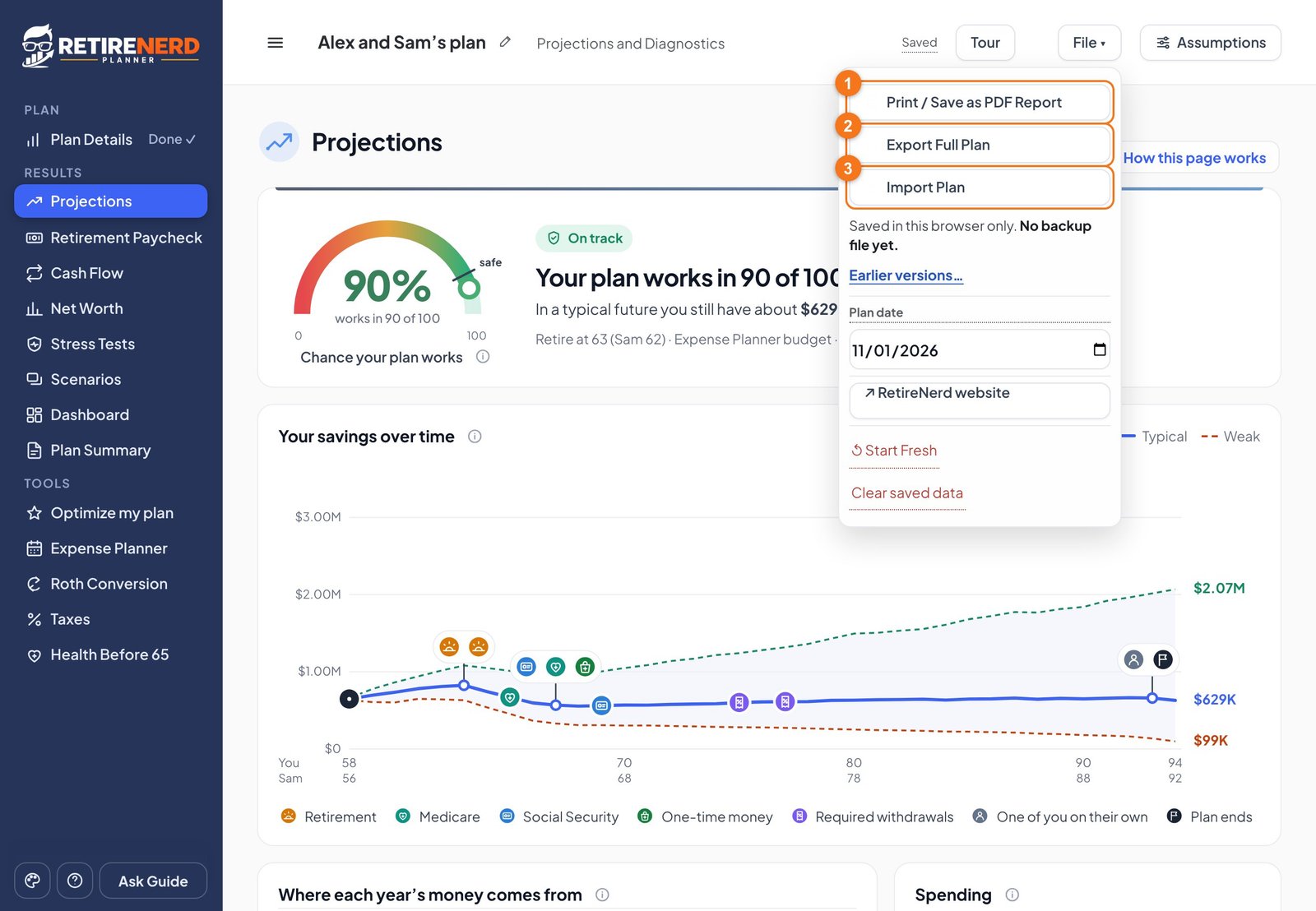
Save and back up your plan
Your plan saves itself in this browser, and nothing is sent anywhere. But clearing your browsing data or changing devices can lose it, so keep a backup file.
Print / Save as PDF Report makes the PDF report.
Export Full Plan downloads your backup file. Keep it on your computer, phone or cloud drive.
Import Plan opens a backup file, including on another device.
The File menu is at the top right of every page. It also has earlier versions of your plan, so you can go back. After you've worked on a plan, the planner reminds you to back it up:
Using Safari? It removes a site's saved data after about 7 days without a visit, so a backup file matters even more for a plan you check once a year.
Ask the Guide
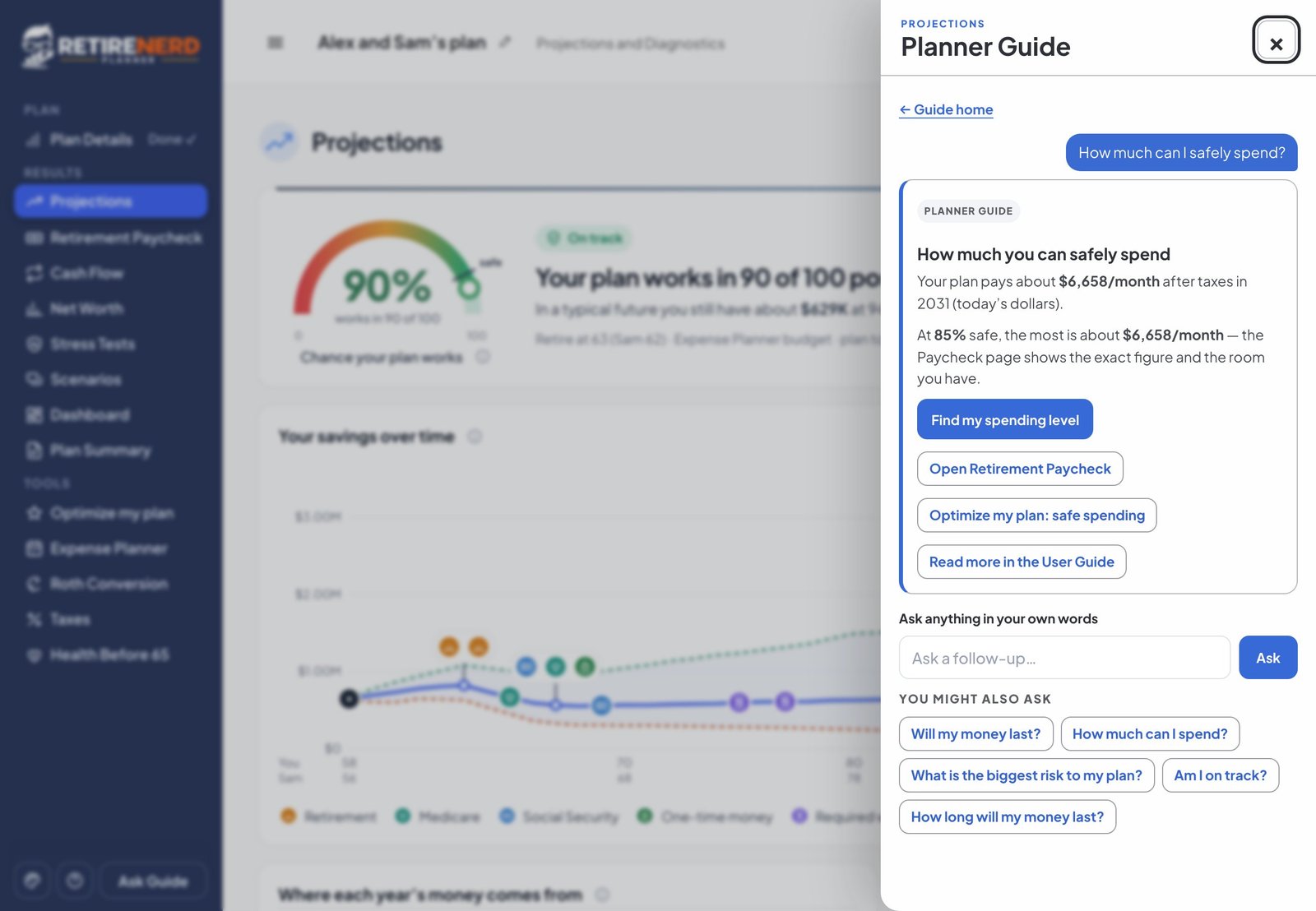
The Guide knows your plan and answers in your own numbers. It runs in your browser and nothing is sent anywhere.
Click Ask Guide at the bottom of the sidebar. On a phone, use the Guide tab.
Type a question in your own words, such as "How much can I safely spend?" or "Where do I enter my 401(k) balance?"
Use it on a phone
Everything works on a phone. The bar at the bottom takes you to Plan, Results, Tools, Report and Guide. A plan stays in the browser where you made it, so use a backup file to move it between your computer and your phone.