Add an account, put its funds in, split it by percent and say whose it is. We follow Alex and Sam as they add all five of their accounts in RetireNerd Planner, one field at a time.
Open the planner in another tab and follow along with your own accounts. The orange numbers in each picture match the numbered list under it. Click or tap a picture to see it larger.
Each field says what it is, what to enter and whether you have to fill it in. Alex and Sam are made up, and the funds they use are examples, not recommendations.
Before you start
What Alex and Sam will add
Alex and Sam have already filled in Step 1 (You) and Step 2 (Sam). That's why their names appear on the buttons later on. If you haven't done those steps, do them first.
Account
Whose
Balance
What this part teaches
Alex's 401(k)
Alex
$395,000
Every field, three funds, setting percents
Sam's 401(k)
Sam
$150,000
A spouse's account, saving a % of pay, using only a stock and bond mix
Alex's Roth IRA
Alex
$32,000
What's different in a Roth, a target-date fund
Joint brokerage account
Both
$38,000
Joint ownership, what you paid in, one company's stock
Savings account
Alex
$25,000
Cash, the interest it earns, keeping money aside
What to have nearby
Your latest statement for each account. It has the balance and the funds you hold.
How much you add to each account a year, if you're still saving.
Your employer's match, if your job has one. Your plan's website or benefits office can tell you.
Don't have it all? Only the balance is needed to move on, and the planner saves as you type. You can leave and come back to finish.
Words you'll see
Account
A place that holds your money, like a 401(k) at work or a savings account at a bank.
Balance
How much money is in the account today.
Fund
An investment that holds many stocks or bonds at once. One account can hold several funds.
Ticker
A fund's short code, usually 3 to 5 letters, like FXAIX. It's on your statement.
Fund category
The group a fund belongs to, based on what it invests in, like Large Blend or Intermediate Core Bond. It sets the return and risk the planner expects from the fund.
Expense ratio
The fund's yearly fee, as a percent. It comes out of the fund every year.
Allocation
How the account's money is split between its funds. The percents must add up to 100%.
Pre-tax
Money you haven't paid income tax on yet. You pay the tax when you take it out, and required withdrawals apply.
Roth
Money you've already paid tax on. Withdrawals are tax-free under the Roth rules.
Taxable
A regular brokerage account. Its dividends and interest are taxed each year, and the gain when you sell.
Employer match
Money your employer adds to your 401(k)-type account when you save into it.
Alex's 401(k), every field
This is the longest one. The other accounts repeat most of it.
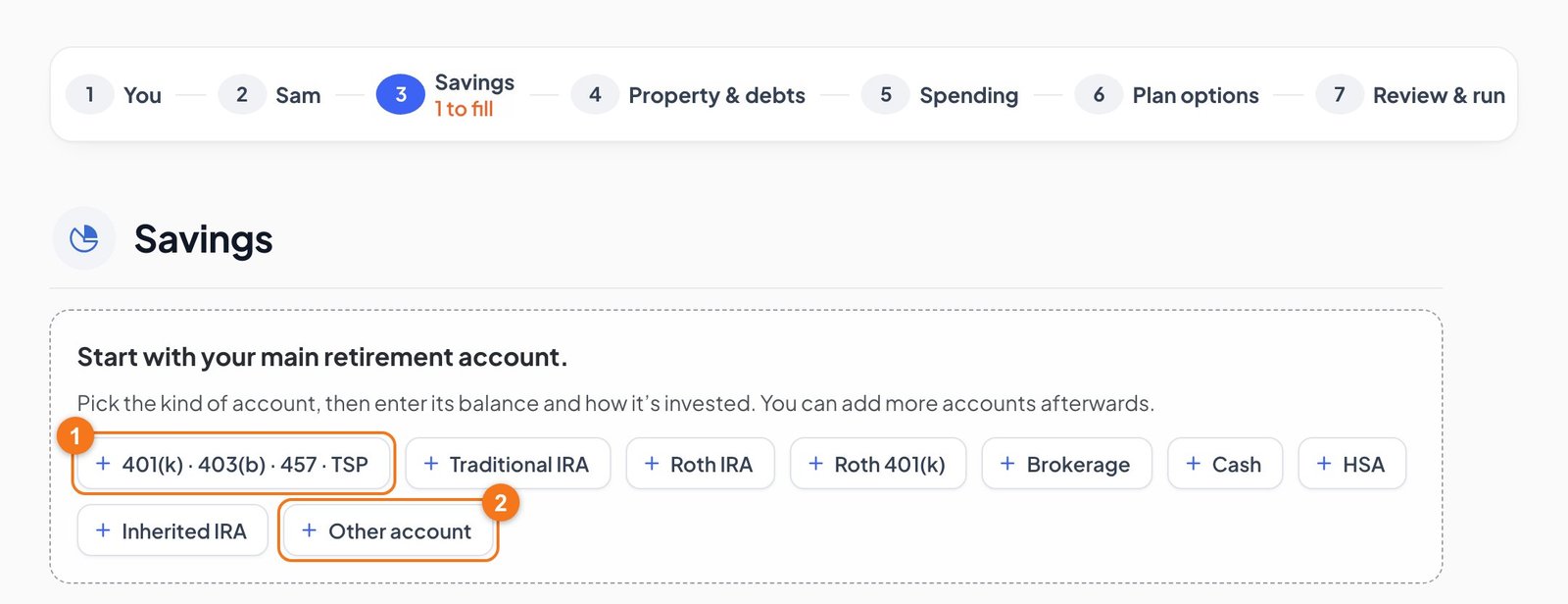
1Open Savings and pick a kind
Go to Plan Details and click Savings, which is step 3 in the row across the top.
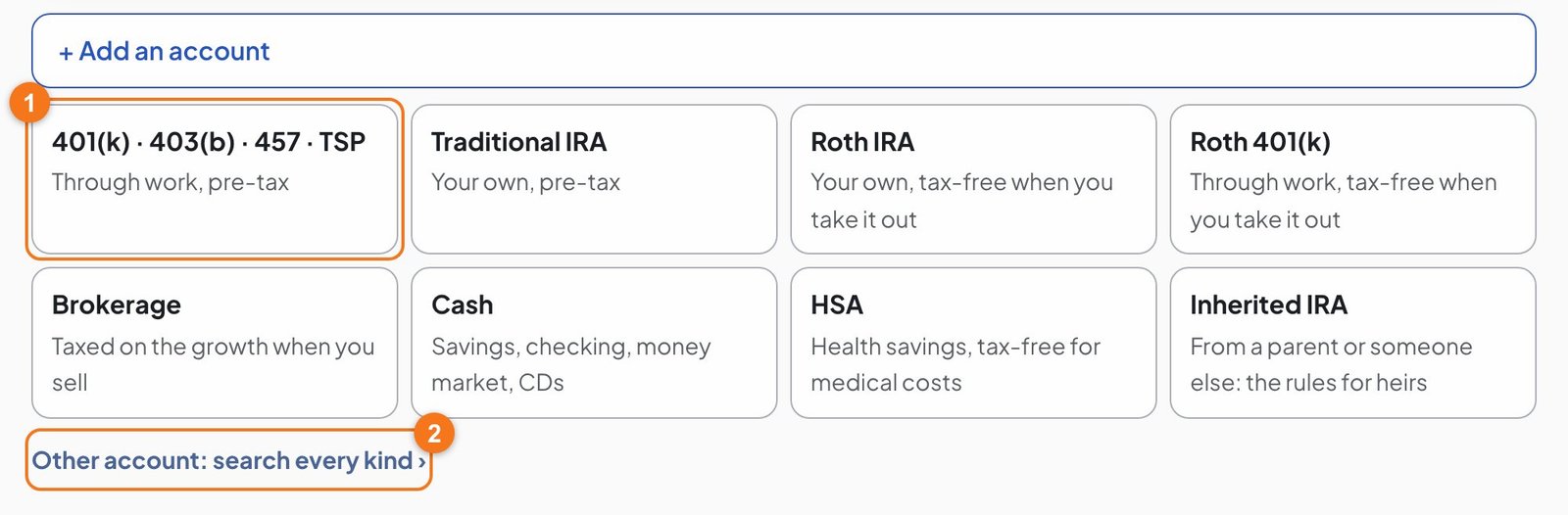
Pick the kind of account you're adding. The table below helps you choose. Alex clicks 401(k) · 403(b) · 457 · TSP.
Other account is for anything not on a button. See Any other kind.
Button
Pick it for
401(k) · 403(b) · 457 · TSP
A traditional plan through your job. You can say exactly which one in the next step.
Traditional IRA
An IRA you opened yourself, including a rollover IRA from an old job.
Roth IRA
A Roth IRA you opened yourself.
Roth 401(k)
The Roth money in a plan through your job.
Brokerage
A regular investment account, not a retirement account.
Cash
Savings, checking, a money market account or CDs.
HSA
A health savings account.
Inherited IRA
An IRA or Roth IRA you inherited from a parent or someone else, not your spouse.
One 401(k) with both kinds of money? If your plan holds traditional and Roth money, add them as two accounts: one 401(k) and one Roth 401(k). They're taxed differently.
2Say whose account it is
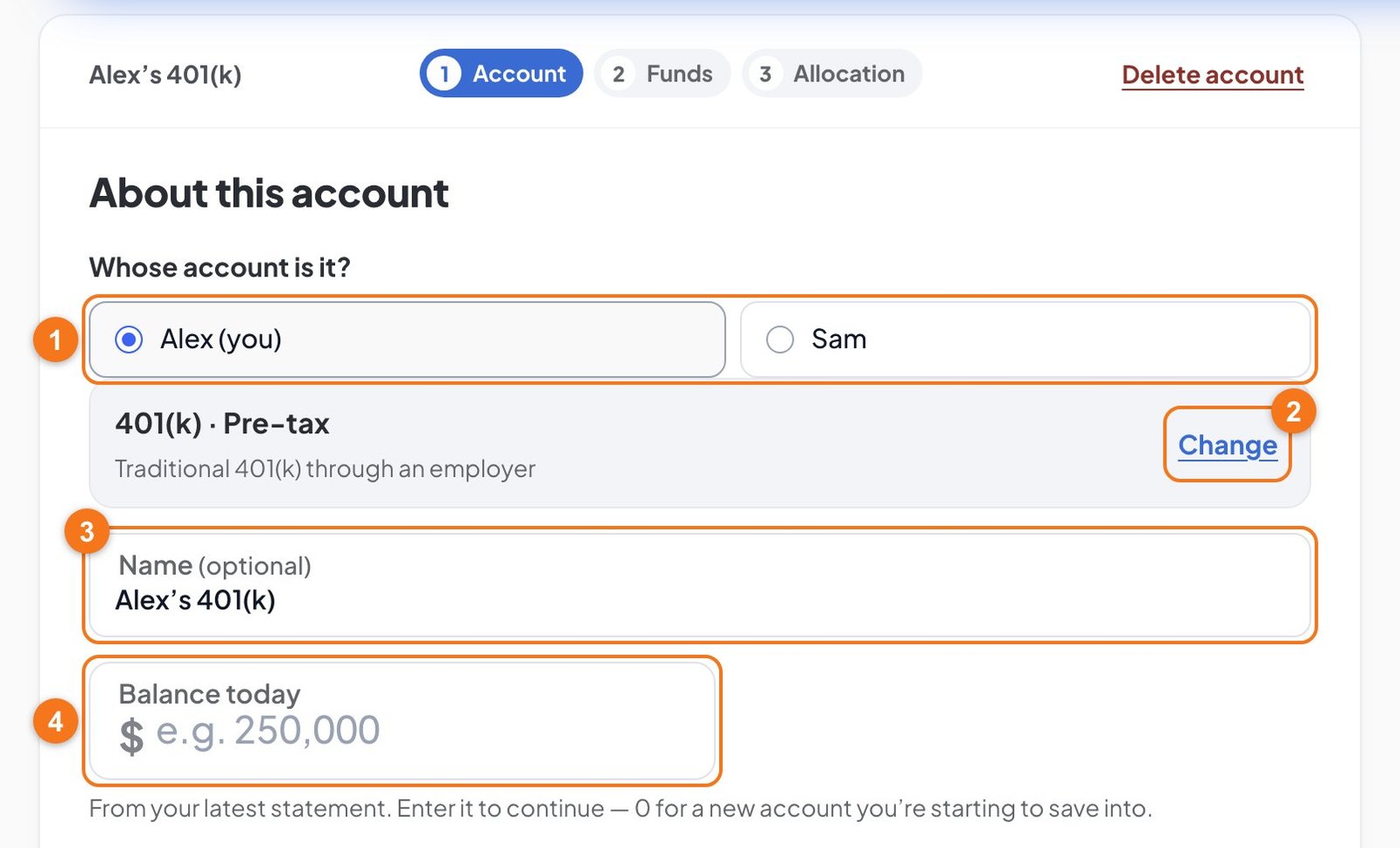
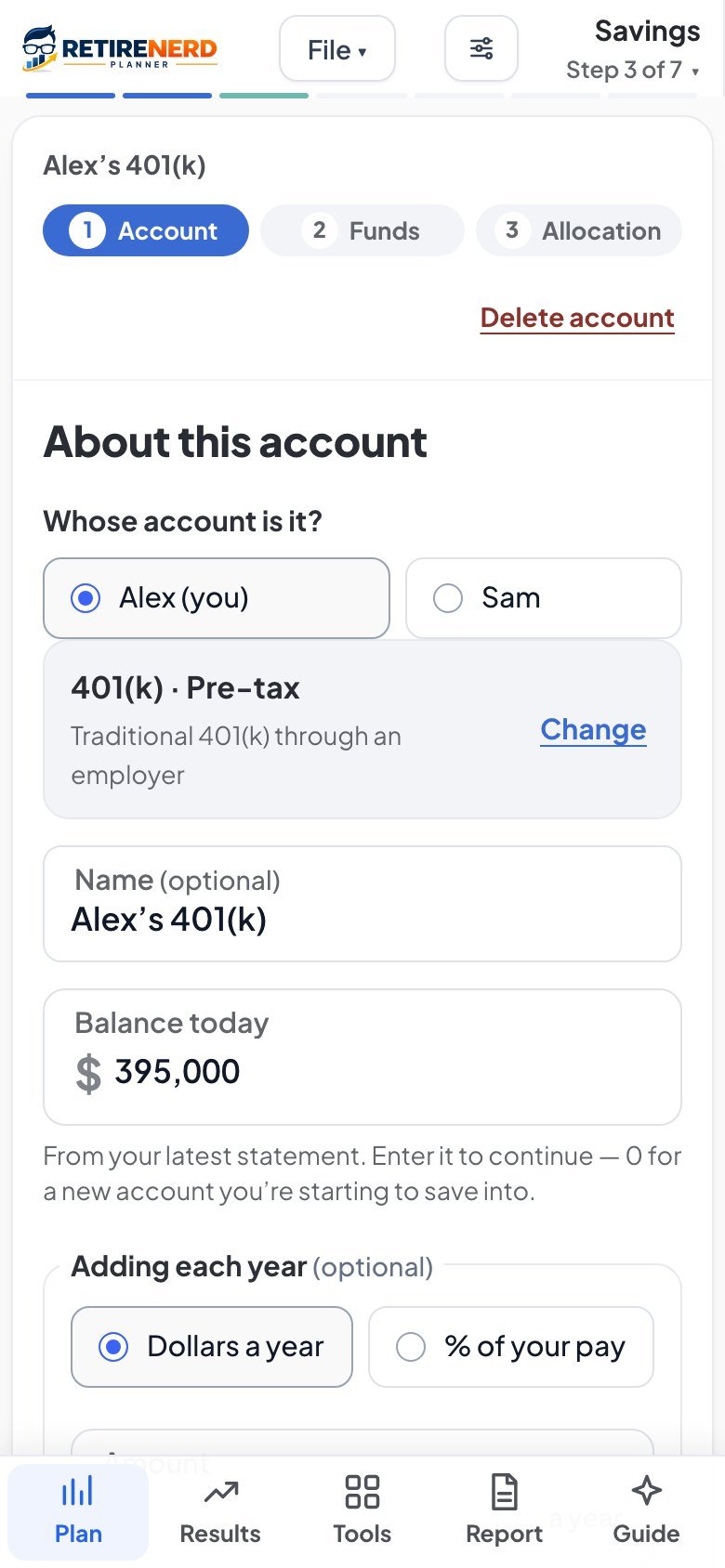
The account opens on its first part, Account. The three parts, Account, Funds and Allocation, show at the top.
Whose account is it?Required Choose the person whose name is on the account. This makes them its owner. It decides whose pay a percent is based on, when saving into it stops (when its owner retires) and whose yearly limit it counts toward. Alex keeps Alex (you) selected.
ChangeOptional corrects the kind of account. See the next picture.
Who can own what? A 401(k), IRA, Roth or HSA belongs to one person, so you'll see two choices. Only a brokerage or cash account can also be Joint. If your plan is just you, you'll see "This account is yours" instead. Clicking It's my spouse's there adds your spouse to the plan.
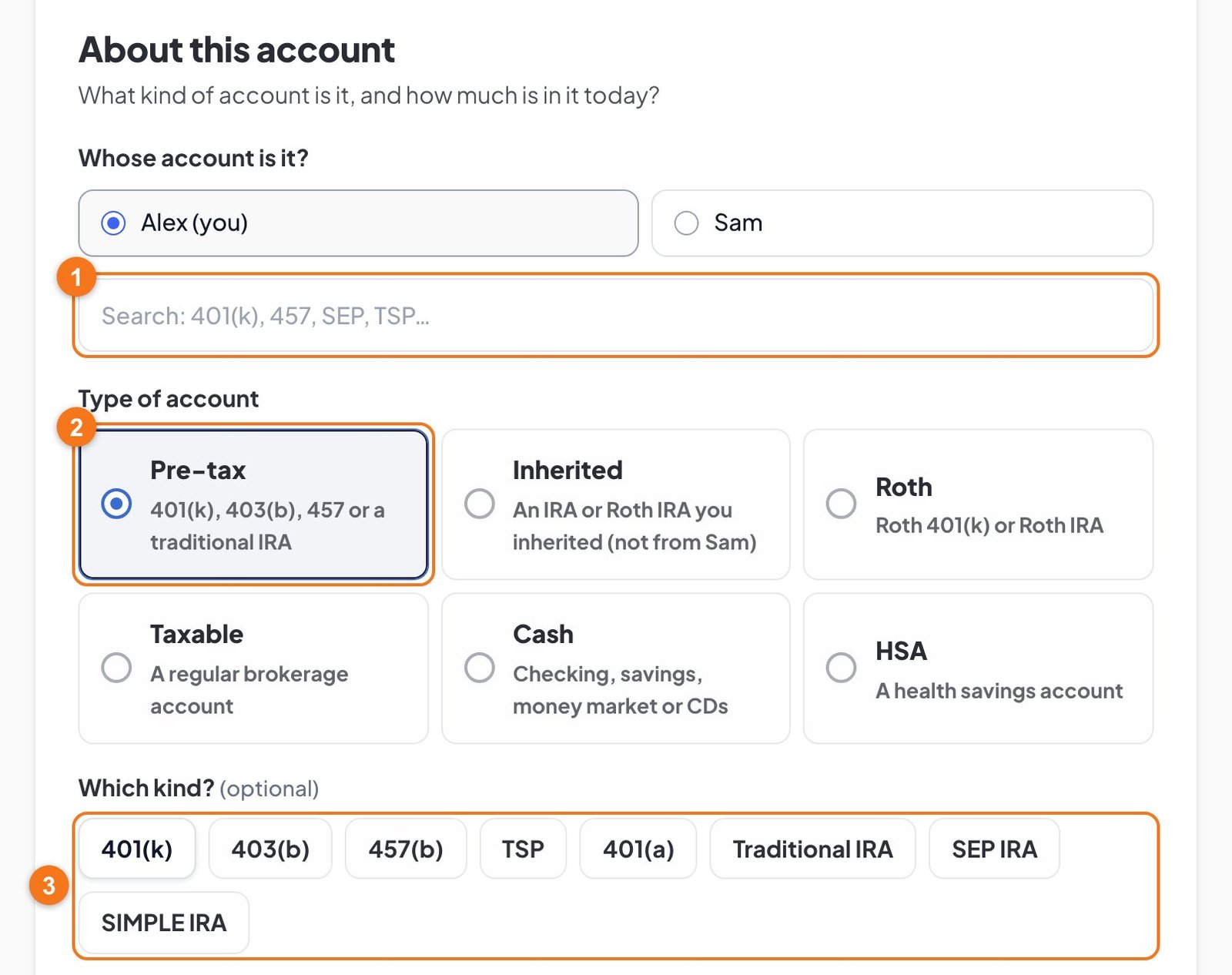
Correct the kind of account
Click Change if the line under the owner doesn't describe your account. A 403(b), for example, starts out labeled 401(k).
Search. Type what your statement calls it, like 457 or TSP, and pick it from the list.
Type of account. This sets how the account is taxed. It's the choice that matters most.
Which kind?Optional The exact name. It matters for some early-withdrawal rules, such as a 457(b), which has no 10% penalty once you've left that job. If you're not sure, leave it.
Alex has a regular 401(k), so nothing needs changing.
3Enter the name and balance
These are numbers 3 and 4 in the first picture of Step 2.
Name Optional
The planner names the account for you from its owner and kind, like "Alex's 401(k)". You can type your own, such as "Fidelity 401(k)", and it will keep it. Alex leaves the name as it is.
Balance today Required
How much is in the account now, from your latest statement. Type it with or without commas, or use a short form like 395k. If it's a new account with nothing in it yet, type 0. You can't move on until this is filled in. Alex types 395,000.
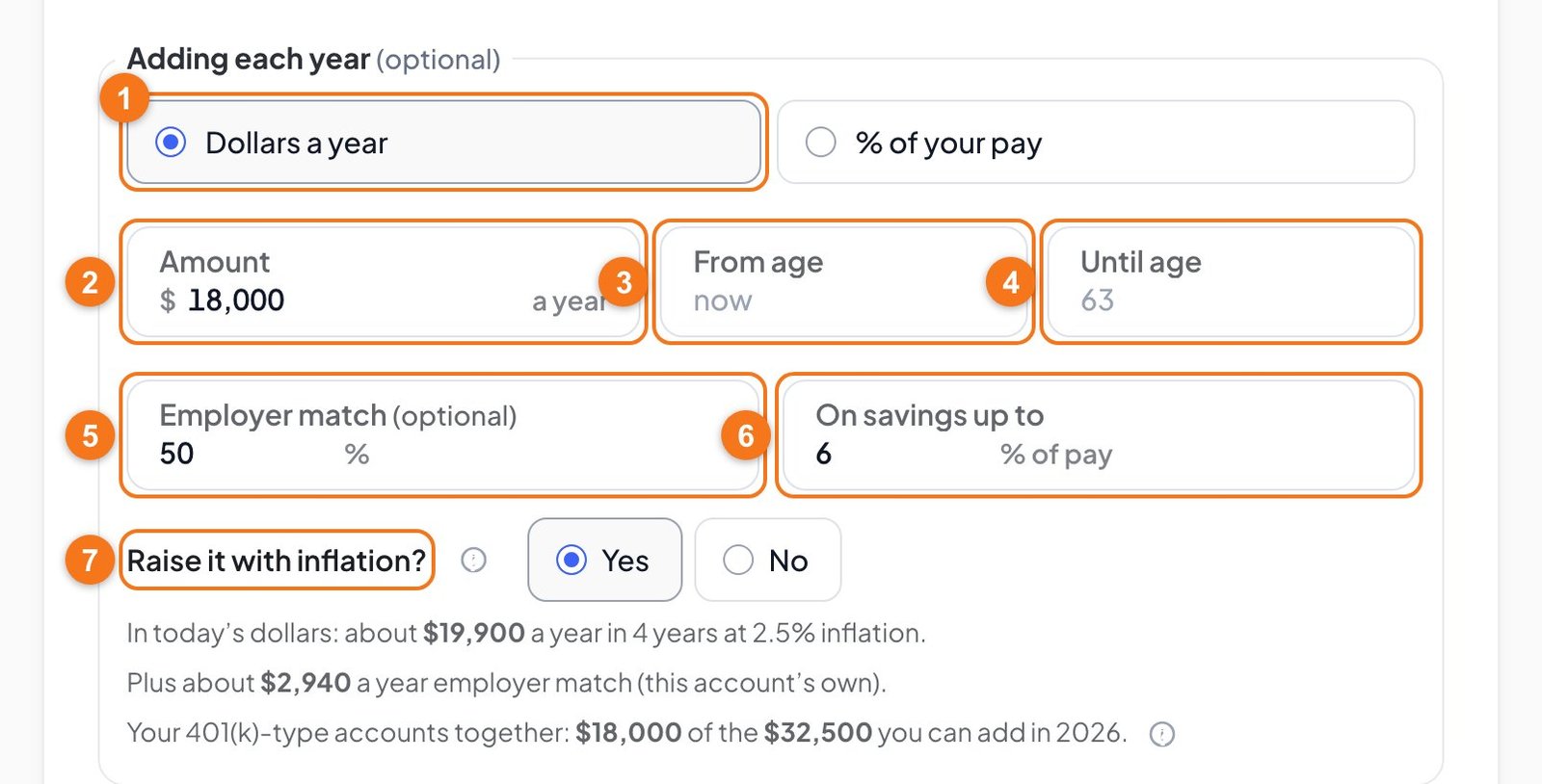
4Fill in Adding each year
This is what you'll keep saving into this account. Skip it if you've stopped saving into it.
Dollars a year or % of your pay. Choose how you think about your savings. Use % of pay if your paycheck setup is a percent, because it then rises with your pay. Alex chooses Dollars a year.
AmountOptional The total you put in over a full year. Only count your own savings here, not your employer's. If you know what comes out of each paycheck, multiply it by your number of paychecks. Alex types 18,000.
From ageOptional Blank means you're saving now. Fill it in only if you'll start later. Alex leaves it blank.
Until ageOptional Blank means you stop when the account's owner retires, and the gray number shows that age. Change it only if you'll stop sooner or keep saving from work after you retire. Alex leaves it blank, so saving stops at 63.
Employer matchOptional What your employer adds, as a percent of what you save. A match of "50 cents on the dollar" is 50. Leave it blank if there's no match. Alex types 50.
On savings up toOptional The share of your pay the match applies to. Alex types 6. The employer adds 50 cents per dollar on Alex's savings, up to 6% of Alex's pay.
Raise it with inflation? Choose Yes if your savings will grow as prices do. Choose No if you'll add the same dollars every year. Alex keeps Yes.
The lines under the box update as you type. They show what your amount becomes with inflation, about how much the match adds, and how much of this year's legal limit you're using. If you go over the limit, the line says so, and the plan sends the extra to brokerage.
Two people, two limits. The limit is per person and covers all of that person's 401(k)-type accounts together. That's one reason whose account it is matters.
5Check Expected return, then move on
From its funds. The planner works out the return from the funds you add next. Most people should leave this selected. Alex leaves it.
My own rateOptional Type your own yearly return, after fees and before inflation, to plan more carefully. The account still rises and falls with the market as its funds do. Only the average changes.
The button at the bottom left says Cancel until the account has a balance, and Cancel drops the new account. Once there's a balance it says Save & close, which keeps the account and closes it for now. To remove an account later, use Delete account at the top.
Next: its funds takes you on. It stays gray until there's a balance. Alex clicks it.
6Add the funds
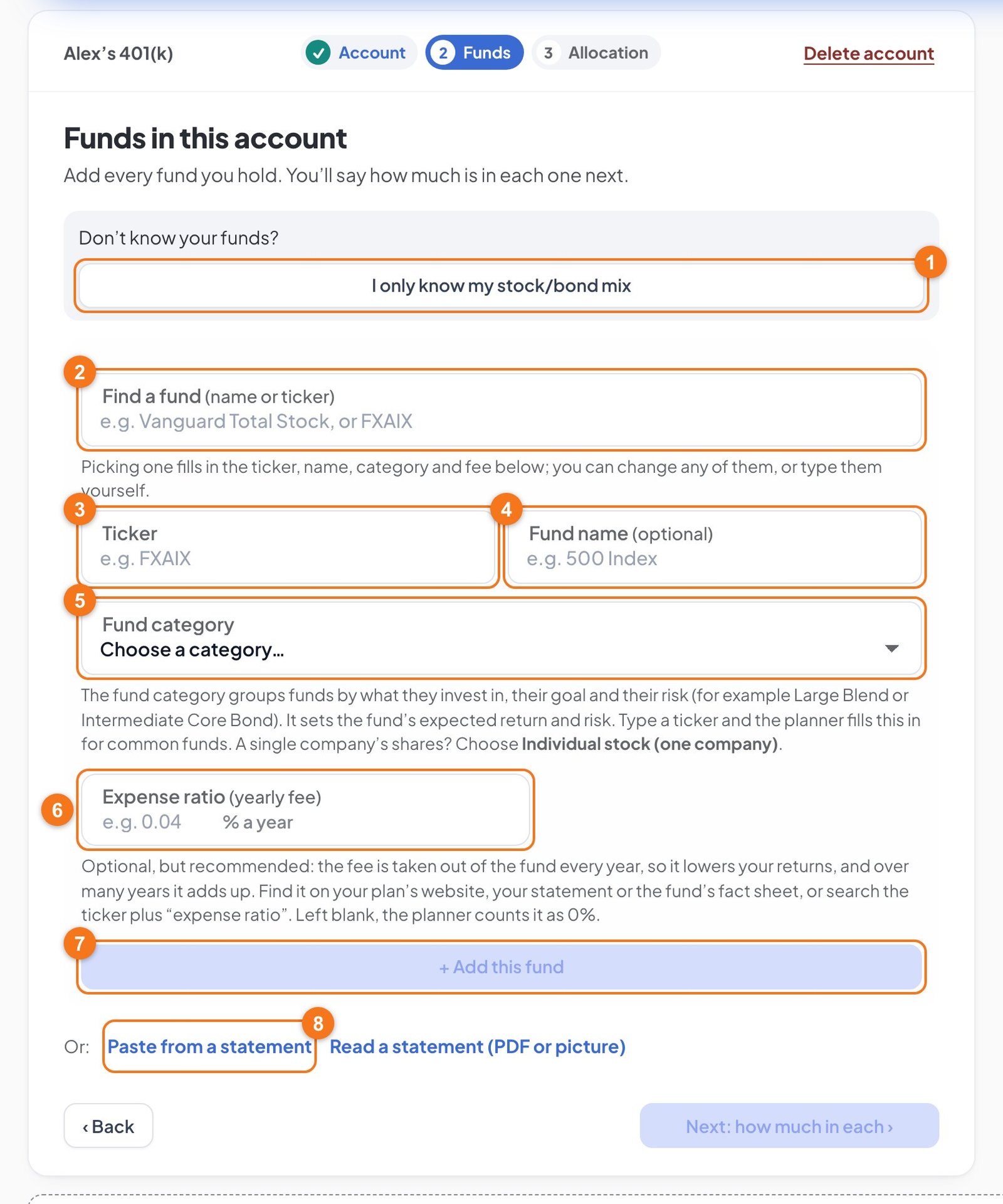
Now list what the account holds. Add every fund you see on your statement. Alex's statement shows three funds.
I only know my stock/bond mix. Use this if you don't know your funds. Sam does this below.
Find a fund is the easy way. Type a name or ticker and pick from the list. It fills in fields 3 to 6 for you.
TickerOptional The fund's short code. Some 401(k) funds don't have one, and that's fine.
Fund nameOptional Helps you recognize the fund later.
Fund categoryRequired What the fund invests in. + Add this fund stays gray until this is set, because the category sets the return and risk the planner expects.
Expense ratioOptional The yearly fee. It's worth entering, because it lowers your returns every year. Find it on your plan's website, your statement or the fund's fact sheet. If you leave it blank, the planner counts it as 0%.
+ Add this fund puts the fund in the account.
Paste from a statement and the link beside it read your funds for you. See Paste or read a statement.
Find the first fund
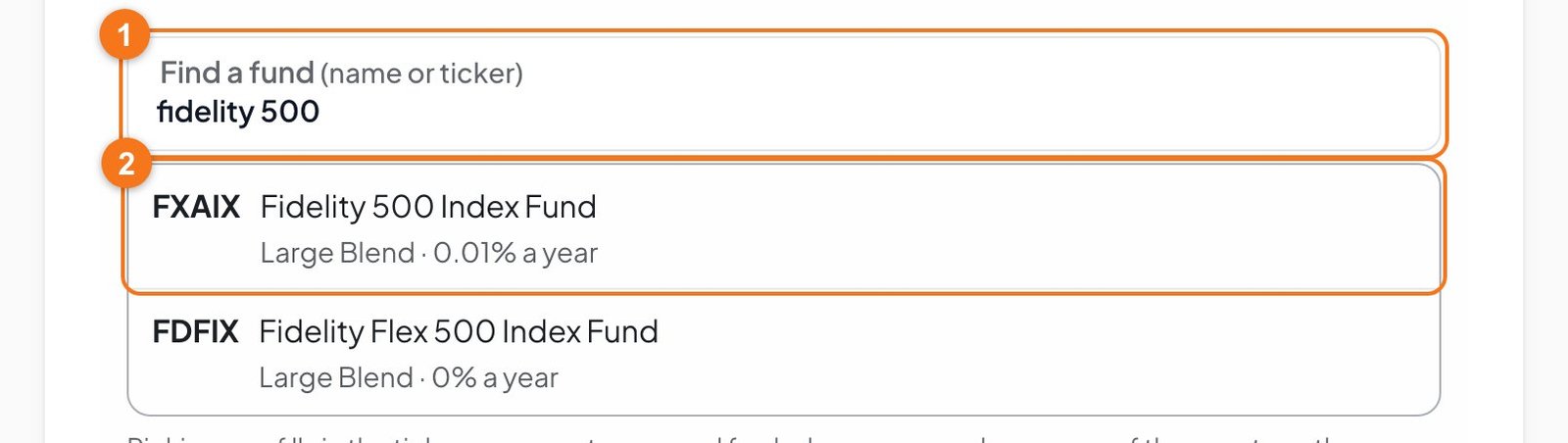
In Find a fund, type part of the name or the ticker.
Alex types fidelity 500.
Each match shows its ticker, name, category and fee. Click the one that matches your statement. Check the ticker, because similar names are common. Alex clicks FXAIX.
Check what it filled in
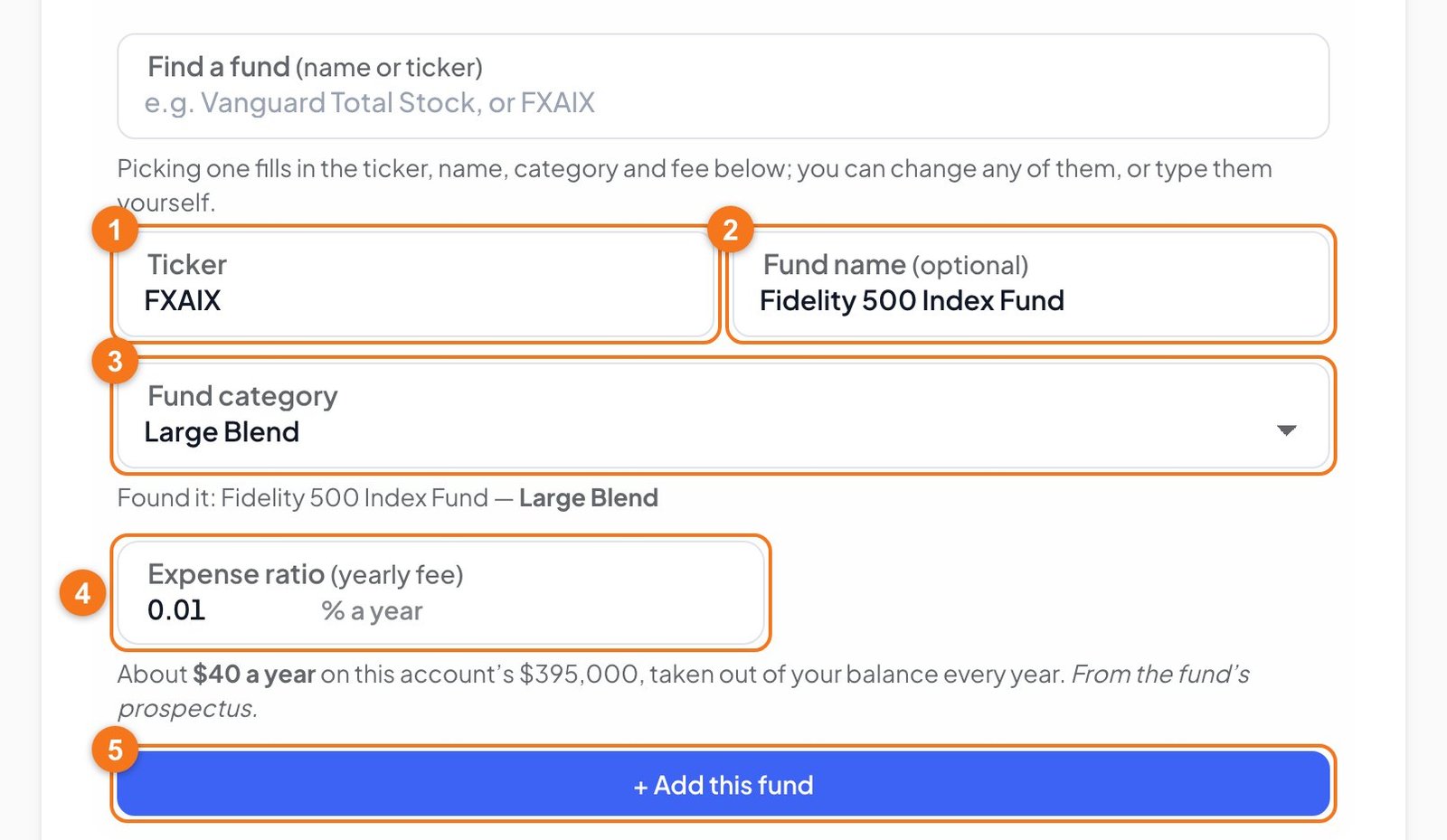
Ticker is filled in.
Fund name is filled in.
Fund category is filled in. "Found it" means the planner knows this fund. "Best guess" means you should check it.
Expense ratio is filled in, and the line below shows what it costs in dollars on this account.
Click + Add this fund. Alex clicks it.
Add the rest
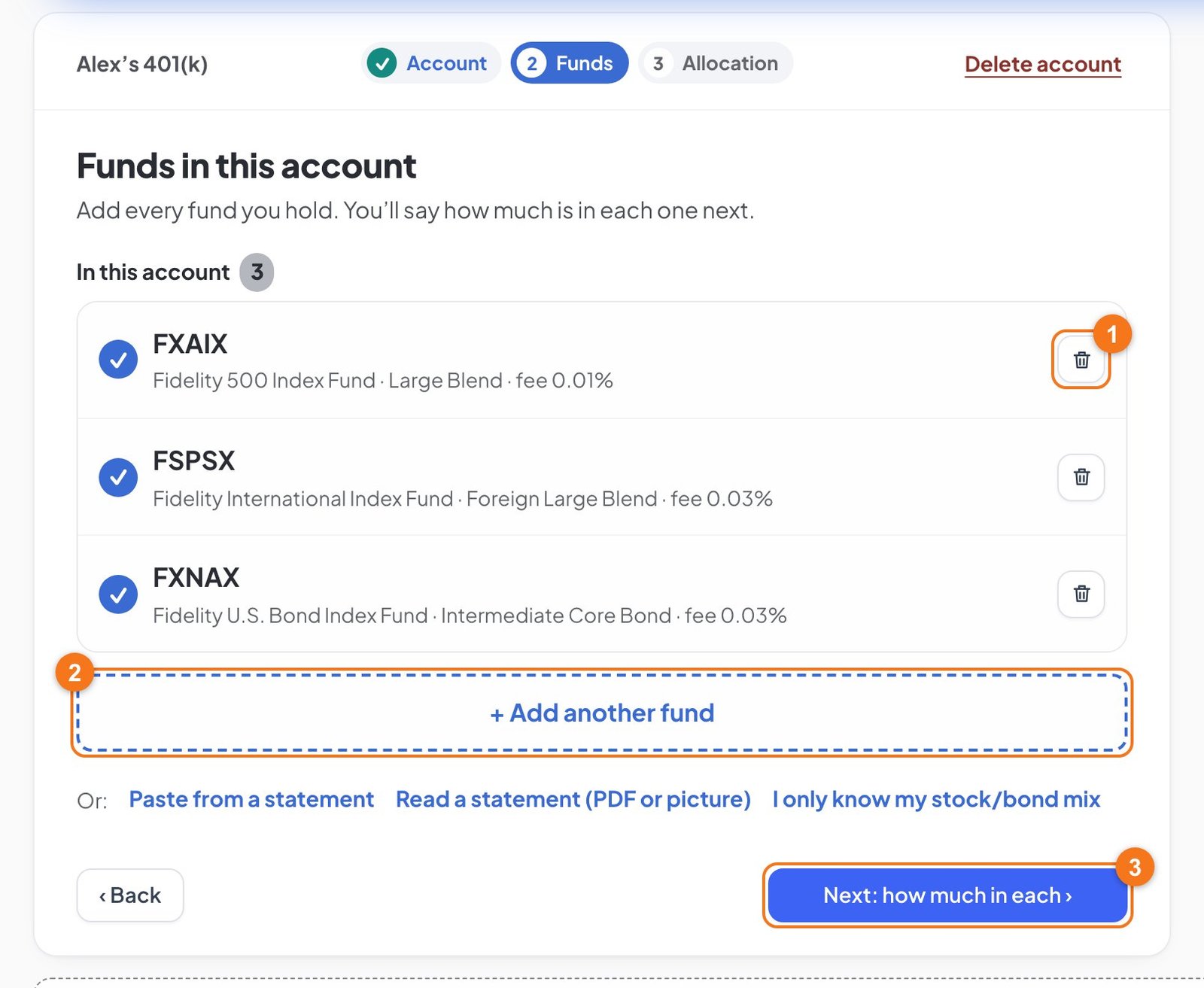
Click + Add another fund and repeat. Alex adds FSPSX and FXNAX the same way.
The trash button removes a fund you added by mistake.
+ Add another fund opens the form again.
When the list matches your statement, click Next: how much in each. Alex clicks it.
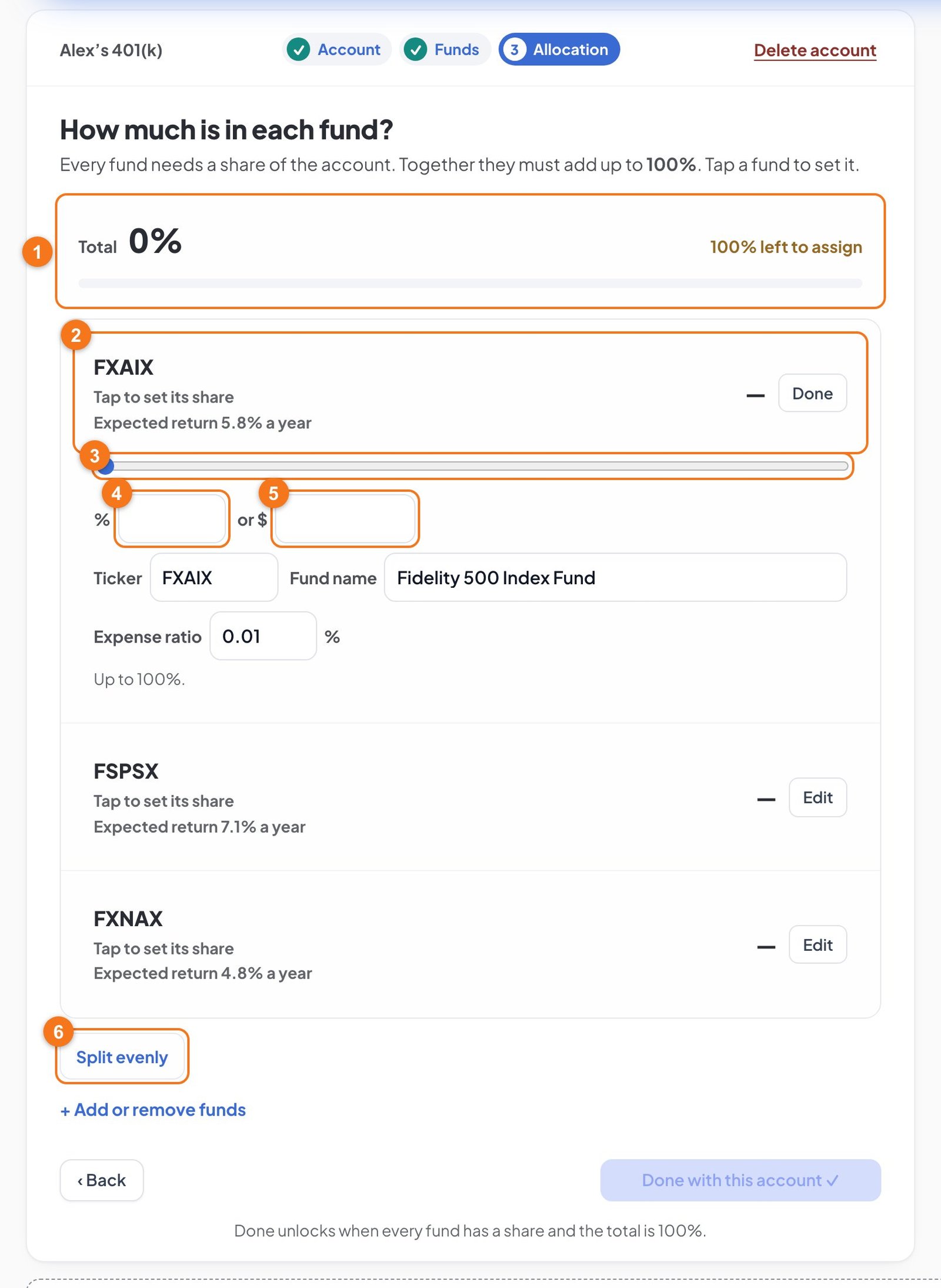
7Set each fund's percent
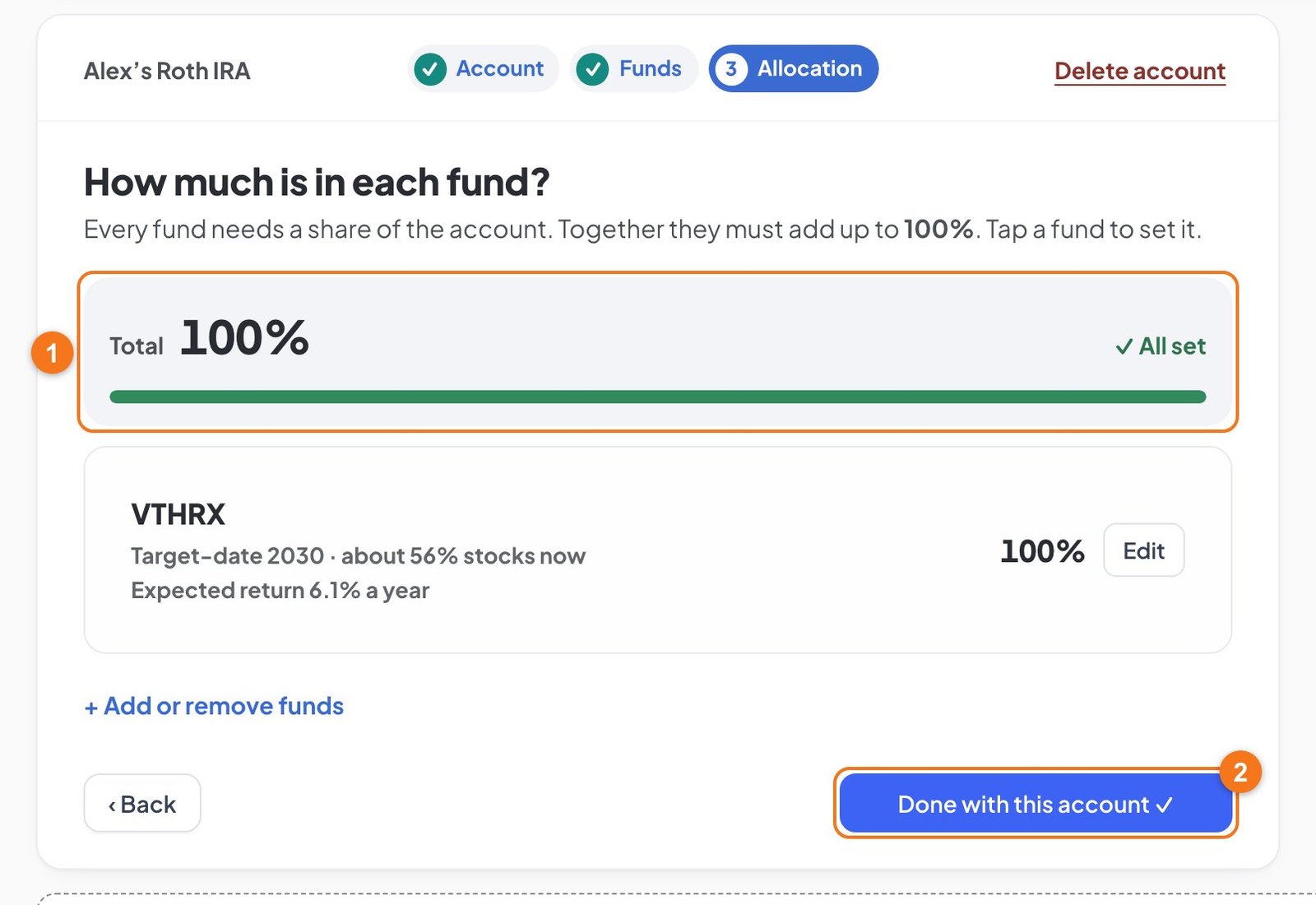
This is the allocation. It tells the planner how the account's money is split between its funds. Every fund needs a share, and the shares must add up to 100%.
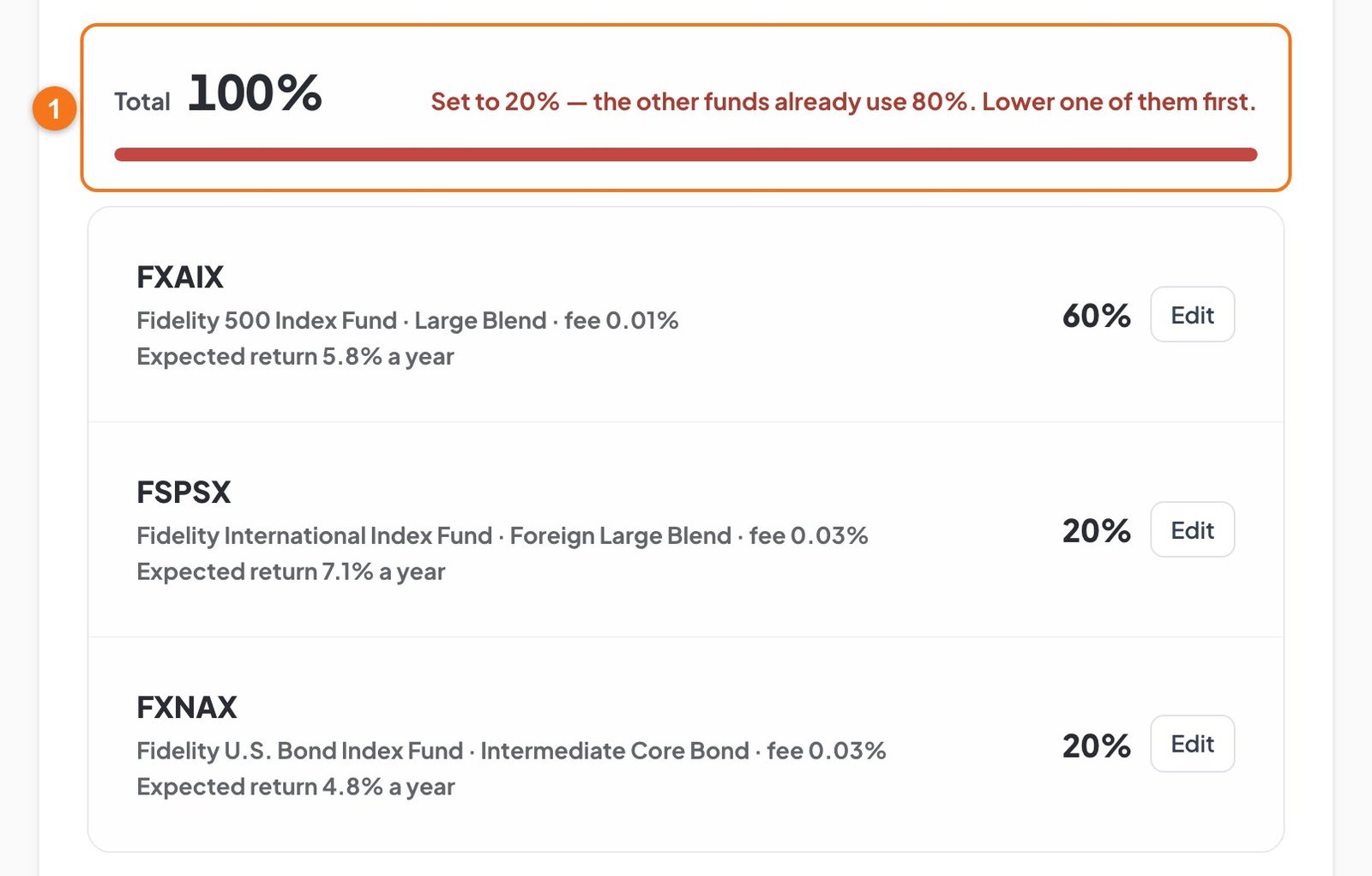
Total shows what you've assigned so far and what's left.
The fund that's open. The first one opens for you. Click any fund's Edit to open it, and Done to close it.
Slider. Drag it if you only want a rough split.
% box. Type the percent if you know it. Alex's statement shows FXAIX is 60% of the account, so Alex types 60 and presses Enter.
$ box. Type the dollars from your statement if that's what you have. The planner works out the percent for you.
Split evenly gives every fund the same share, if you just want to start somewhere.
Use dollars for the second fund
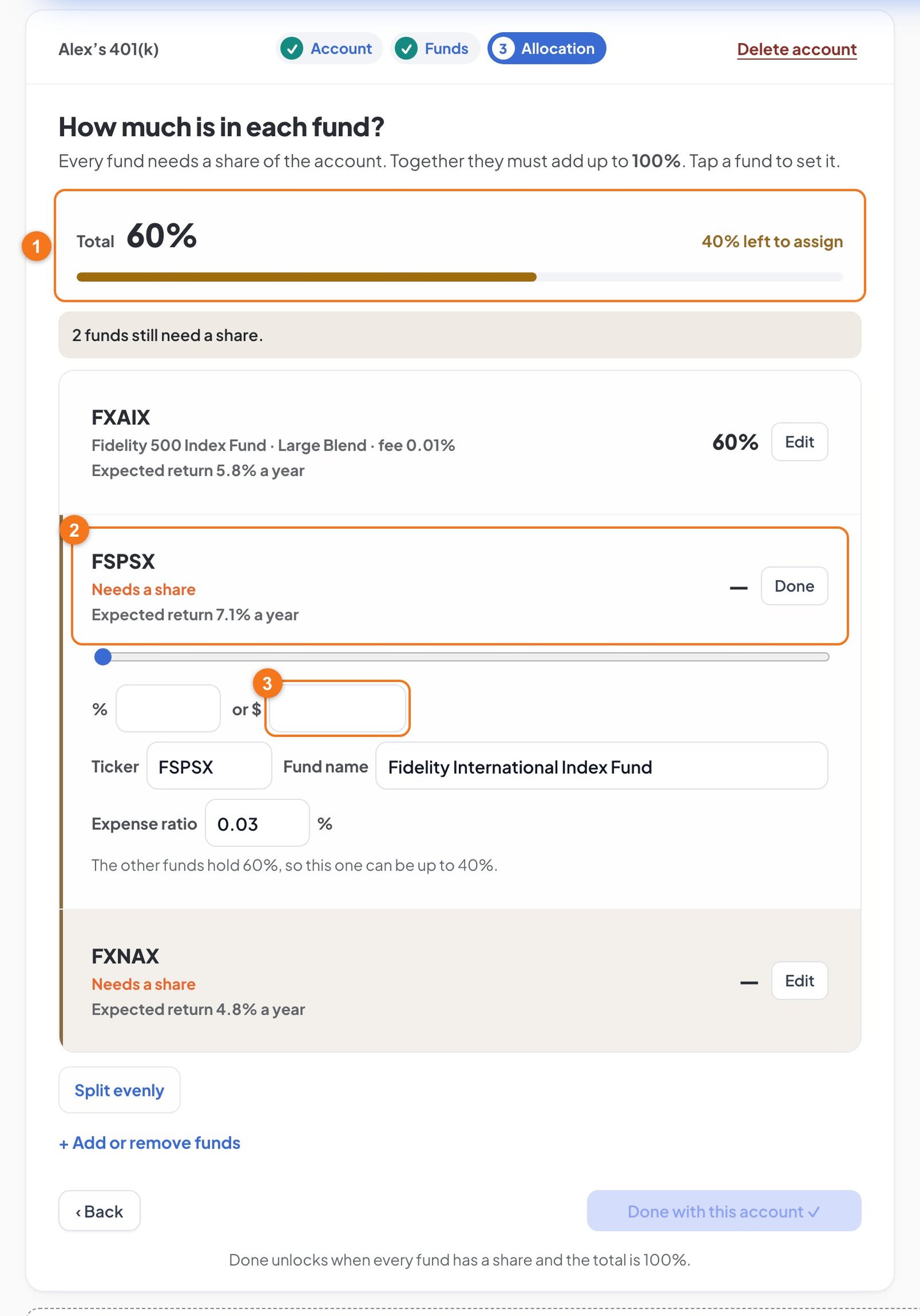
After you enter a share, the next fund opens by itself.
Total now reads 60%, with 40% left.
FSPSX is open and says "Needs a share".
Alex's statement shows $79,000 in FSPSX, so Alex types 79,000 in the $ box and presses Enter. That's 20% of $395,000.
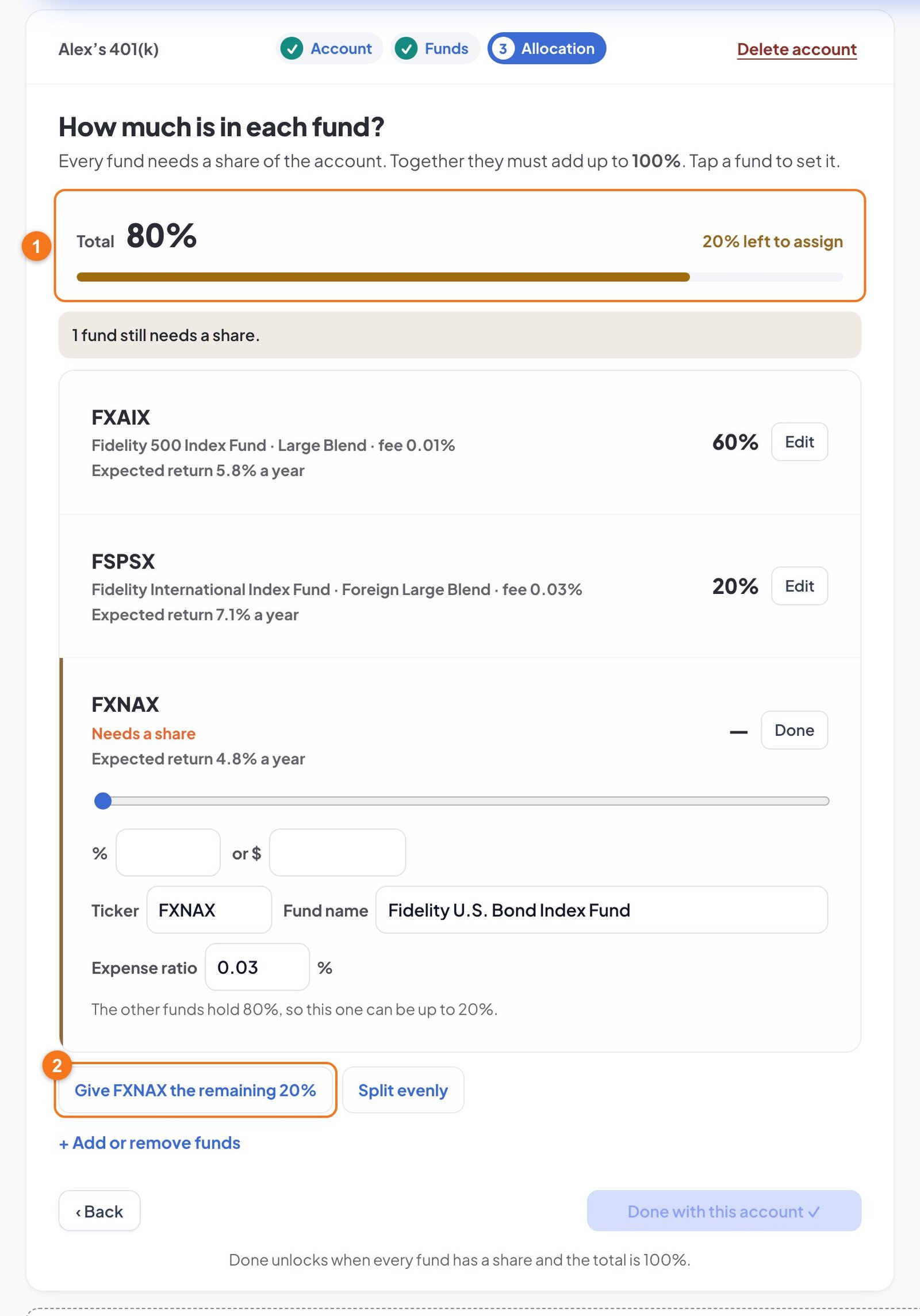
Give the last fund what's left
Total reads 80%, with 20% left.
When one fund is left, a button offers it the rest, so you don't have to do the math. Alex clicks Give FXNAX the remaining 20%.
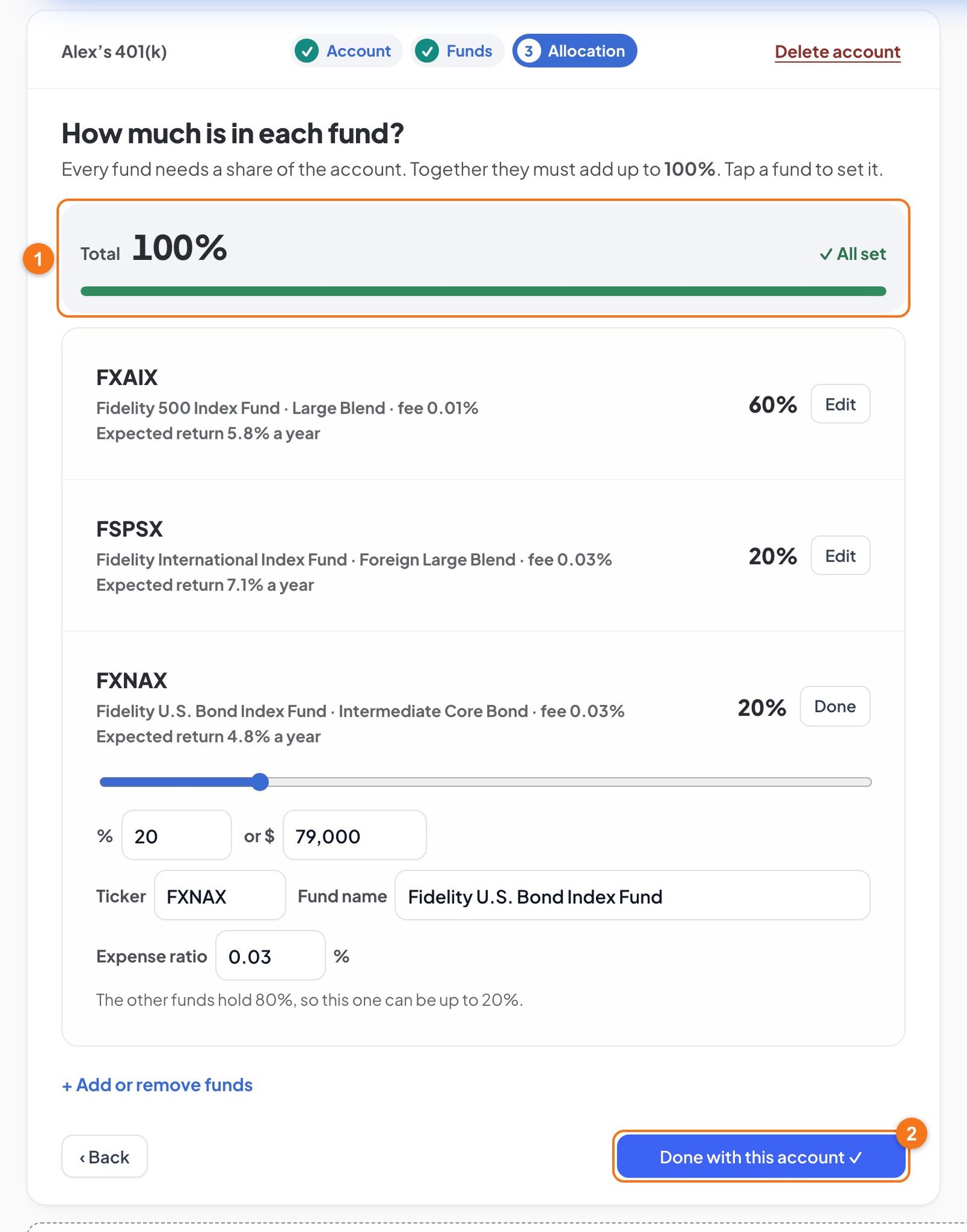
All set
Total reads 100% and says ✓ All set.
Done with this account turns on only now.
What if you type too much?
The total can't go over 100%. If you type more than a fund can hold, the planner lowers it to what's left and tells you. Here Alex tried 60% for FSPSX while the other two funds already used 80%.
To give this fund more, lower another fund first.
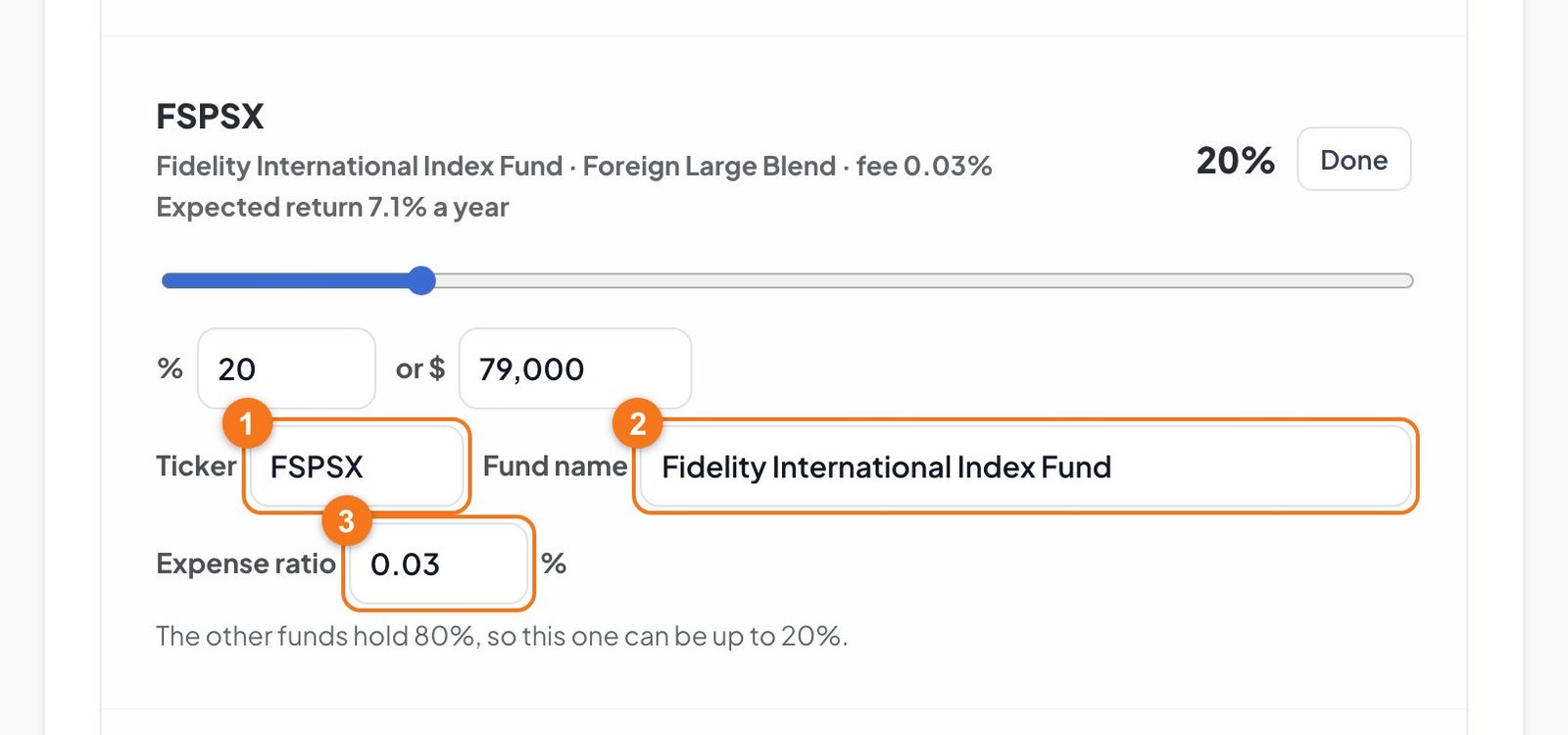
Fix a fund's details
An open fund also lets you correct what you entered earlier, without going back.
Ticker. Correct it here if it's wrong.
Fund name. Handy for naming a 401(k) fund that has no ticker.
Expense ratio. Add the fee if you skipped it.
To add or remove a fund from here, click + Add or remove funds under the list.
8Finish the account
Click Done with this account. The account closes and All your money appears at the top of the page.
The pencil opens the account again.
The trash button deletes it. The planner asks you first.
+ Add an account starts the next one.
The other four accounts
These cover only what's new. Anything not mentioned works as it did for Alex's 401(k).
Sam's 401(k): a spouse's account, % of pay and only a mix
Start the account and make Sam the owner
Click + Add an account. The buttons now say what each kind is.
Sam's plan is through work, so Alex clicks this one again.
Other account searches every kind.
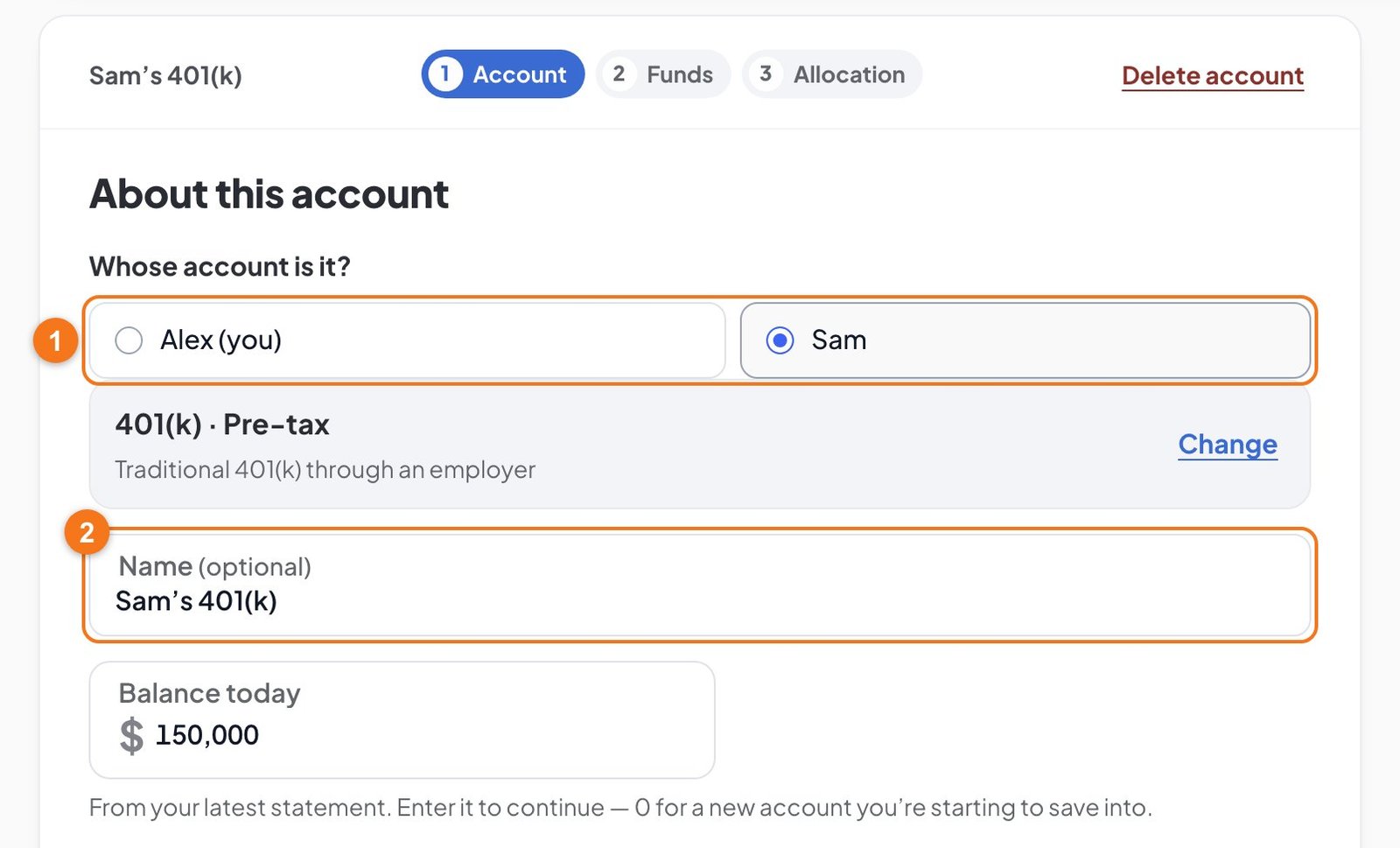
Whose account is it?Alex clicks Sam.
The Name changes to "Sam's 401(k)" by itself. Then Alex types 150,000 in Balance today.
Picked the wrong person? Open the account with the pencil and click the other name.
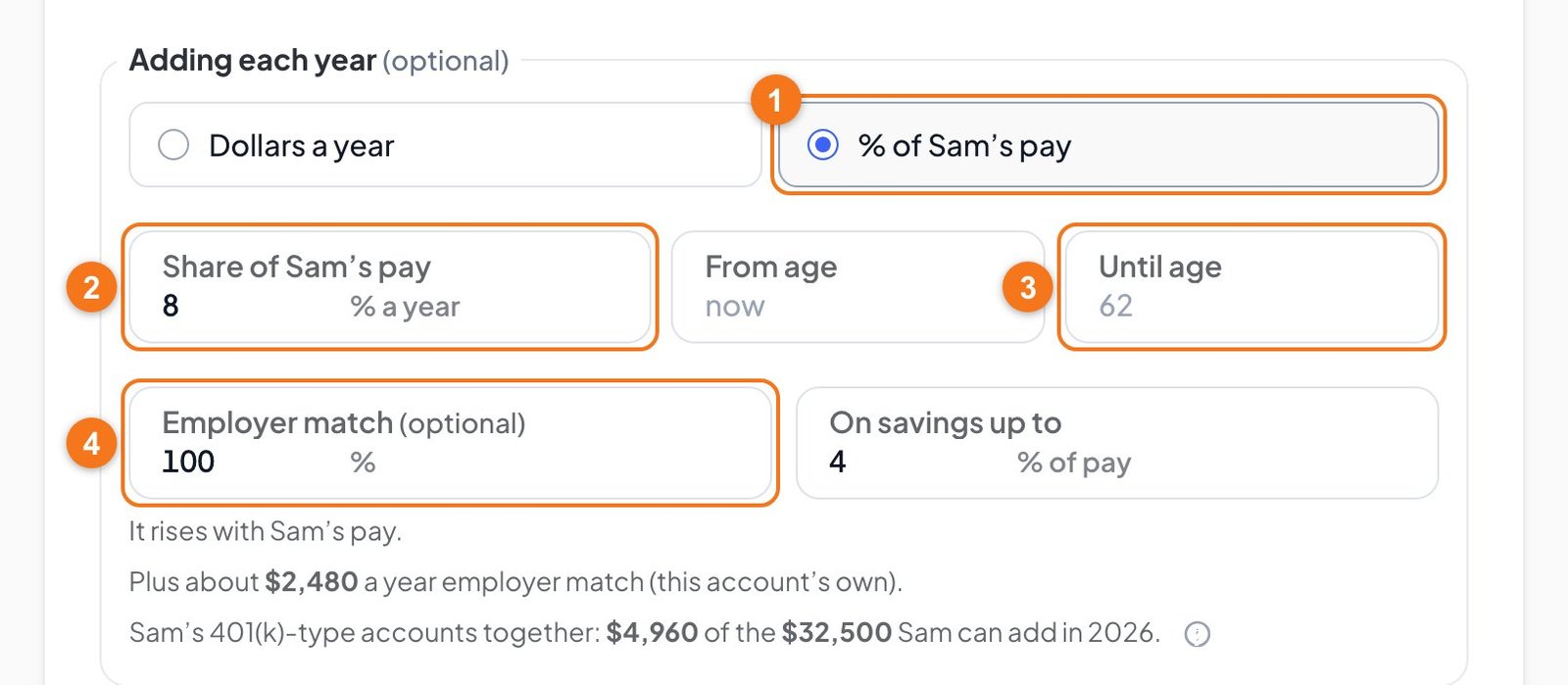
Save a percent of pay
Sam's paycheck setup is 8%, so a percent fits better than dollars.
% of Sam's pay.Alex clicks this button.
Share of Sam's pay uses the pay you entered in Step 2, and rises as that pay rises. That's why "Raise it with inflation?" is gone. Alex types 8.
Until age now shows 62, because this account follows Sam's retirement age, not Alex's.
Employer match. Each job has its own. A dollar-for-dollar match is 100. Alex types 100, then 4 in On savings up to.
Only know the stock and bond mix
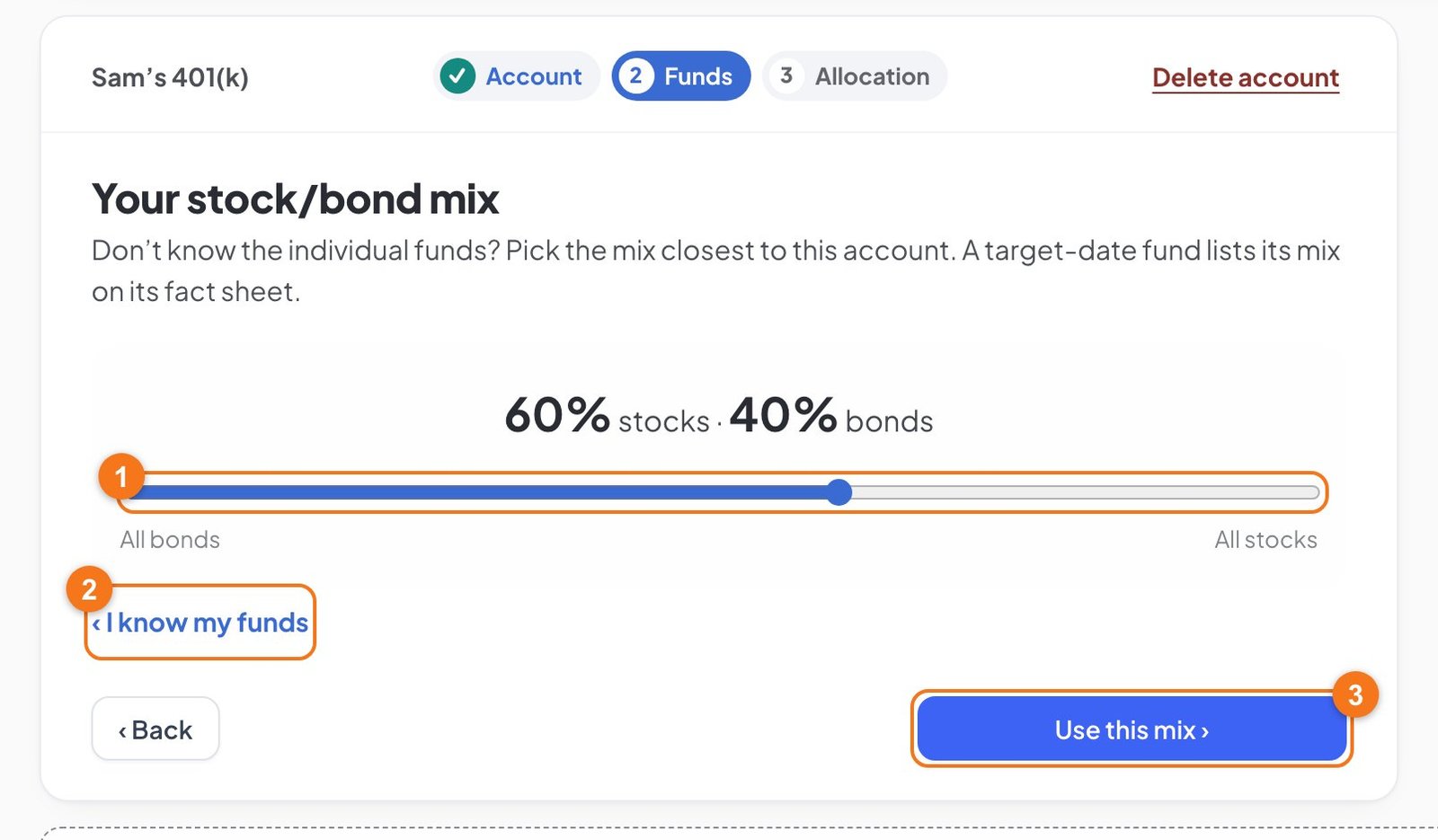
Sam doesn't have the fund list handy. On the Funds part, Alex clicks I only know my stock/bond mix.
Slider. Move it to the mix closest to the account, in steps of 10%. A target-date fund lists its mix on its fact sheet. Alex sets 60% stocks, 40% bonds.
I know my funds goes back to the fund list.
Use this mix finishes the account right away. There's nothing to split. Alex clicks it.
Found the real funds later? Open the account and add them. The first fund you add replaces the mix.
Alex's Roth IRA: one new field and a target-date fund
Click + Add an account, then Roth IRA.
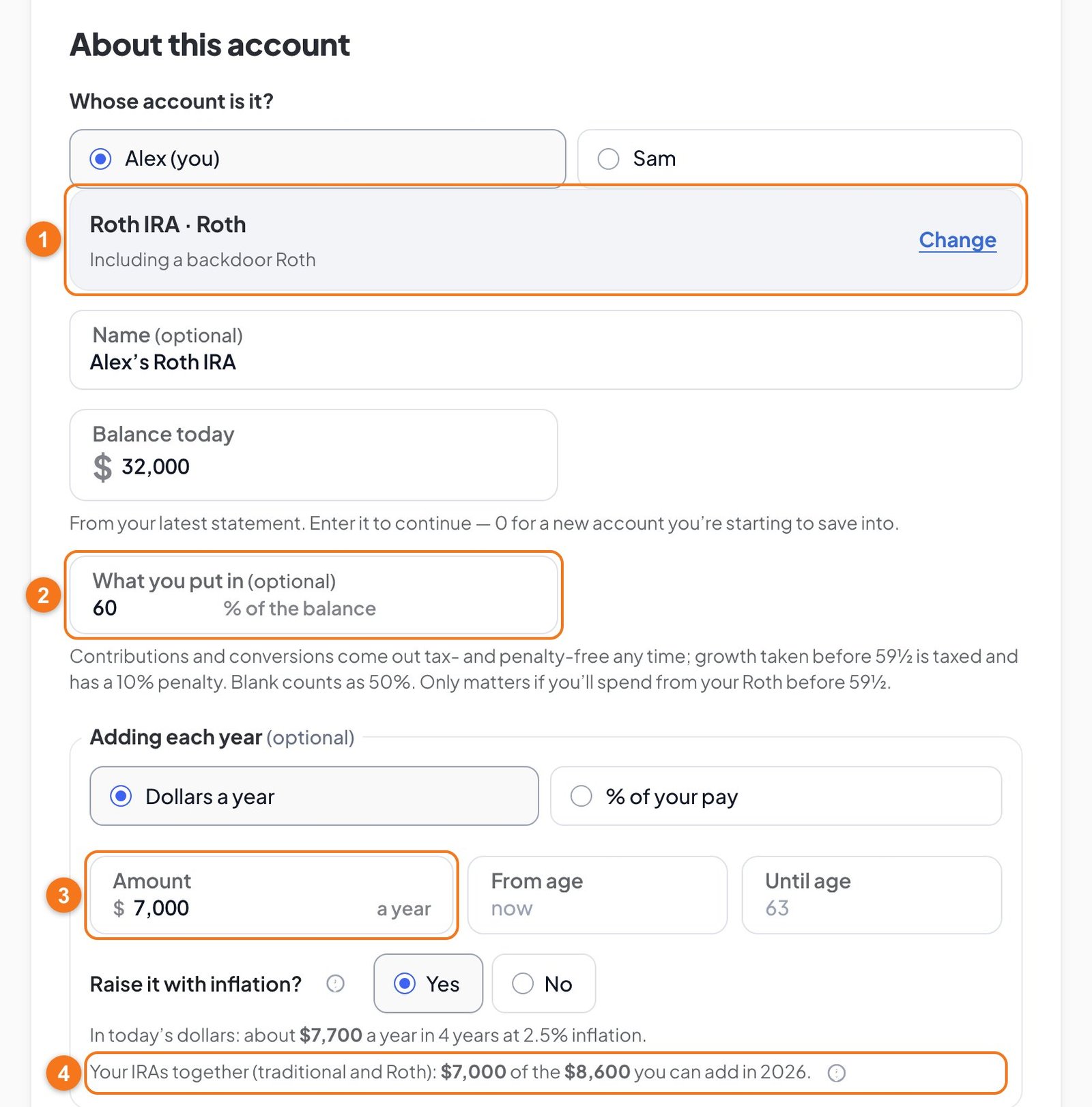
The kind reads Roth IRA · Roth, because of the button Alex clicked.
What you put inOptional The share of the balance that you put in or converted. This part comes out tax-free and penalty-free at any time. Growth taken before 59½ is taxed and has a 10% penalty. If you leave it blank, the planner counts 50%. It only matters if you'll spend from your Roth before 59½. Alex types 60.
Amount.Alex types 7,000 and leaves the other boxes as they are.
The limit line. IRAs have their own limit, shared by traditional and Roth IRAs. There's no Employer match here, because an IRA isn't through your job.
Alex types 32,000 in Balance today and clicks Next: its funds.
Add a target-date fund
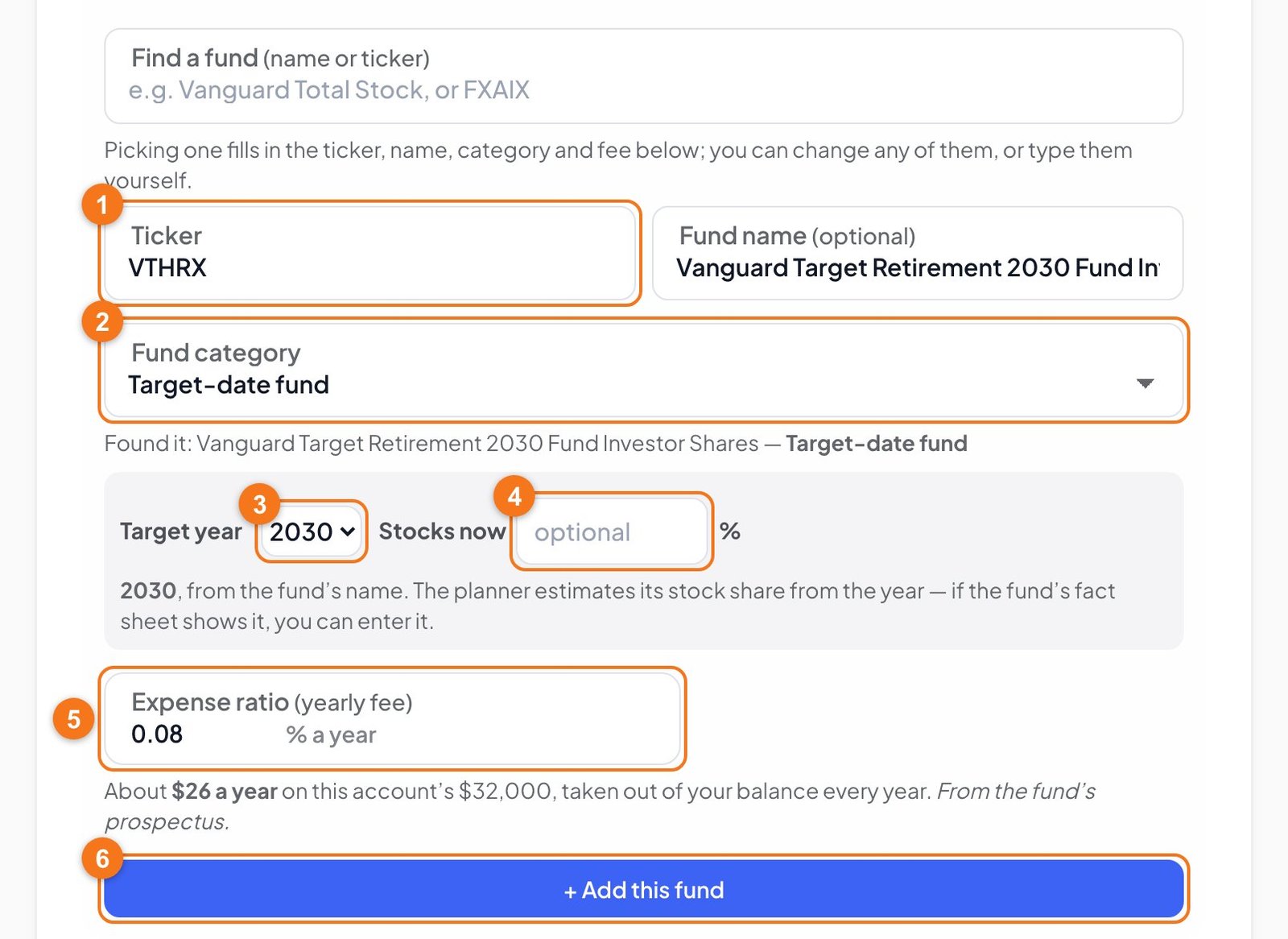
A target-date fund is one fund that holds stocks and bonds, and moves toward bonds as its year gets closer. Alex finds VTHRX.
Ticker is filled in.
Fund category reads Target-date fund.
Target year is the year in the fund's name. The planner reads it from the name when it can, so check that it's right. It shows 2030 for Alex.
Stocks nowOptional The planner estimates the fund's stock share from its year. If the fund's fact sheet gives the share, you can enter it. Alex leaves it blank.
Expense ratio is filled in.
Click + Add this fund, then Next: how much in each.
One fund gets 100% by itself
With only one fund, there's nothing to split, so Total is already 100%.
Alex clicks Done with this account.
Joint brokerage account: both of you, and what you paid in
Click + Add an account, then Brokerage.
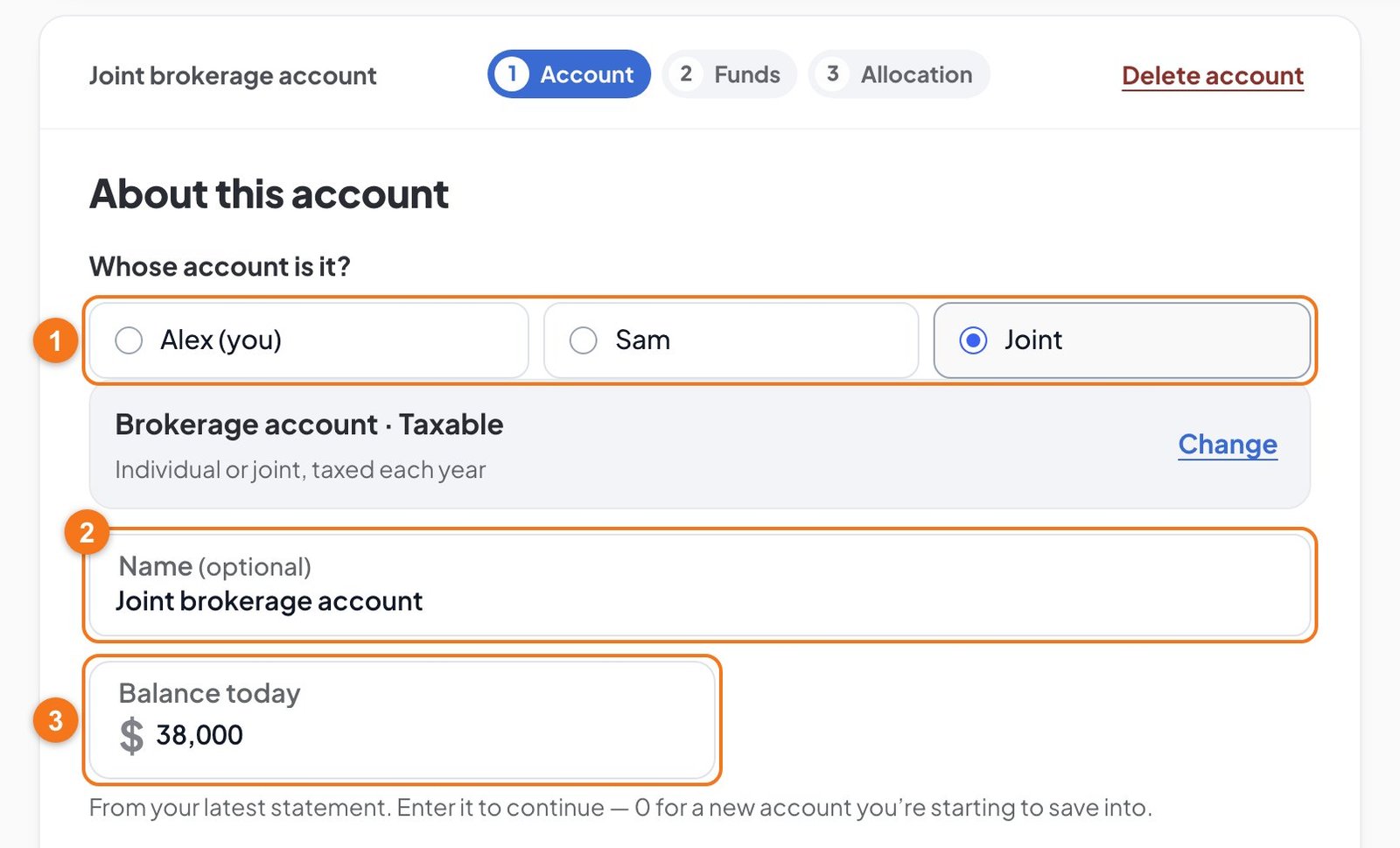
Whose account is it? Now there's a third choice. A new brokerage account starts as Joint, as most couples' are. If it's in one name, click that person. Alex and Sam share this one, so it stays Joint.
Name follows the owner. Choose Sam, and it reads "Sam's brokerage account".
Balance today.Alex types 38,000.
In Adding each year, Alex types 3,000. A joint account's ages follow yours, and a percent of pay uses both your pays. Further down is a part that only brokerage accounts have.
What you paid inOptional How much of the balance is money you put in, not growth. Only the growth above it is taxed when you sell. Type a percent or the dollars. Your statement may call it "cost basis". If you leave it blank, the planner counts 50%. Alex types 22,800 and moves on. The planner turns it into 60%, because any number over 100 is read as dollars.
Use the 0% capital-gains bracket each retired yearOptional Sells and buys back enough to raise what you paid in, tax-free, while your income is low. This applies to all your brokerage accounts. Alex leaves it unticked.
A stock, typed by hand
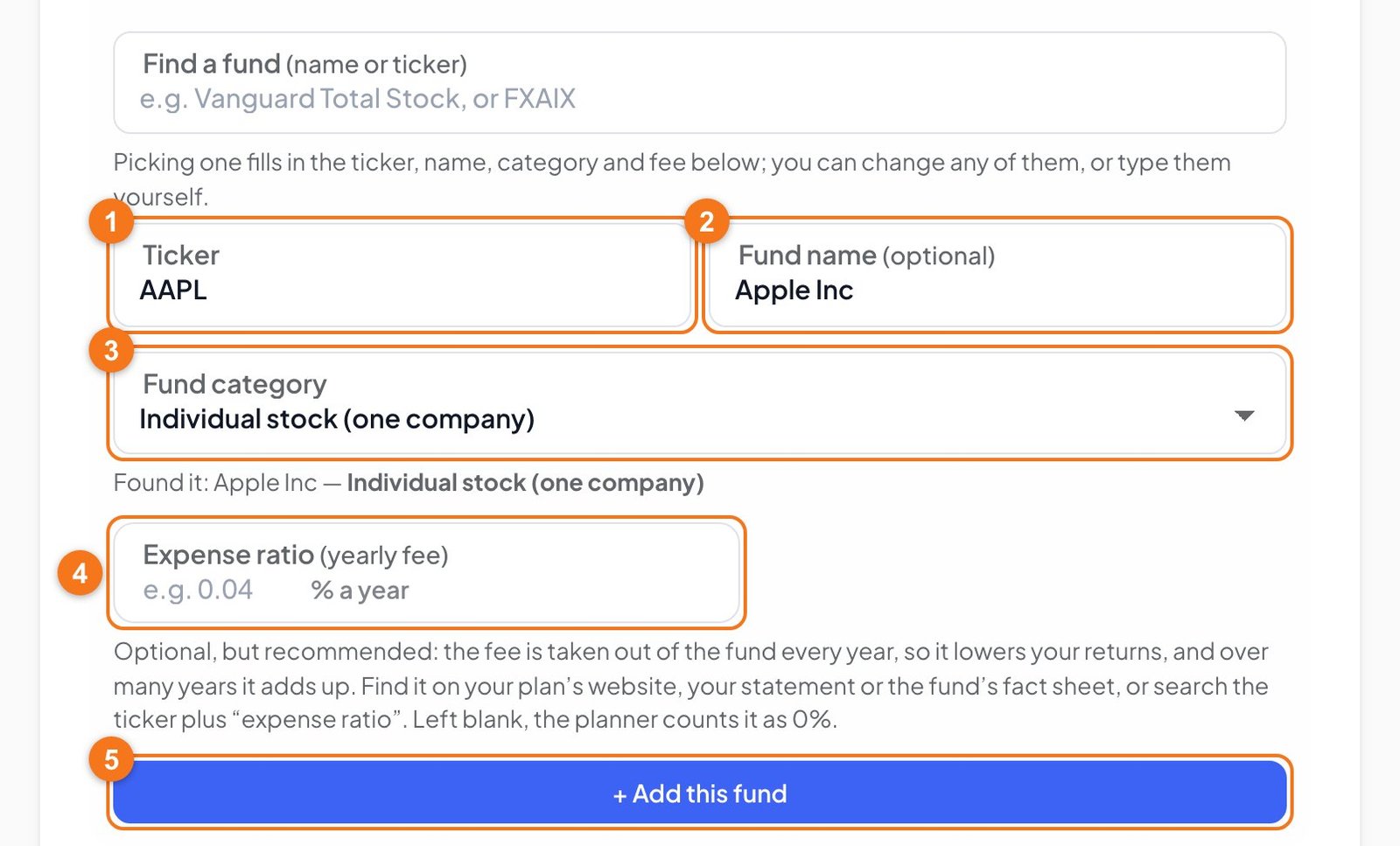
Alex adds VTI the usual way. Then, for a stock, Alex clicks + Add another fund and types the ticker straight into the Ticker box. You can do the same for anything Find a fund doesn't list.
Ticker.Alex types AAPL.
Fund name fills in if the planner knows the ticker. If it doesn't, type a name.
Fund category fills in too. If it stays on "Choose a category…", pick the closest one. For one company's shares, choose Individual stock (one company).
Expense ratio. A stock has no fee, so leave it blank.
Click + Add this fund.
A note about one company. AAPL's 2.5% looks low because it's the growth if held alone. Every company gets the same figure, and one stock's bigger swings cut its long-run growth. In Alex and Sam's mix, it lowers the account's return by only about 0.1%. If you expect something different, use My own rate on the account's first part.
Alex clicks Done with this account.
Savings account: no funds, just interest
Click + Add an account, then Cash. Cash has no funds, so everything is on one page and there are no Funds or Allocation parts.
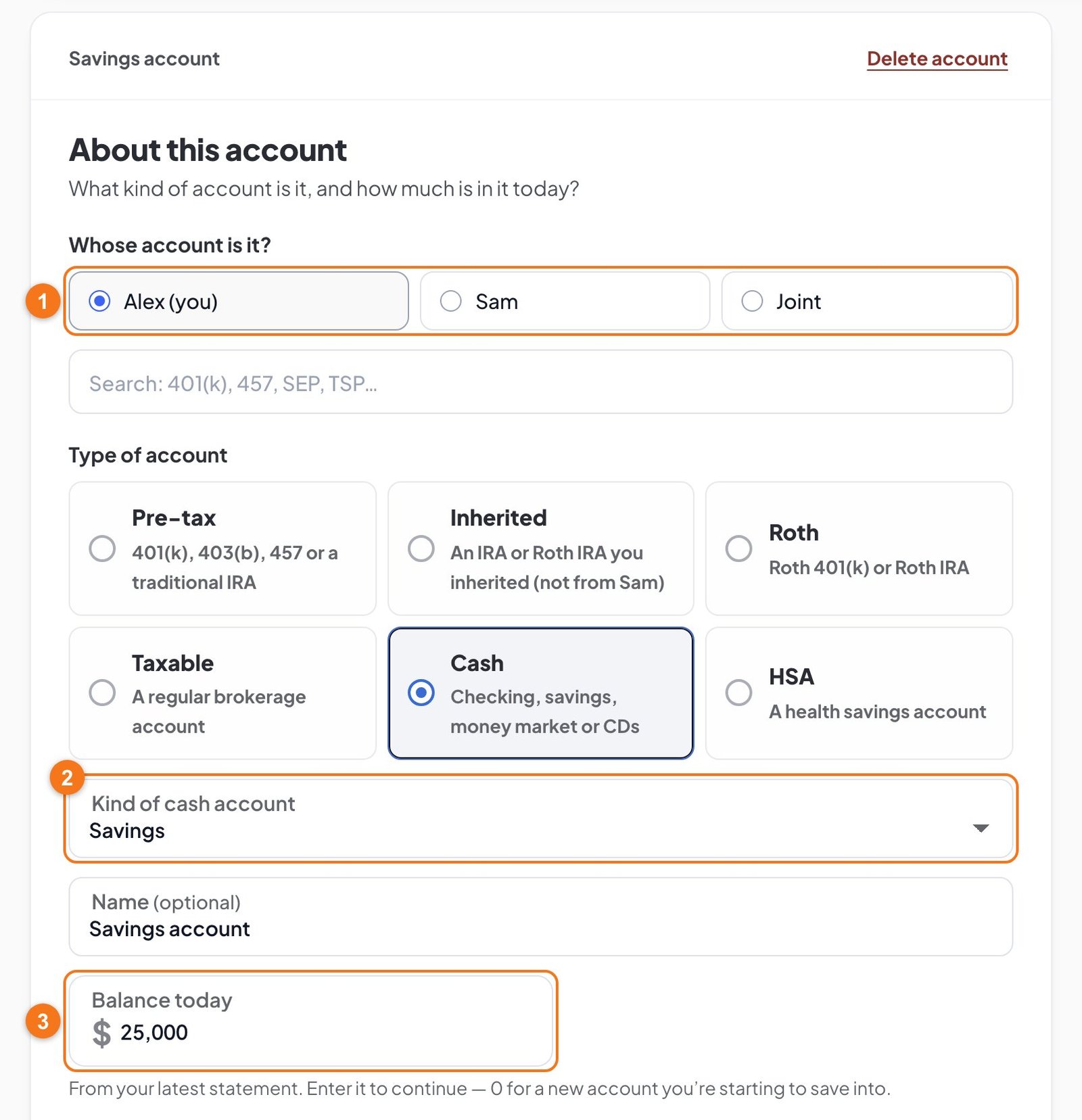
Whose account is it? A new cash account starts as Joint, like a brokerage account. This one is in Alex's name, so Alex clicks Alex (you).
Kind of cash accountOptional Savings, Checking, Money market or CD. Click Change to see this list. It starts on Savings, and it also sets the account's name. Alex leaves Savings.
Balance today.Alex types 25,000.
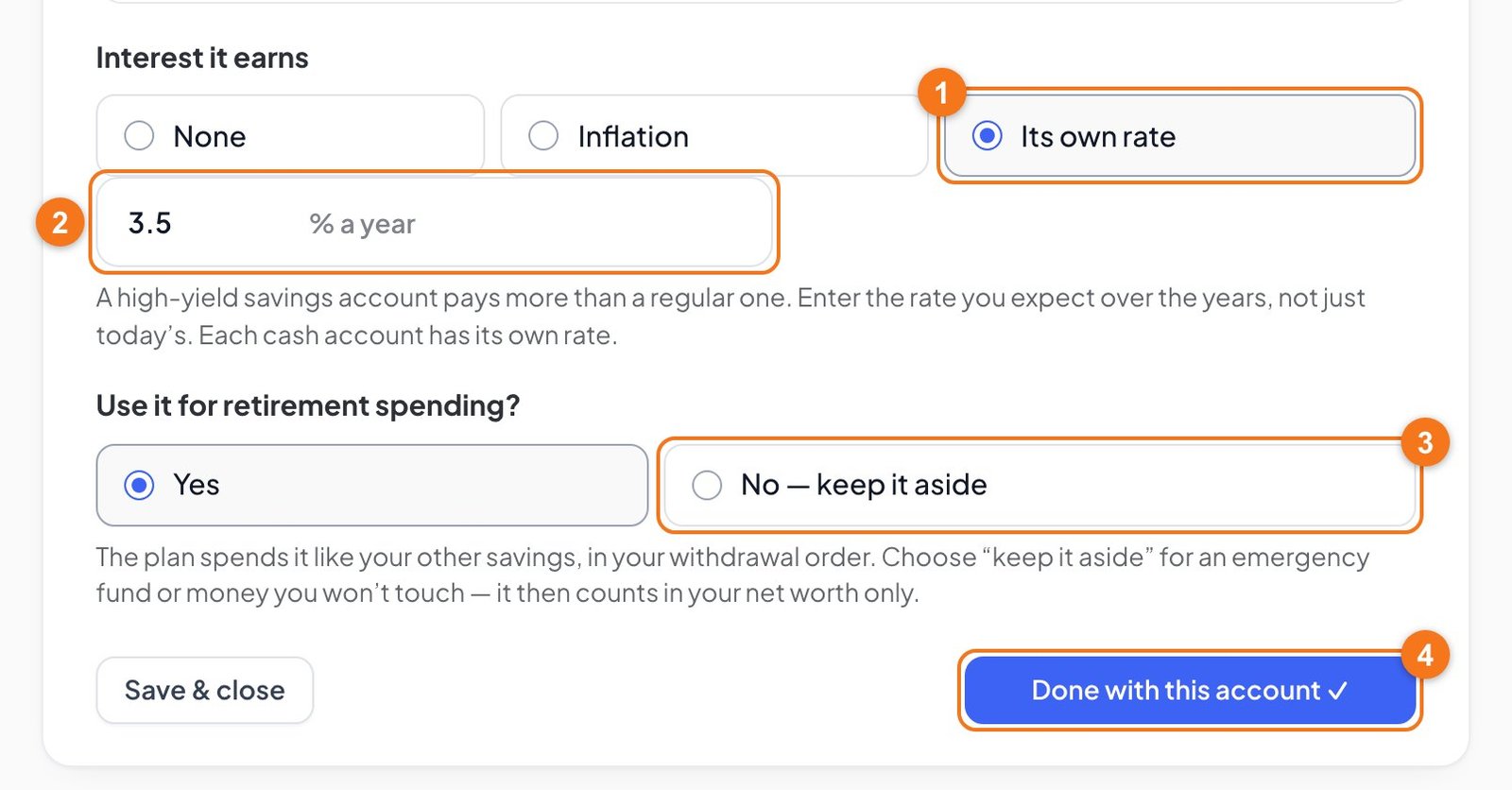
Interest it earns.None for an account that pays nothing. Inflation keeps its buying power, using your plan's inflation rate. Its own rate lets you type one. Alex clicks Its own rate.
The rate. Use the rate you expect over the years, not just today's. Each cash account has its own. Alex types 3.5.
Use it for retirement spending?Yes means the plan can spend it. No, keep it aside is for an emergency fund or money you won't touch. It then counts only in your net worth. Alex keeps Yes.
Done with this account finishes it. Alex clicks it.
You can also fill in Adding each year for a cash account if you're saving into it. It's between the balance and the interest, and it goes away if you keep the money aside.
After your accounts are in
All your money
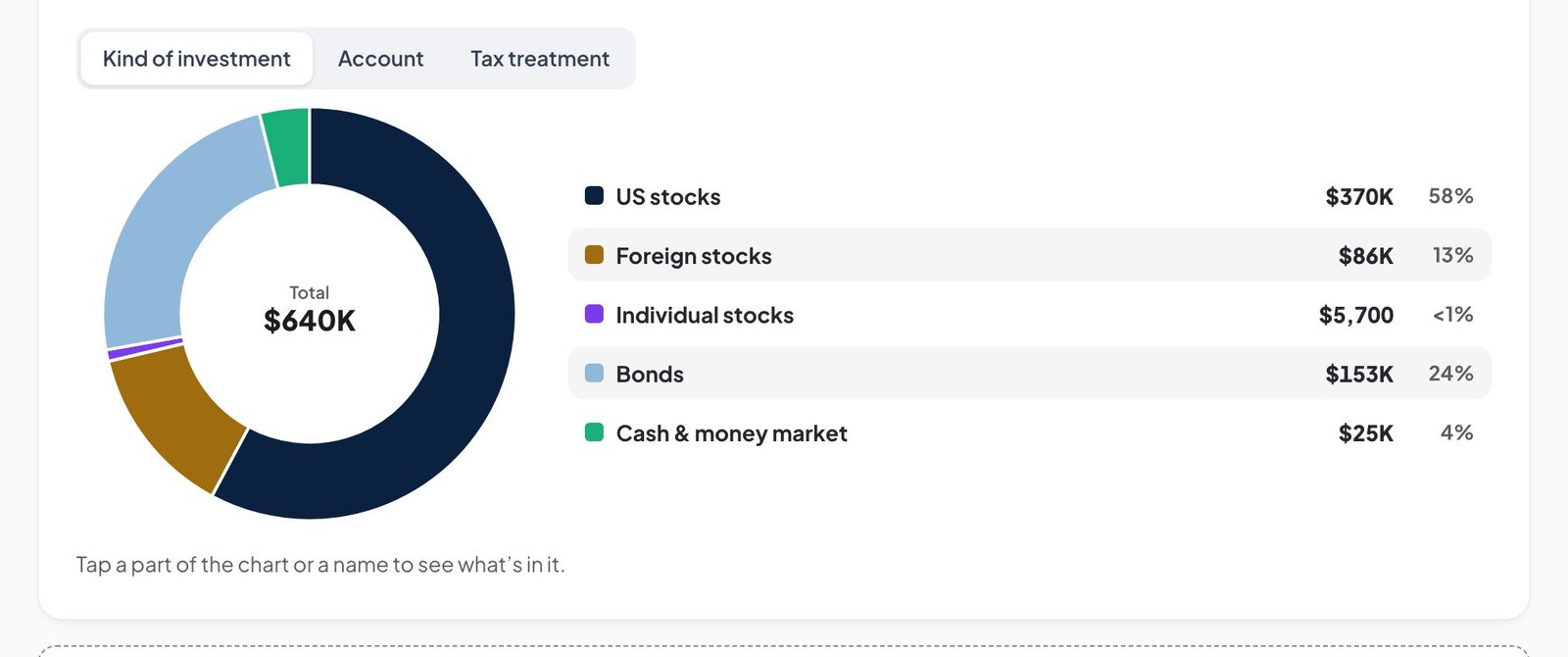
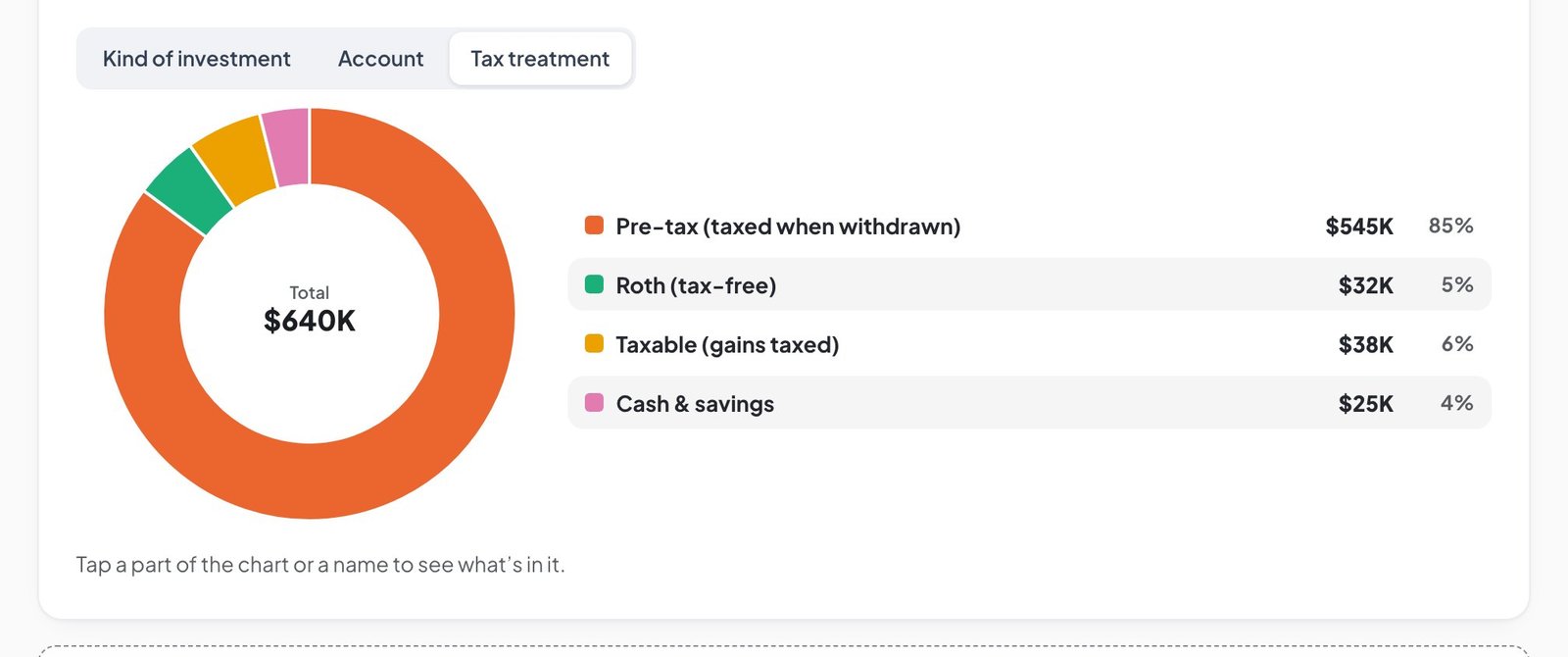
This is the picture of everything you entered. It's also where you manage your accounts from now on. Alex and Sam's five accounts come to $640,000.
Update balances changes every balance in one place. See below.
Your overall mix and risk. Stocks, bonds and cash across all your accounts. The risk profile runs from Very conservative to Aggressive, with a typical year's growth and how far a bad year (1 in 20) could fall.
Adding each year. What all the accounts add each year: $32,960, plus about $5,420 in employer matches, with each person's part. Sam's 8% of pay counts as $4,960, figured from today's pay of $62,000.
Show by. See the same money by kind of investment, by account or by tax treatment.
The pencil opens the account.
The trash button deletes the account.
See what's in an account
Click an account's name or its part of the chart.
You'll see each fund's amount and share, its expected return and its typical swings. The pencil beside a fund opens it directly, to change its share or fee.
The other two views
Kind of investment shows what your money is in. Tax treatment shows how it will be taxed.
Change or delete an account
Change the owner, name, balance or savings. Click the pencil. A finished account opens on its first part, Account. Make your change, then click Save & close.
Add or remove a fund. Click the pencil, then Next: its funds. Use + Add another fund or the trash button, then set the percents again so they total 100%.
Change a fund's percent. Click the pencil beside the fund, as in the picture above. To give it more, lower another fund first.
Delete an account. Click the trash button, or Delete account at the top of the open account. The planner first asks you to confirm, and says the account's balance will be removed from your plan.
Update balances
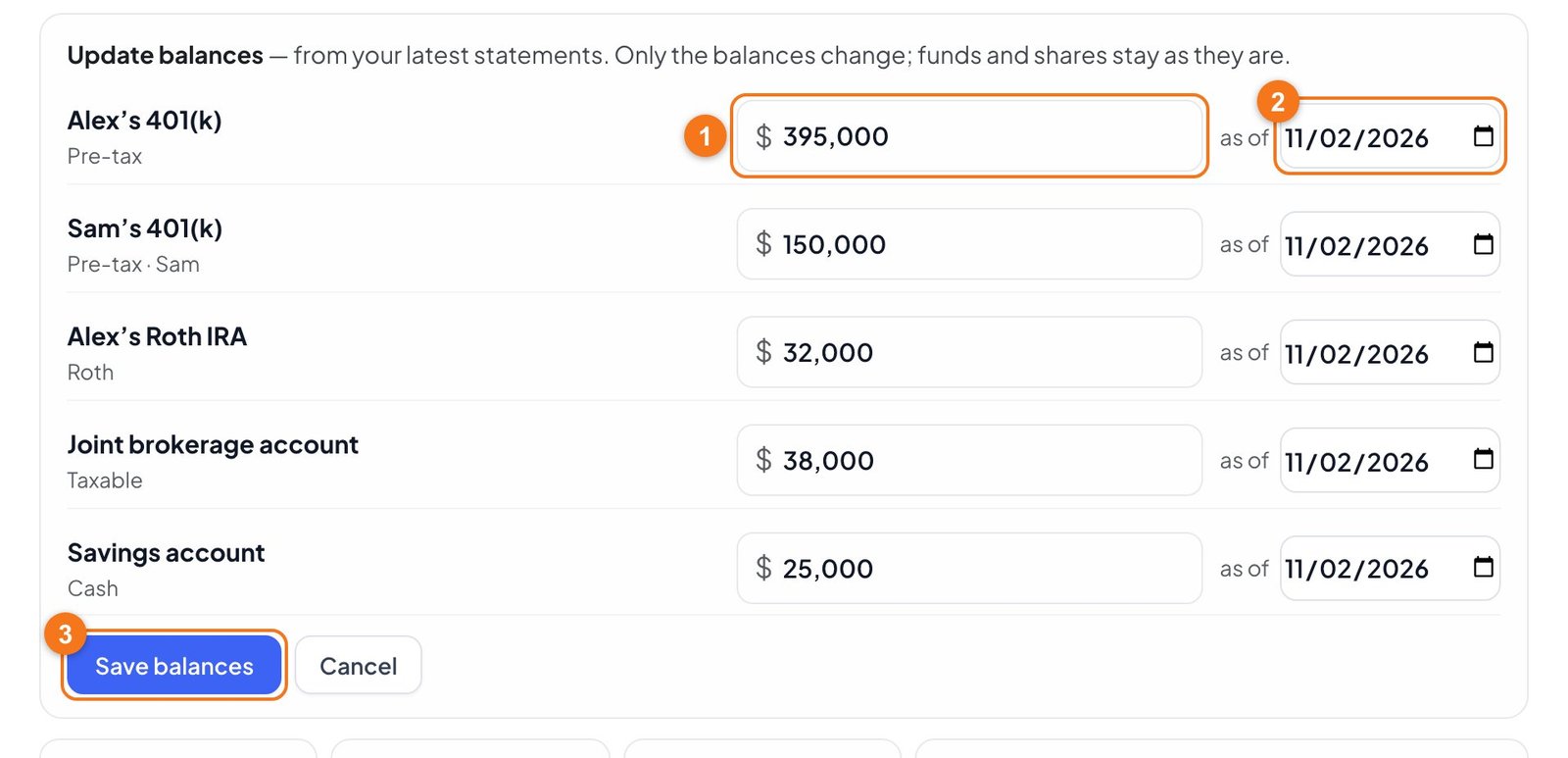
When you have new statements, click Update balances instead of opening each account. If your balances are more than a year old, the planner reminds you.
Balance. Type the new number from your statement.
As of. The date of that statement.
Save balances. Only the balances change. Funds and percents stay as they are.
Needs attention
If you leave an account unfinished, it's listed at the top of All your money, with what's missing.
The pencil opens the account at the part it still needs.
An account with no balance is only a draft and stays out of your plan. An account with money in it has to be finished, or deleted, before your results can run. See If something won't work for each message.
Other ways and other accounts
Paste or read a statement
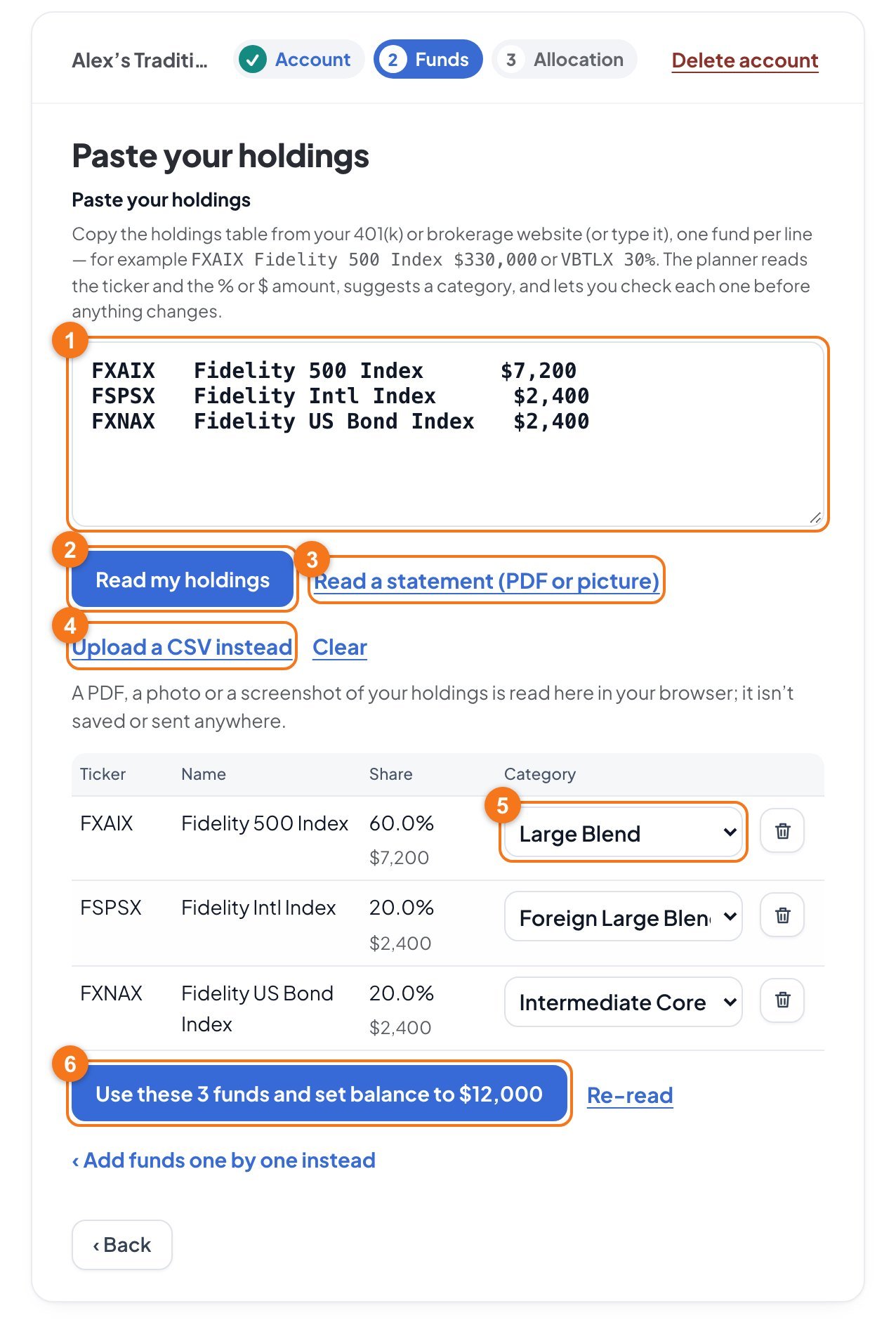
With many funds, you don't have to add them one by one. On the Funds part, click Paste from a statement.
The box. Copy the holdings table from your 401(k) or brokerage website and paste it in, or type it. Put one fund per line, with its ticker and either a % or a $ amount.
Read my holdings reads the box and fills in the table below.
Read a statement (PDF or picture) reads a PDF, a photo or a screenshot of your holdings. It's read here in your browser, and it isn't saved or sent anywhere. Check what it finds, because reading a picture can get a number or a ticker wrong.
Upload a CSV instead reads a spreadsheet file with a header row. It needs Ticker and Category columns, and can also have Name, Expense Ratio % and Allocation %. It replaces the funds in this account, and the planner asks you first.
Category. Check each one. "Best guess" means the planner isn't sure. Use the trash button to drop a line you don't want.
Use these funds adds them. If you pasted dollars, it also sets the balance to their total, and the button says so.
An HSA
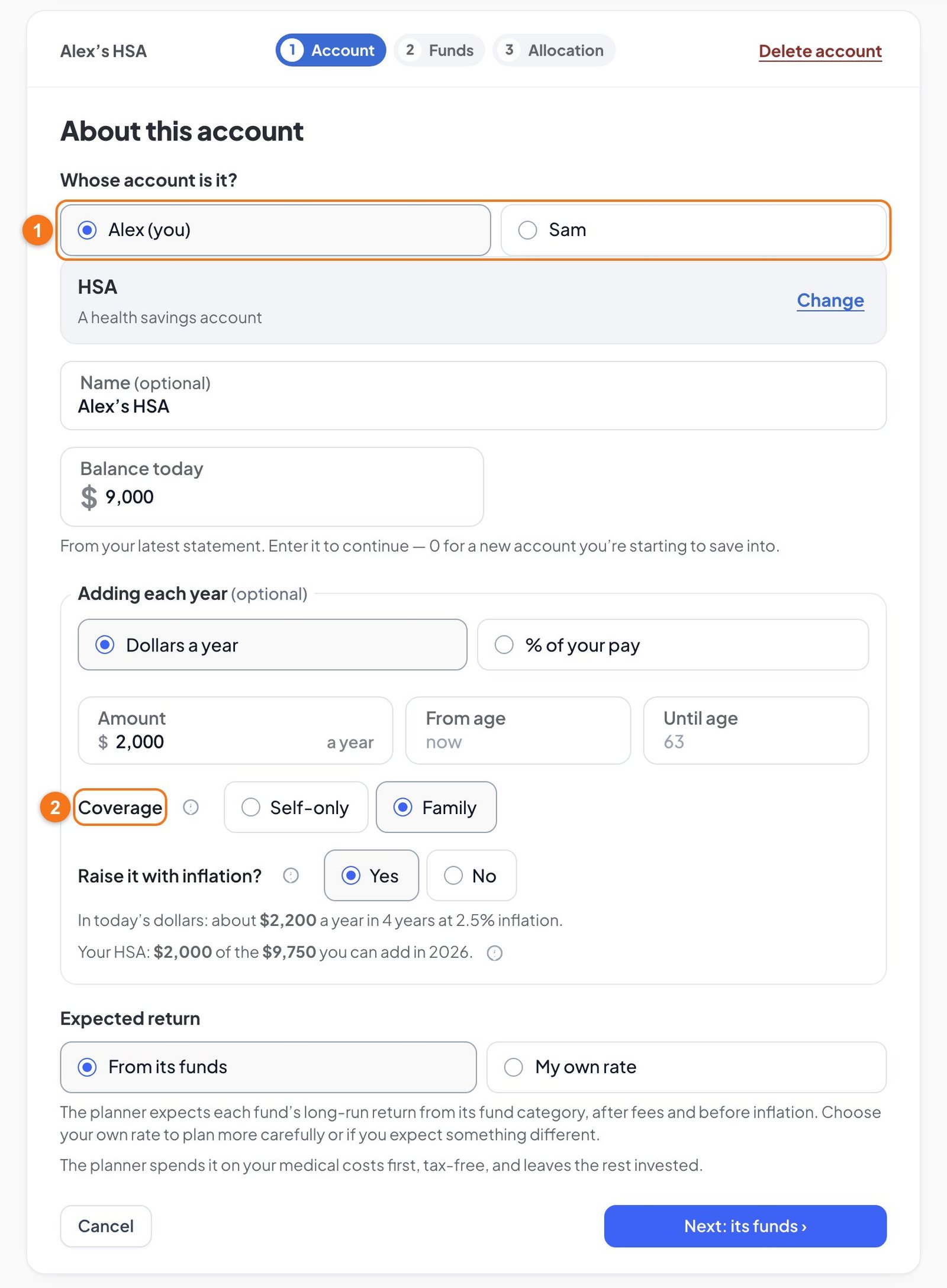
Alex and Sam don't have one, but here's what's different. Click + Add an account, then HSA. It has funds and percents like a 401(k).
Whose account is it? An HSA belongs to one person.
Coverage. Choose Self-only if your health plan covers just you, or Family if it covers you and anyone else. It sets how much the HSA can take each year.
The planner spends an HSA on your medical costs first, tax-free, and leaves the rest invested.
An inherited IRA
This is for an IRA or Roth IRA you inherited from a parent or someone else. If you inherited it from your spouse, most people move it into their own IRA, so add it as a Traditional IRA or Roth IRA instead.
Click + Add an account, then Inherited IRA. You can't add new money to one, so there's no Adding each year.
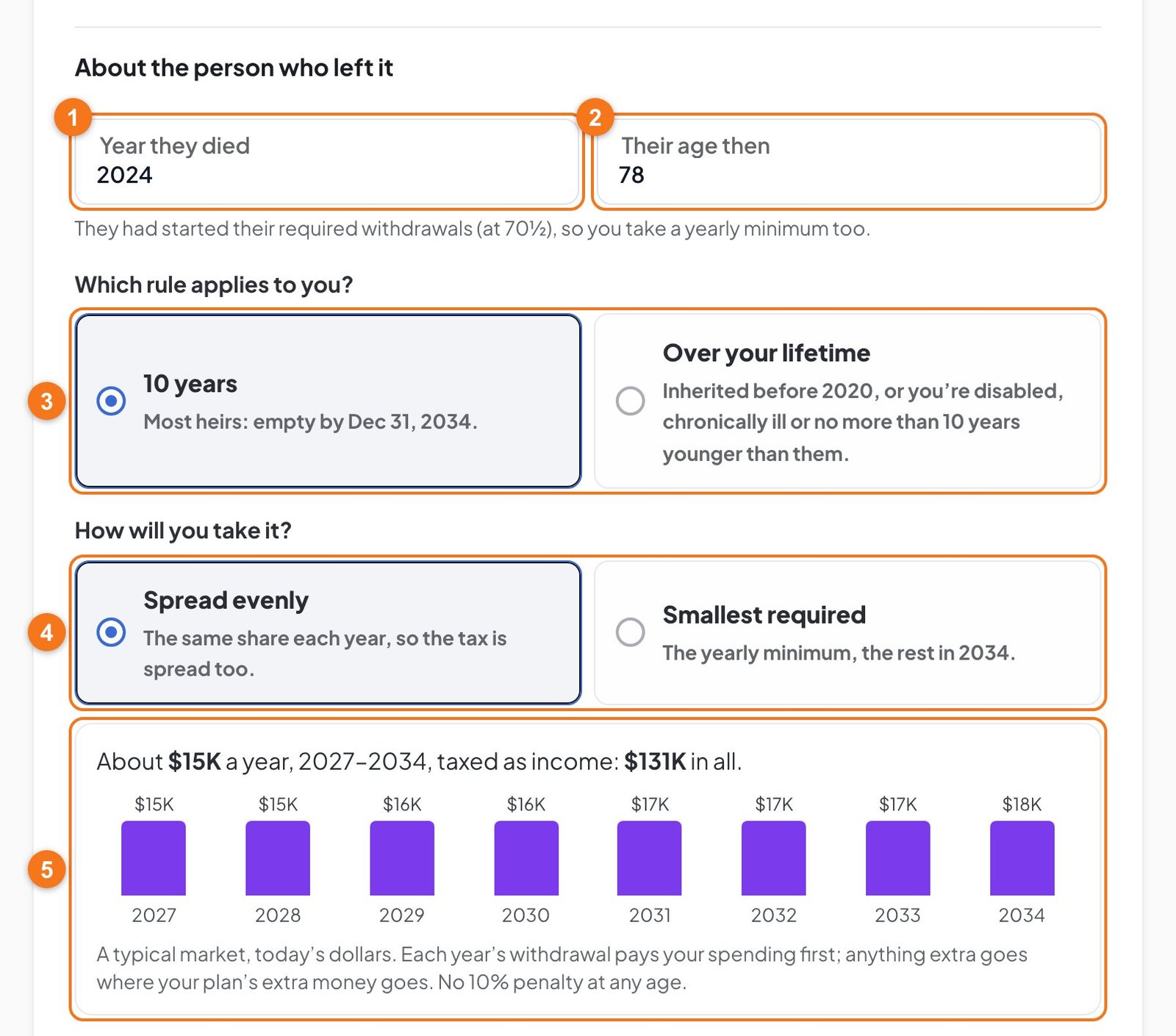
Year they diedRequired This sets the rules and the deadline.
Their age thenRequired Shows whether they'd started their required withdrawals, which decides whether you must take a yearly minimum.
Which rule applies to you?10 years is for most heirs, and the account must be empty by the deadline shown. Over your lifetime is for an IRA inherited before 2020, or if you're disabled, chronically ill or no more than 10 years younger than the person.
How will you take it?Spread evenly spreads the tax too. Smallest required takes the minimum, and can leave one big year for taxes at the end.
The preview shows each year's withdrawal, so you can compare the choices.
To switch between traditional and Roth, click Change to Roth on the line above these fields. The funds and percents then work like any other account.
Any other kind
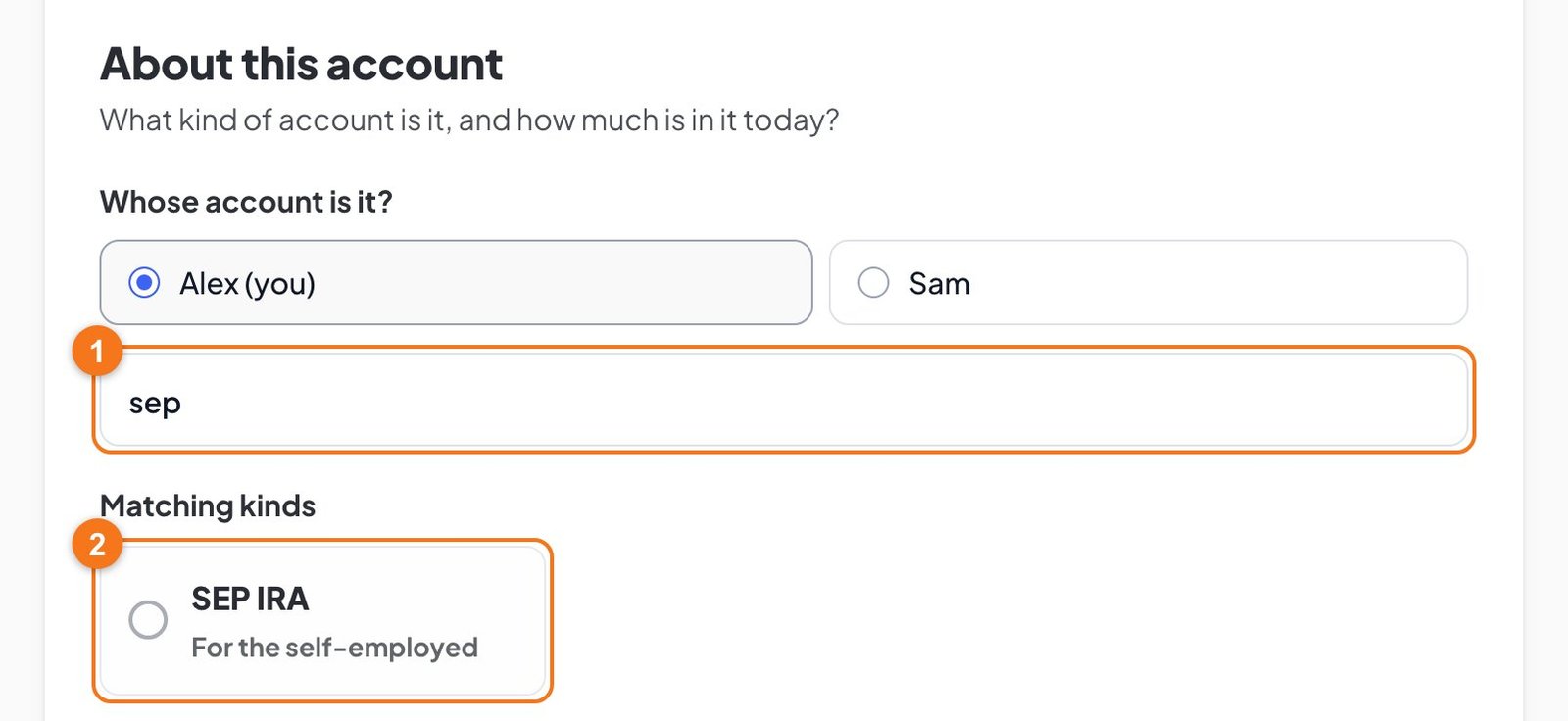
For a SEP IRA, SIMPLE IRA, 401(a) or anything else, click + Add an account, then Other account: search every kind.
Search. Type what your statement calls it.
Pick the match. The rest of the steps are the same.
Help
If something won't work
What you see
What it means
What to do
Next: its funds is gray
There's no balance yet.
Type the balance. For a new, empty account, type 0.
"Enter the balance as a number"
The planner can't read what you typed.
Use a form like 250,000 or 250k.
+ Add this fund is gray
No fund category, a fee it can't accept, or that fund is already in the account.
Choose a category, fix the fee or skip the duplicate.
"… is already in this account"
You added that ticker before.
Skip it. If you hold it twice, add up its shares.
"That's 10% or more a year"
The fee looks too high.
Enter it as a percent. Most are under 1%, like 0.04.
"Yearly fee not entered"
You skipped the fee, so it counts as 0%.
Add it when you set the percents. A stock doesn't need one.
Next: how much in each is gray
No funds yet.
Add a fund, or use I only know my stock/bond mix.
Done with this account is gray
The total isn't 100%, or a fund has no share.
Give every fund a share. Try Split evenly if you're stuck, or remove a fund you don't need.
"Set to 20% — the other funds already use 80%"
You typed more than this fund can hold.
Lower another fund first.
"Needs a balance"
A draft. It stays out of your plan.
Open it and enter the balance, or delete it.
"Add a fund"
The planner doesn't know how the money is invested.
Open it and add a fund or a mix.
"Allocation 80% — set to 100%"
The percents don't add up.
Open it and fix the shares.
"… are both your pre-tax accounts, and one is empty"
Two accounts look like the same one.
If they are, delete one.
A line says you're over the limit
You entered more than that person can add this year.
Lower the amount if it's a mistake. The plan sends the extra to brokerage.
On a phone
It all works the same way. While an account is open, it fills the screen, so you see one thing at a time. In All your money, each account is one line with an edit button, and Delete account is at the top of the open account.